Use the Component Processor to export and import the metadata used to describe each component in your model.
Export and Import CSV Files
Click the four-diamond icon
 on the far-left side of the screen to access the Component Processor.
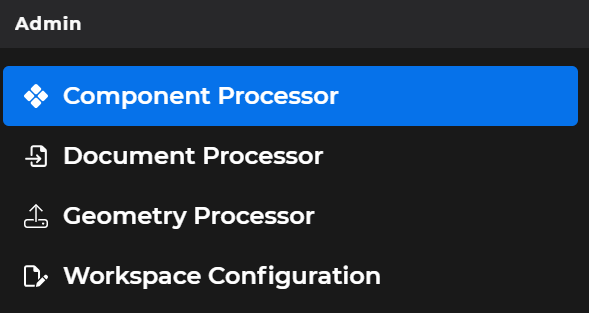
Or select Component Processor in the left-hand navigation pane’s Admin section
Click the
 button at the top of the Process Components screen.
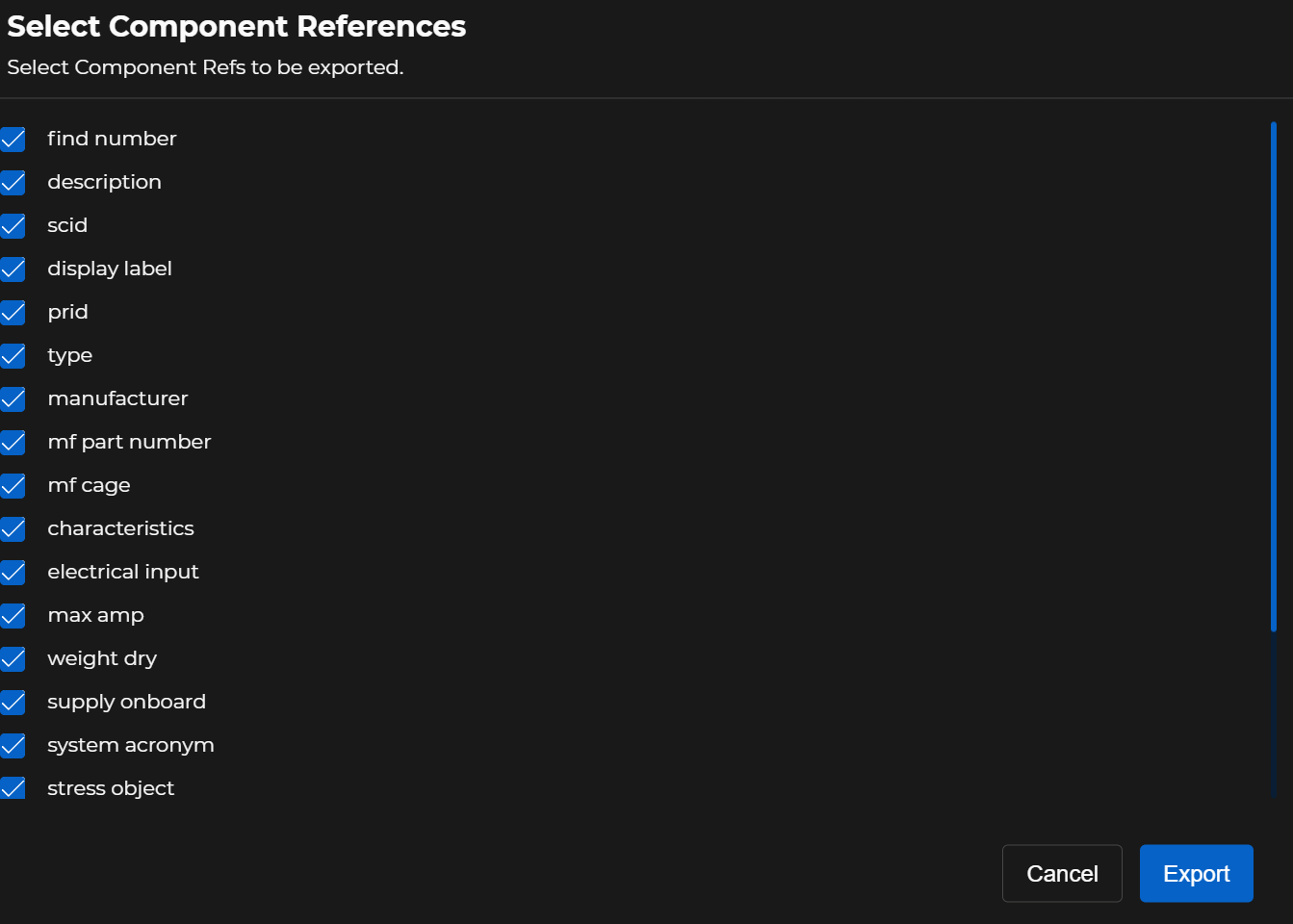
On the Select Component References pop-up window:
Leave all items selected to export all available metadata fields
Or, left click to de-select the metadata item(s) you do not wish to export
Click the
 button on the Select Component References pop-up window.
Upon performing this action:
A successful export notification displays in the lower right corner of your screen

The exported file populates in a Save As pop-up window on your screen
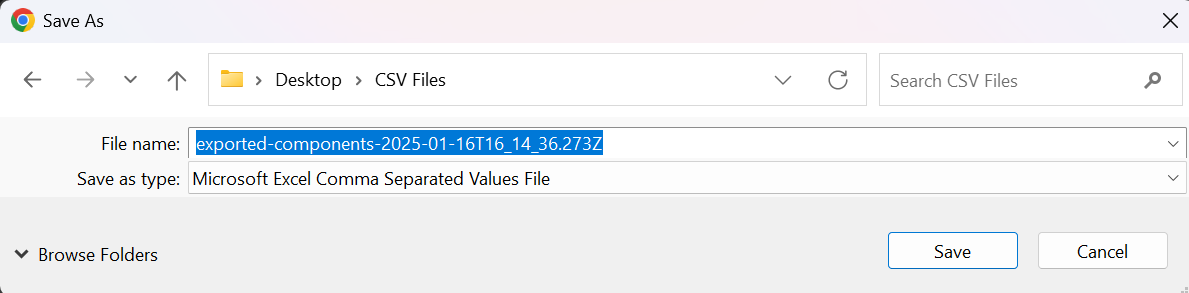
Rename the file if desired, then Save the exported file to your device.
A list of your saved exported files populates in the upper right corner of your screen
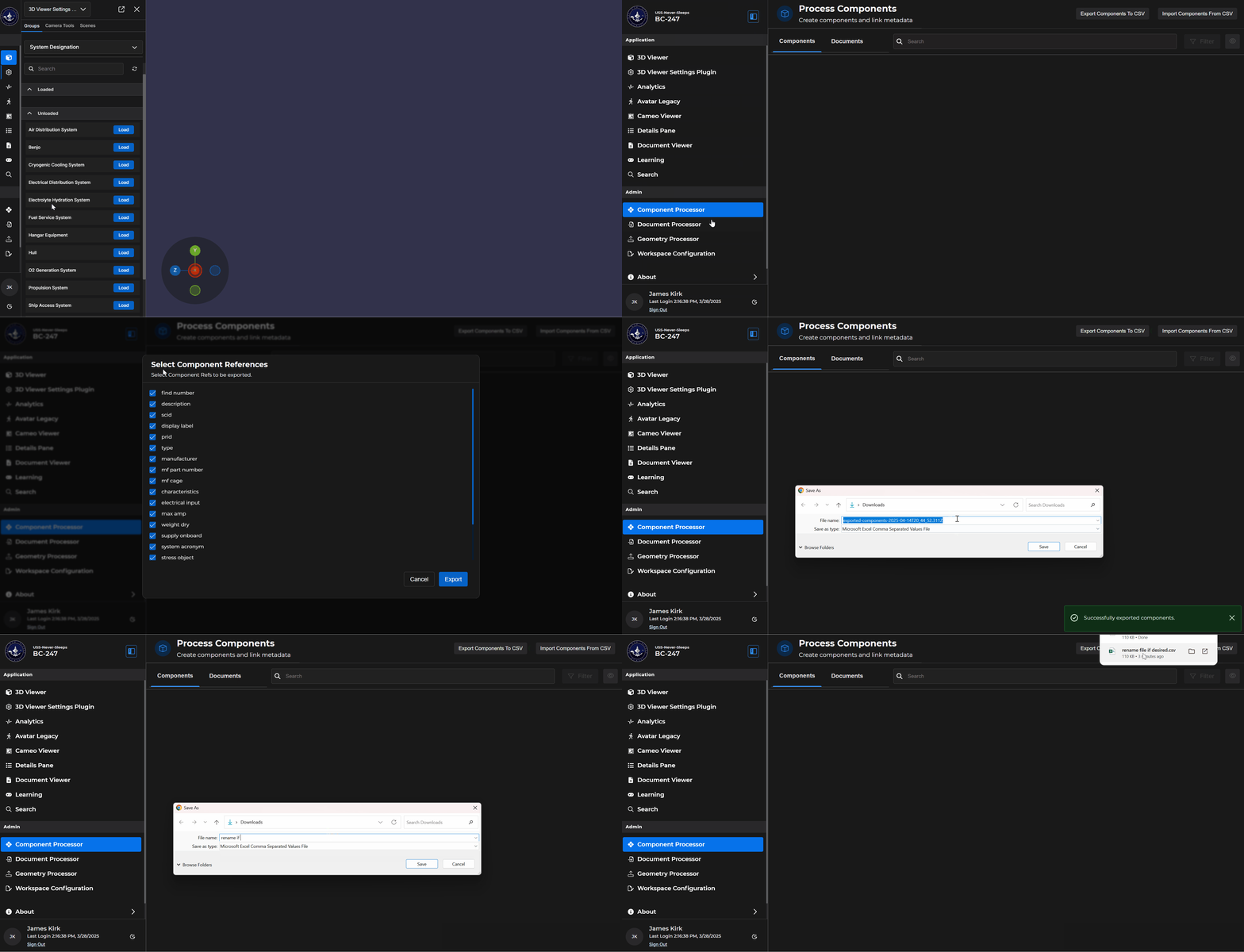
You can now access this CSV file and manually edit any of the information as desired.
Check your work and save your changes.
Return to the Component Processor editing tool and select the
 button in the top right corner of the Process Components page.
In the Open pop-up window, select your modified CVS file to populate the empty file name textbox, then click Open.

A successful import notification displays in the lower right corner of your screen
