Access the Settings tab menu in the upper right corner of the LSV to customize scene or camera settings; manage the Gizmo (X, Y, Z axes graphic); change selection mode and mouse pivot settings; and more.
Access the Settings Menu
Left click the Settings tab in the upper left corner of the screen.
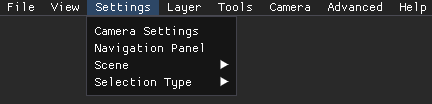
Settings Menu Options
Camera Settings
Select this option to open the Camera Settings pop-up window.
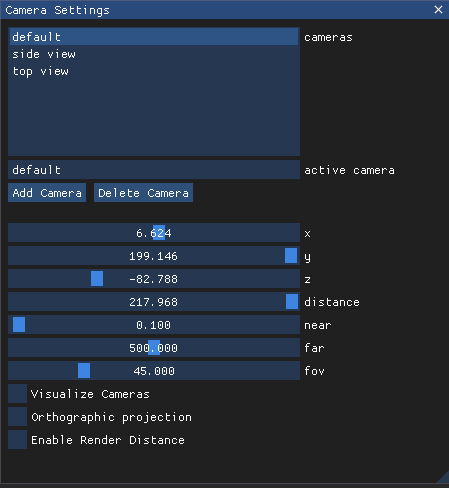
View available cameras
Switch camera Views
Add a camera (or delete a created camera)
Customize rendering distance during camera use
Refer to the Camera Settings (LSV) article for additional information.
Navigation Panel
Select this Settings menu option to open the Navigation Panel pop-up window.
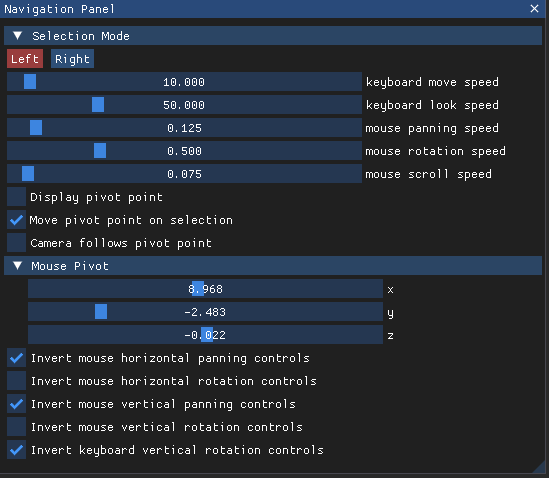
Change to your preferred selection mode and mouse pivot settings
Adjust your mouse rotation, mouse scroll, or keyboard move speeds
Refer to the Navigation Panel Settings (LSV) article for additional information.
Scene
Hover over this Settings menu option to open the submenu.
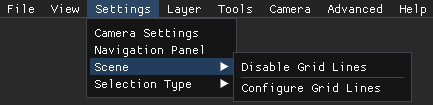
Disable or enable grid lines
Or access the Configure Grid Lines pop-up window to:
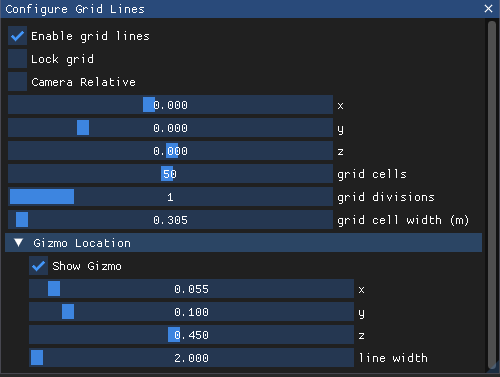
Change the number of grid cells and divisions
Configure grid cell width (in meters)
Configure, hide or show the Gizmo (X, Y, Z axes graphic)
Refer to the Scene Settings (LSV) article for additional information.
Selection Type
Hover the mouse over this Settings menu option until the submenu appears.
Choose your preferred model selection method
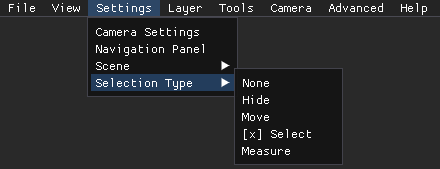
Refer to the Selection Type Settings (LSV) article for additional information.