On the LSV → Search Tools window → Load Sets and Attribute Search tabs, apply additional search filters to a selected layer to create a new sublayer within that layer.
Add a Sublayer via the Search Tools Window → Load Sets Tab
Select an available Platform in the LSV, and add all desired layer(s) to the current Scene.
See the Add Layers to a Scene (LSV) article for more information
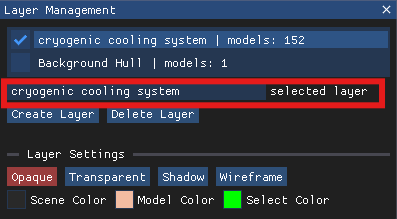
In the Layer Management window, left click on a loaded layer name to select it.
Ensure your desired layer name populates in the selected layer textbox
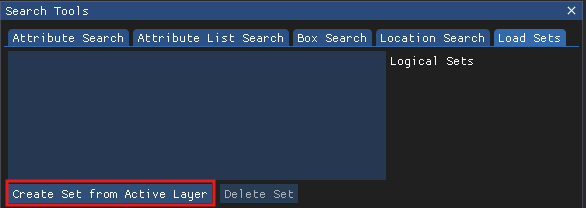
Open the Search Tools window → Load Sets tab.
Left click the Create Set from Active Layer button
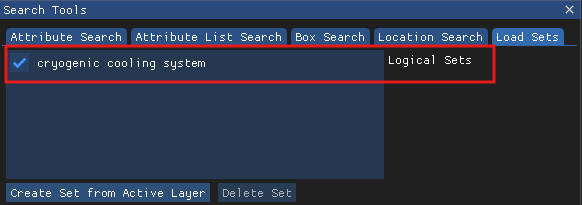
The selected layer name populates in the Logical Sets textbox on the Load Sets tab.
Open the Search Tools window → Attribute Search tab.
Notice your selected main layer is already populated in this tab
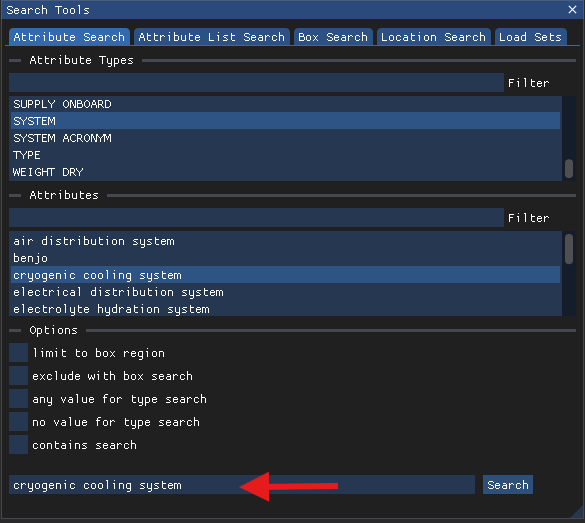
Enter TYPE in the Attributes Types → Filter textbox
Or select TYPE in the provided list below the Filter
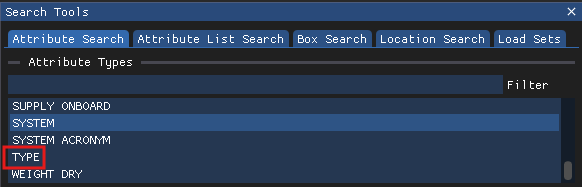
6. Selecting TYPE automatically populates the Attributes section of the the Attribute Search tab with a list of available Attribute values within the selected main layer.
EXAMPLE: If your selected main layer is a System, the listed TYPE attributes will be the Components within that system
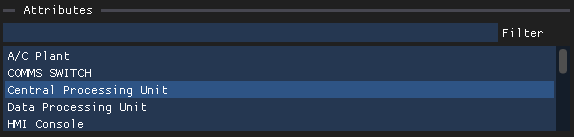
7. Enter a desired attribute value in the Attributes → Filter textbox
Or, left click to select an option from the list below the Filter
8. Left click the
 button at the bottom of the Attribute Search tab.
EXAMPLE
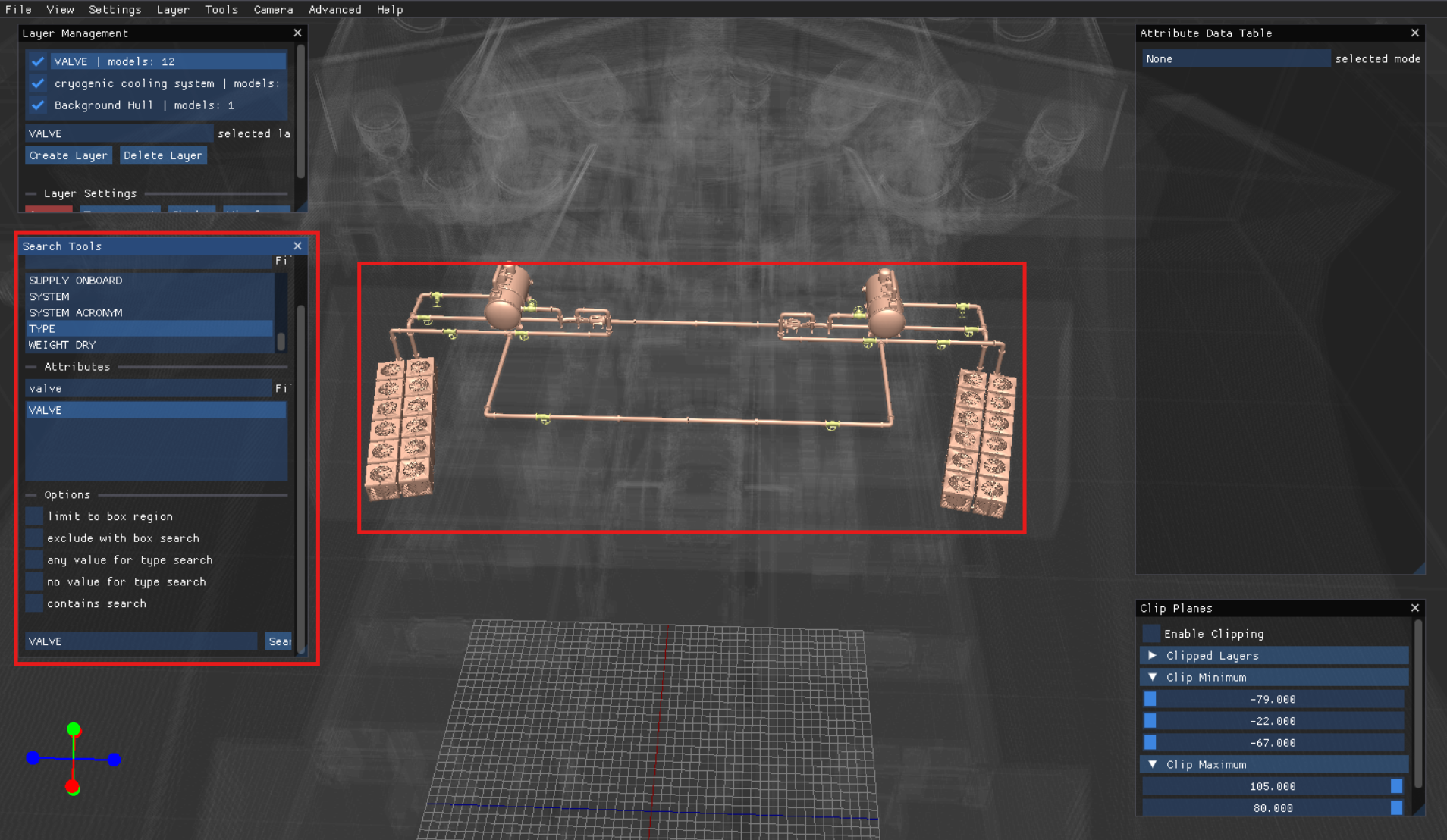
Select VALVE as the desired attribute.
Left click the Search button to create a sublayer of only the valves in your selected main layer.
The new sublayer will overlay the main layer to show the modeled valves in the context of their specific locations within the selected layer.
9. Repeat Steps 7 - 8 to add an additional sublayer to the selected main layer.