Create or select a specific Question Pool, then follow the steps below to create, edit, or delete quiz questions.
Create or Modify Questions
To add questions to a specific Question Pool:
Select
.png) to the far right of the screen.
to the far right of the screen.
A new screen appears with the Question List to the left and an editing section to the right
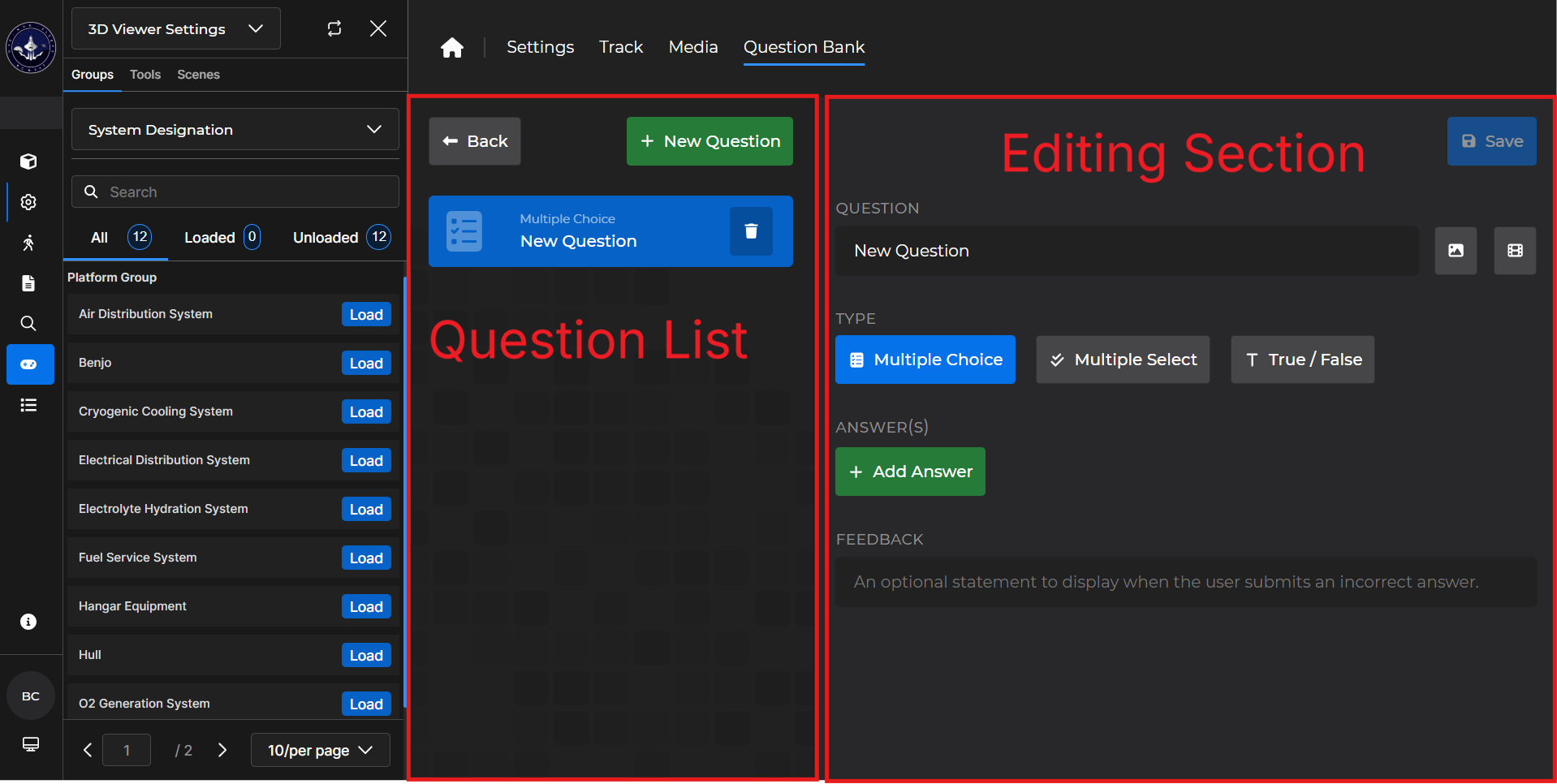
Enter a question you want to include in this Question Pool.
End questions with a question mark
End fill in the blank statements with a period
Choose the Type of question you want to include in this Question Pool.
Multiple Choice provides 1 correct answer among possible responses
Multiple Select provides 2+ answers among the possible responses
True/False provides 1 correct answer, either true or false
Underneath the Type of question,
.png) (s) the student can choose from.
(s) the student can choose from.
Only Multiple Choice and Multiple Select type questions have the option to add answers
You must select the correct answer(s)
You can add images or video to the questions, as desired
Optionally, you can add a feedback statement a student will see after submitting an incorrect answer.
Select
.png) .
.Repeat Steps 2-6 until you have populated the Question Bank with the desired number of questions.
NOTE
To add additional questions to this Question Pool while on this screen, select
to the left.
returns you to the Question Pool page.
.gif)
To edit existing questions:
In the Question List, left click the question you want to modify.
Edit accordingly and select

.gif)
To delete existing questions:
In the Question List, left click the question you want to delete.
You can also
 delete answers in Multiple Choice and Multiple Select questions from this screen
Select the
 trash icon.
.gif)
NOTE
Please see the Question Pools article for more information.