Choose the Attribute List Search option on the LSV Search Tools window to bypass all search filters and perform a manual search for desired attributes. Left click the Attribute List Query button to load your selected attributes into the current scene.
Attribute List Search
(Manually Add Multiple Attribute Layers or a Combined Layer)
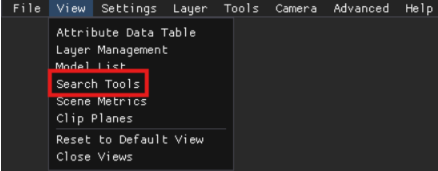
If not already open, access the Search Tools window in the View menu in the upper left corner of the screen.
Left click the
 tab in the Search Tools window to access a large textbox ready for manual entries.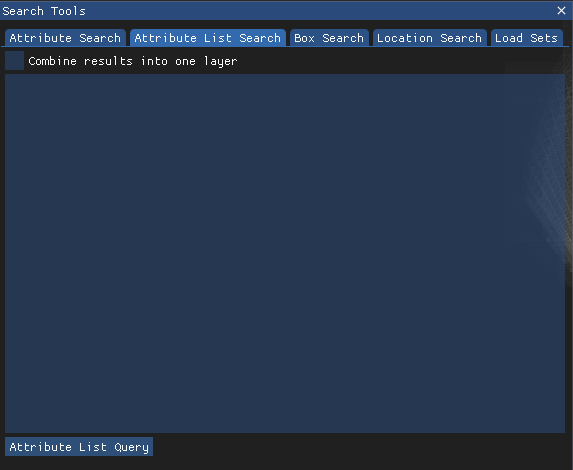
Left click to place your cursor in the textbox, then type the first desired Attribute name
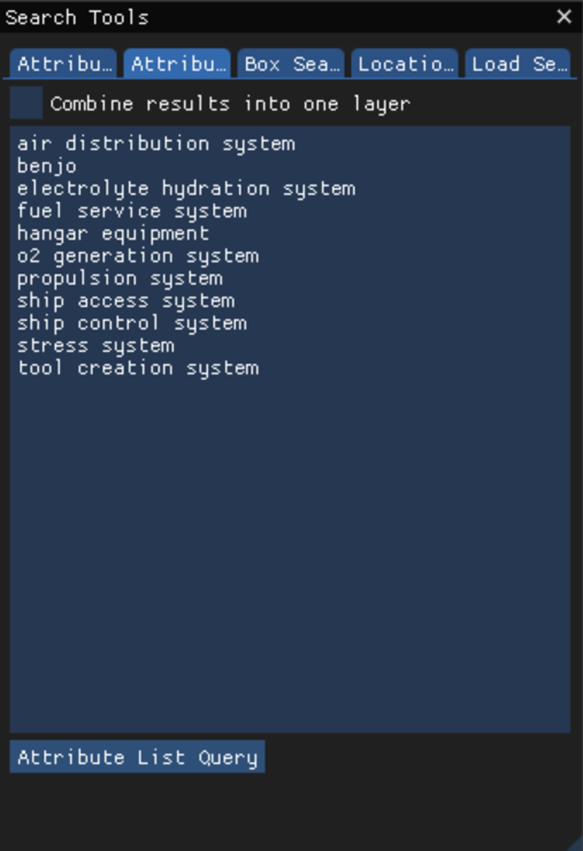
Press the enter key, then type the next desired attribute name
Continue entering one attribute name per line until your list is complete
IMPORTANT
Attribute names are case sensitive. Enter your desired attribute names exactly as they are formatted and stored in the LSV.
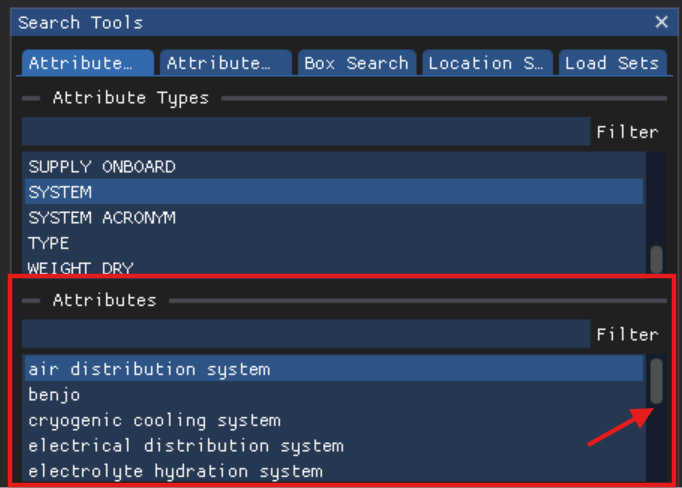
When unsure, doublecheck attribute name formats on the Search Tools → Attribute Search tab by:
Left clicking a desired option in the Attribute Type list
Scrolling through the resulting entries in the Attributes list
Next, decide if you want to load each of your listed attributes as separate layers or as one combined layer.
Leave the Combine results into one layer select box unchecked to create a separate layer for each listed attribute
Or left click this select box to load all listed attributes into a single layer

Load your listed attributes into the current scene by left clicking the
 button in the lower left corner of the Attribute Search List tab.
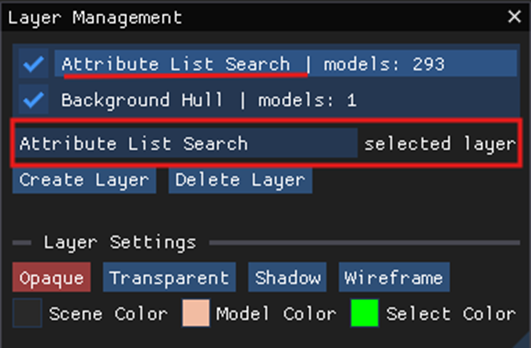
View, customize, and manage your loaded layer(s) in the Layer Management window.
NOTE
If you elected to combine your listed attributes into a one layer, that layer name will be Attribute List Search in the Layer Management window.
BEST PRACTICE: Change this layer name to something more recognizable in the editable selected layer textbox.