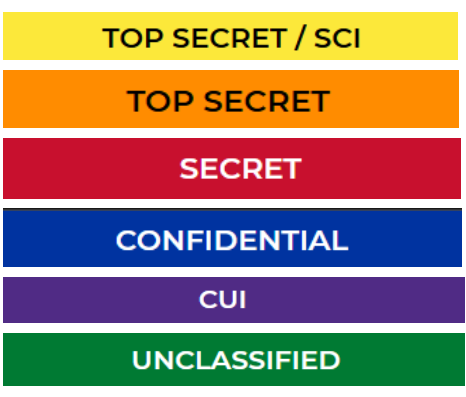
The Banner page in the Beast Core 6 Workspace Configuration plugin allows users with Admin access to add a Classification banner to indicate a workspace’s security level, configure a Custom banner, or hide the banner feature. Banners display at the top and bottom of the user’s screen.
How to Configure Banners
Left click the far left page with pencil
 icon.
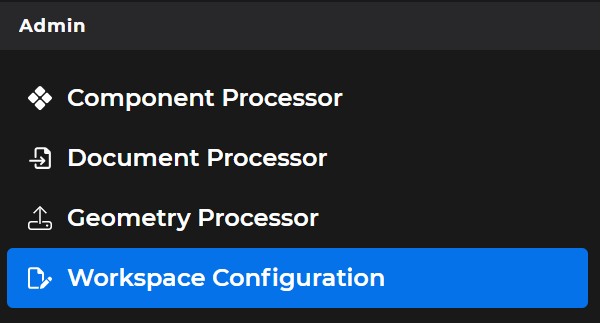
icon.Or select Workspace Configuration in the Admin section of the left-hand navigation pane
Select the Banner page tab on the main screen Config Editor window, which opens in the Custom Banner Type view.
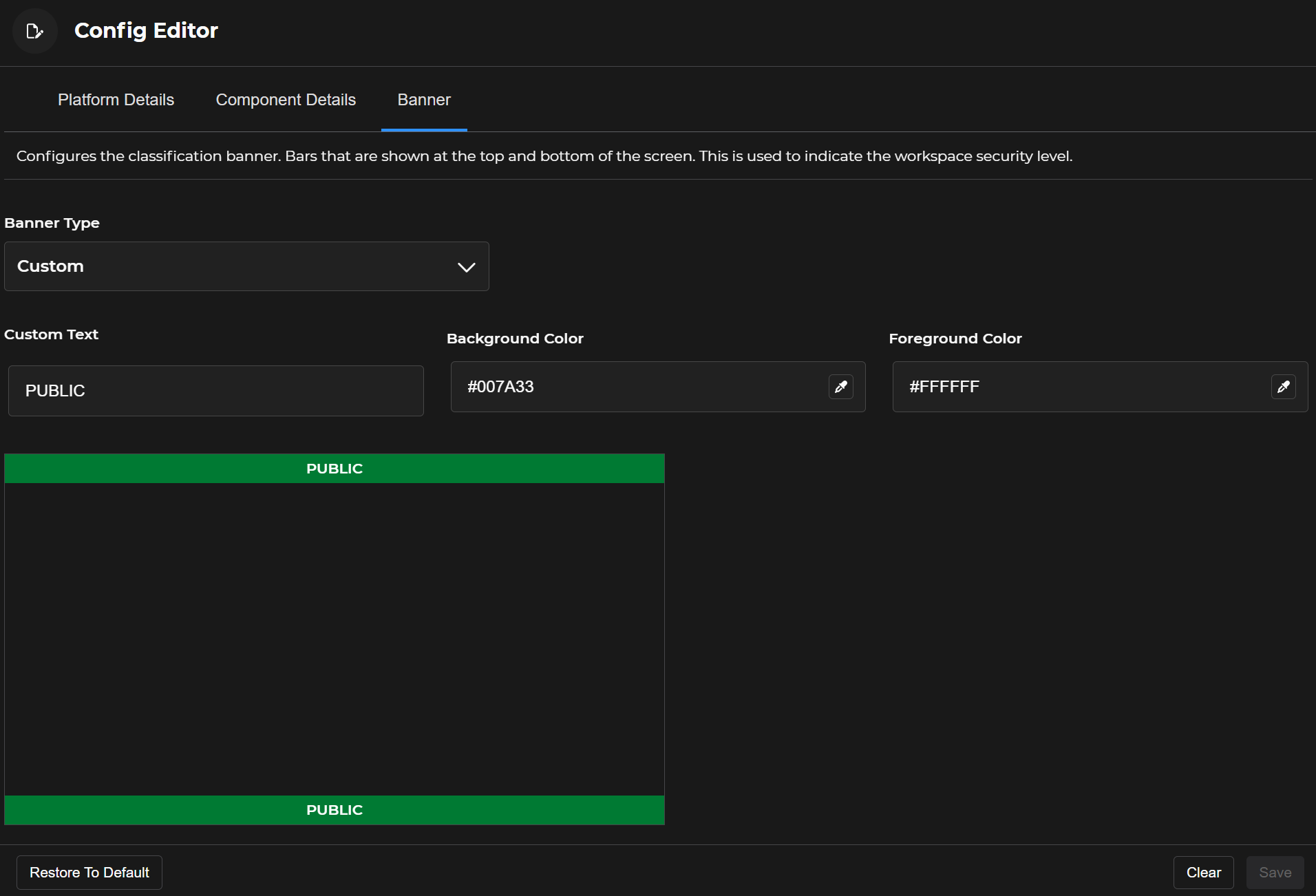
To create a Custom banner:
Add the Custom Text first
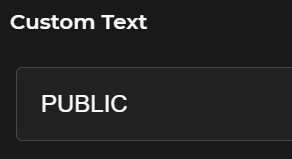
Then left click the small
 eyedropper icons (inside the Background Color and Foreground Color fields) to customize your banner
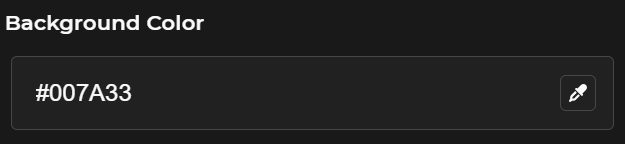
Background color textbox- Displays the Hex Color Code of the full banner’s highlight color
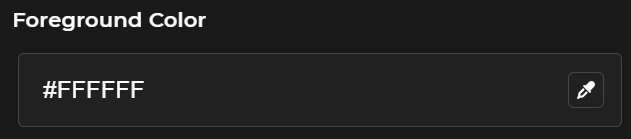
Foreground color textbox - Displays the Hex Color Code of the written text within the banner
Example customized banner:

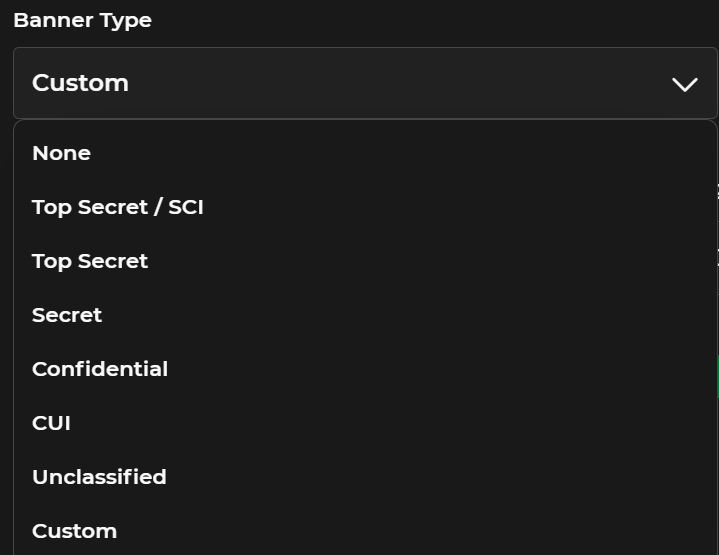
Left click the down arrow below the Banner Type field to view available Classification banner options or to select the None (no banner) option.
NOTE
The default background color for each available security Classification banner option aligns with the U.S. military’s designated color assignment for that security level.