Access the LSV Layer Management window to highlight a selected layer and show all other loaded layers in gray.
Highlight a Loaded Layer
To highlight a layer in the loaded scene:
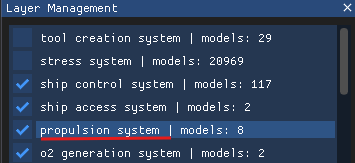
Double left click on a checked layer’s name (instead of its select box) in the Layer Management window.
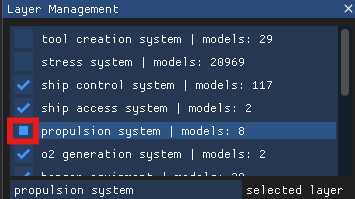
The checkmark in that layer’s select box changes to a square icon (indicating highlight mode).
The corresponding layer in the loaded scene displays in a dynamic color, while unhighlighted layers display in gray.
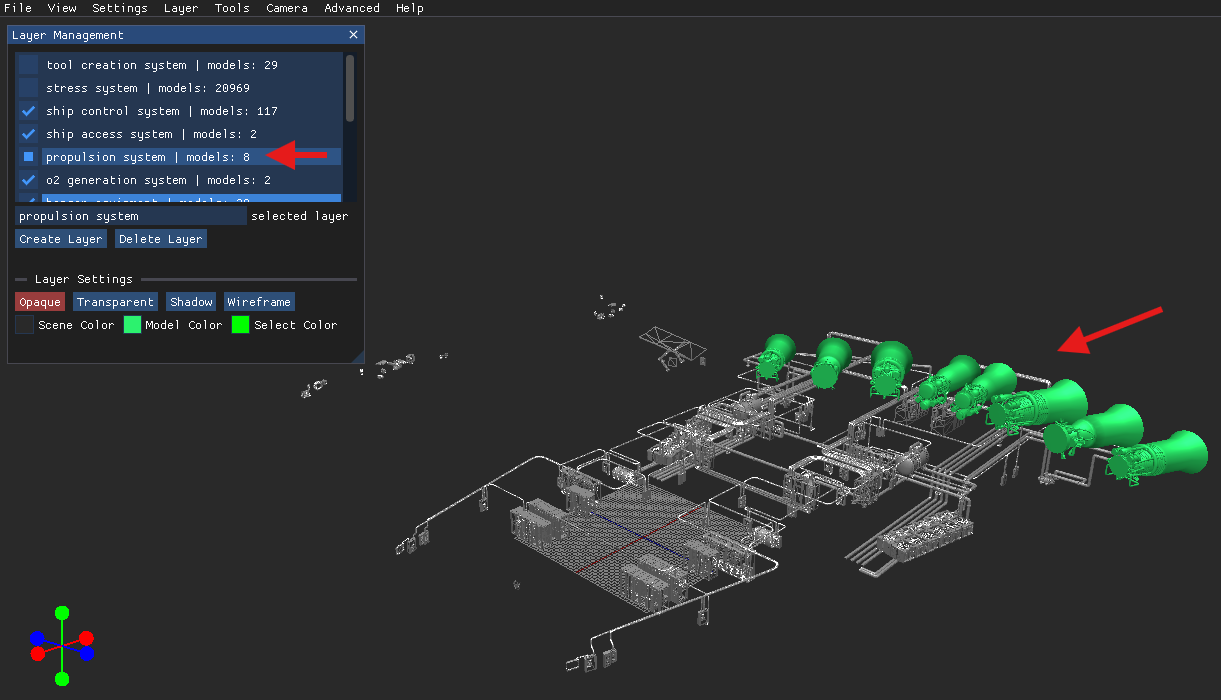
Whenever one listed layer in the Layer Management window displays the square (highlight mode) icon, you can single click other layer names to highlight them, one at a time, in different dynamic colors in the loaded scene.
.gif)
To exit highlight mode, left click the select box with the square icon to change it back to a checkmark.
The loaded scene dynamically changes to show all loaded models in color