Choose the Location Search tab on the LSV Search Tools window to search for attributes within a set distance of a specifically selected model or to use the camera to determine the render.
Perform a Location Search
Left click the
 tab on the Search Tools window.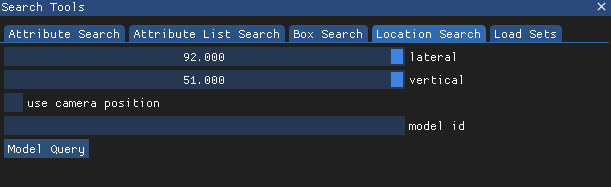
Automatically populate the model id textbox by left clicking a desired model within the loaded Scene.
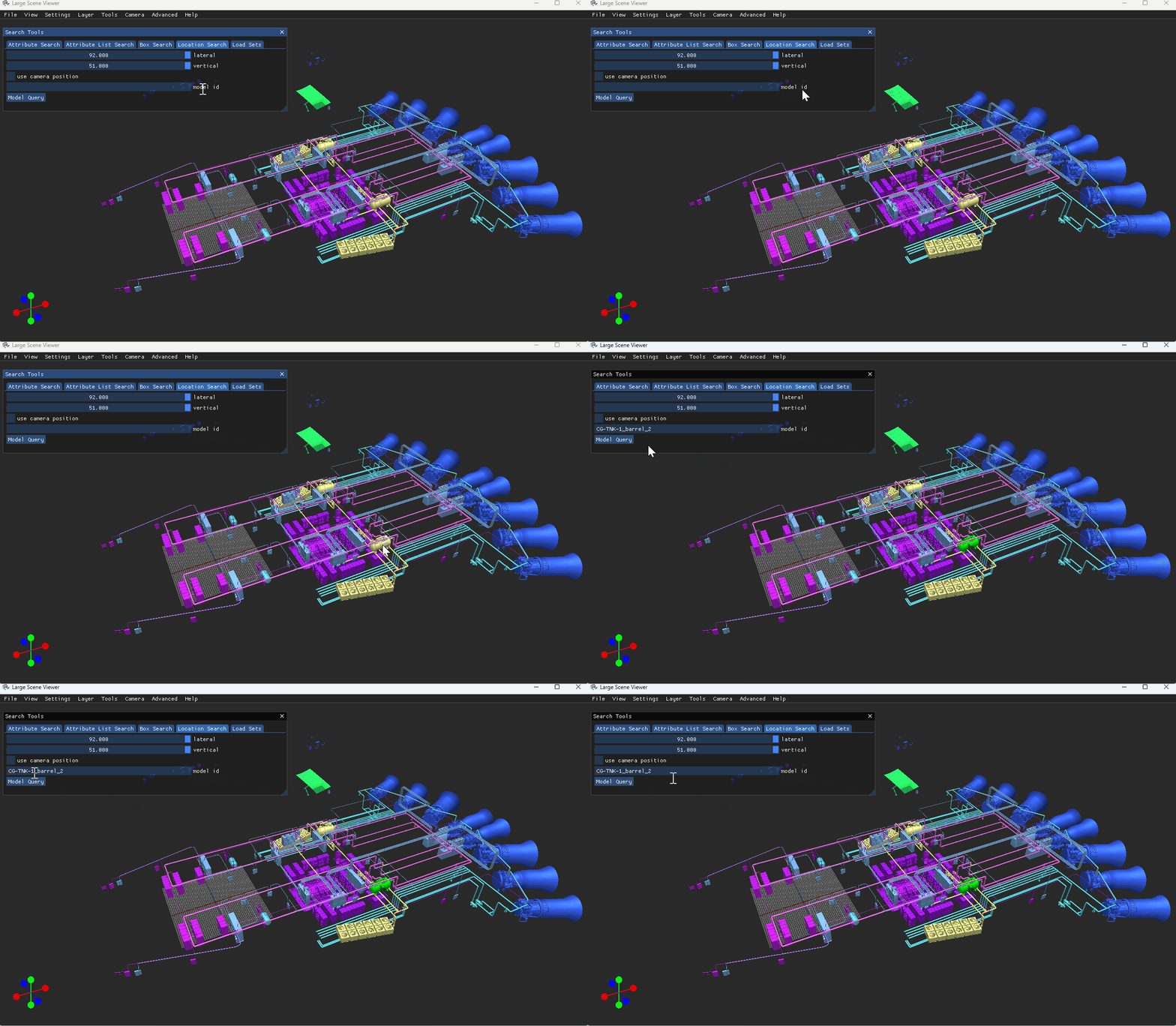
Or left click to place your cursor in the model id textbox and manually type a desired model number
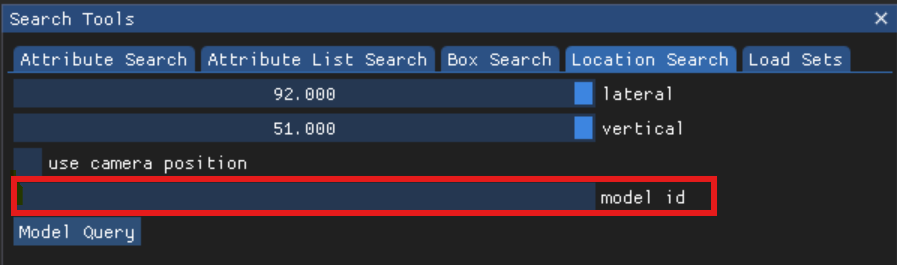
Left click and drag the lateral and vertical sliders to determine the search distance (in meters).

Or left click inside a slider textbox, press the tab key, backspace to delete the current value, and type a distance value manually
This location search will either be a:
Model Query - Based on the distance from the selected model
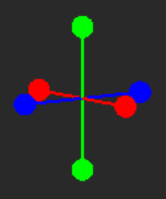
Or Location Query - Based on the X, Y ,Z axes positions on the Gizmo graphic at the bottom of the scene
Model Query
Complete Steps 1 - 3 above, then left click the
 button to load the Attributes within the search distance of your selected model into a single layer.
Location Query
Complete Steps 1 - 3 above, then left click to check the  select box to allow the camera position to determine the render.
The lateral and vertical selection will be from the current camera position and will load any model within the specified distance
NOTE
Checking the use camera position select box simultaneously hides the Model Query button and brings the update automatically select box and the Location Query button into view.
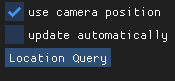
Left click to check the
 select box to auto load the models as the camera moves
The layer will dynamically change during camera movement based on the lateral and vertical render distance
NOTE
Checking the update automatically select box brings the auto load distance slider into view.
Click and drag this slider to determine render distance as the camera moves

Left click the
 button to load the layer