Use the Component Processor editing tool in Beast Core 6 to access an editable version of a specific component’s Details Pane when you want to make minor modifications to that component’s metadata.
NOTE
Exporting component metadata to a CSV file, adding your modifications, and importing the CSV file to the Component Processor is the most efficient way to make metadata modifications for multiple components.
Modifying Component Metadata on the Details Pane
Click the four-diamond icon
 on the far-left side of the screen to access the Component Processor.
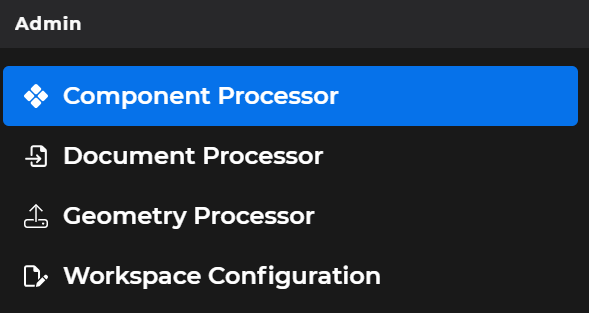
Or select Component Processor in left-hand navigation pane’s Admin section
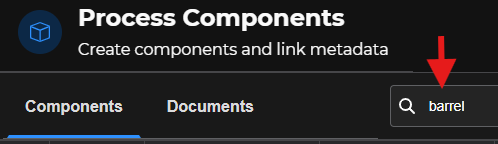
Type a keyword into the Component Processor’s Search textbox on the Process Components screen.
Locate the specific component that needs minor data modification(s) in the displayed search results table.
Or, type in a different keyword to continue your search
Left click anywhere within the table row that identifies the component you want to modify.

This action opens an editable Component Processor Details Pane for your selected component
NOTE
This pop-up window opens between the main screen and the left-hand content or navigation pane.
Modify your selected component’s metadata directly on the editable Details Pane.
All changes save automatically in real time
A successful edit notification displays in the lower right-hand corner of your screen to confirm the changes

Details Pane edits made prior to exporting component metadata to a CSV file will be included in that exported file

NOTE
The regular Details Pane that opens in the left-hand content pane when you select the Show Component Details option on the Action Menu is read-only and may not be edited.