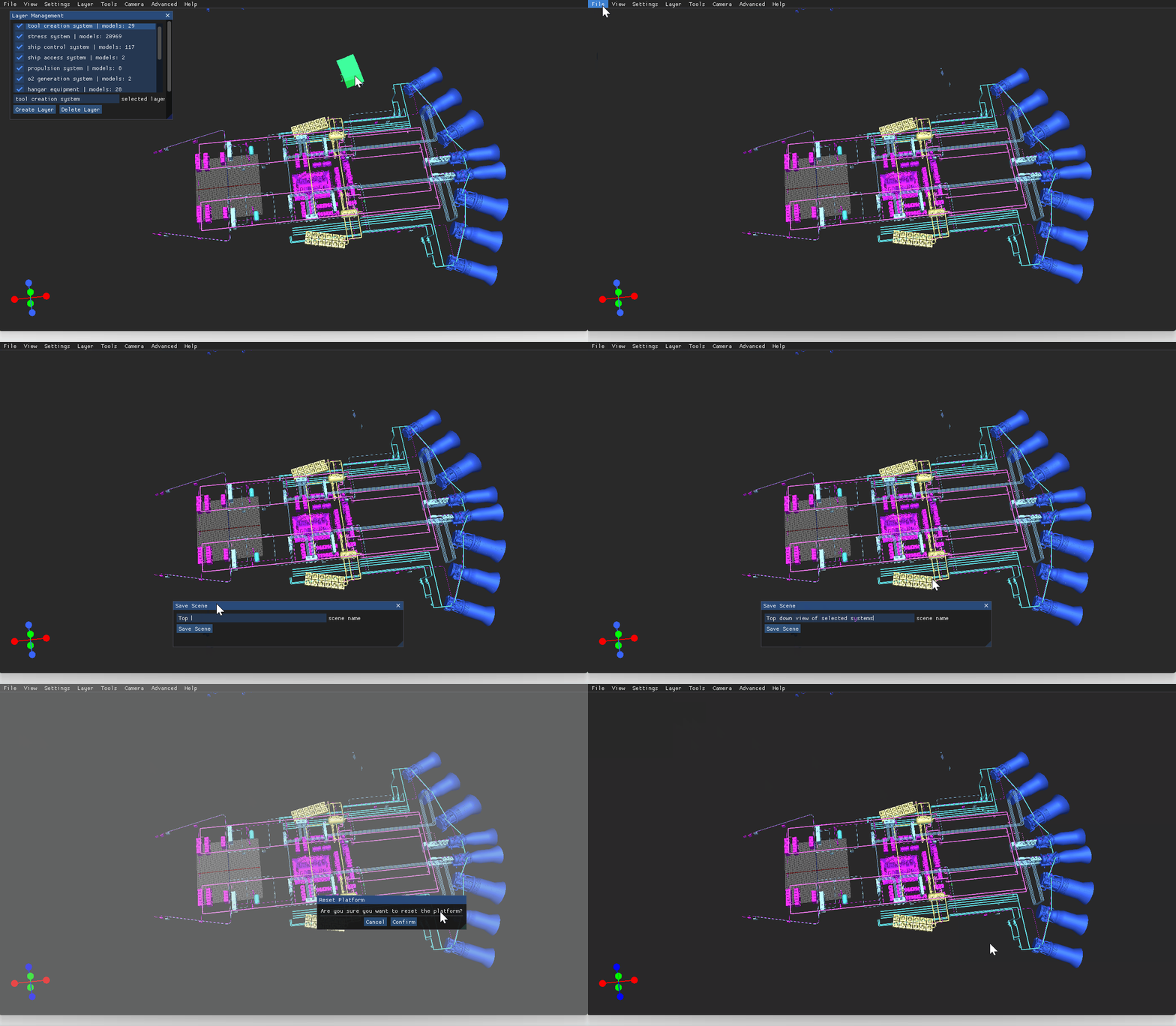
The timesaving Save Scene feature in the LSV allows you to configure and name a library of scenes for later use. Save the current scene configuration or load a previously saved scene via the File menu.
Save a Scene
Load your desired layers and configure your current Scene as desired.
Refer to the Scene Settings (LSV) article for more information about configuring and customizing a loaded scene
Left click the View menu tab in the upper left corner of the screen, then left click the Save Scene option.
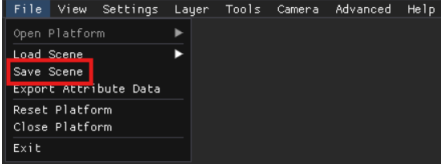
Enter the desired file name in the Save Scene pop-up window, then left click the
 button.
The file path for the saved scene = Platforms > Model name > Save > (Saved scene name)
Load a Previously Saved Scene
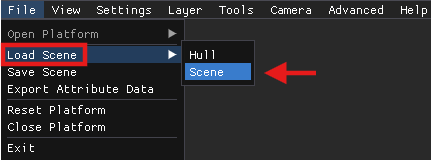
Left click the View menu tab in the upper left corner, then hover the mouse over the Load Scene option until the submenu appears.
Left click the Scene option
On the Load Previous Session pop-up window:
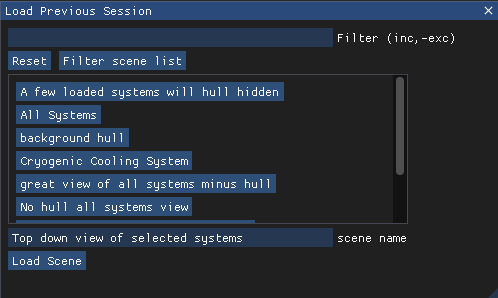
Left click to select a desired scene name
Or type a keyword into the provided Filter textbox

Ensure the scene name textbox contains your desired scene

Left click the
 button
The selected scene displays in the viewer.
In the exact configuration you saved in an earlier Session