Use the 3D Viewer card to change the active environment to the 3D Viewer and to select the systems and settings you desire to display.
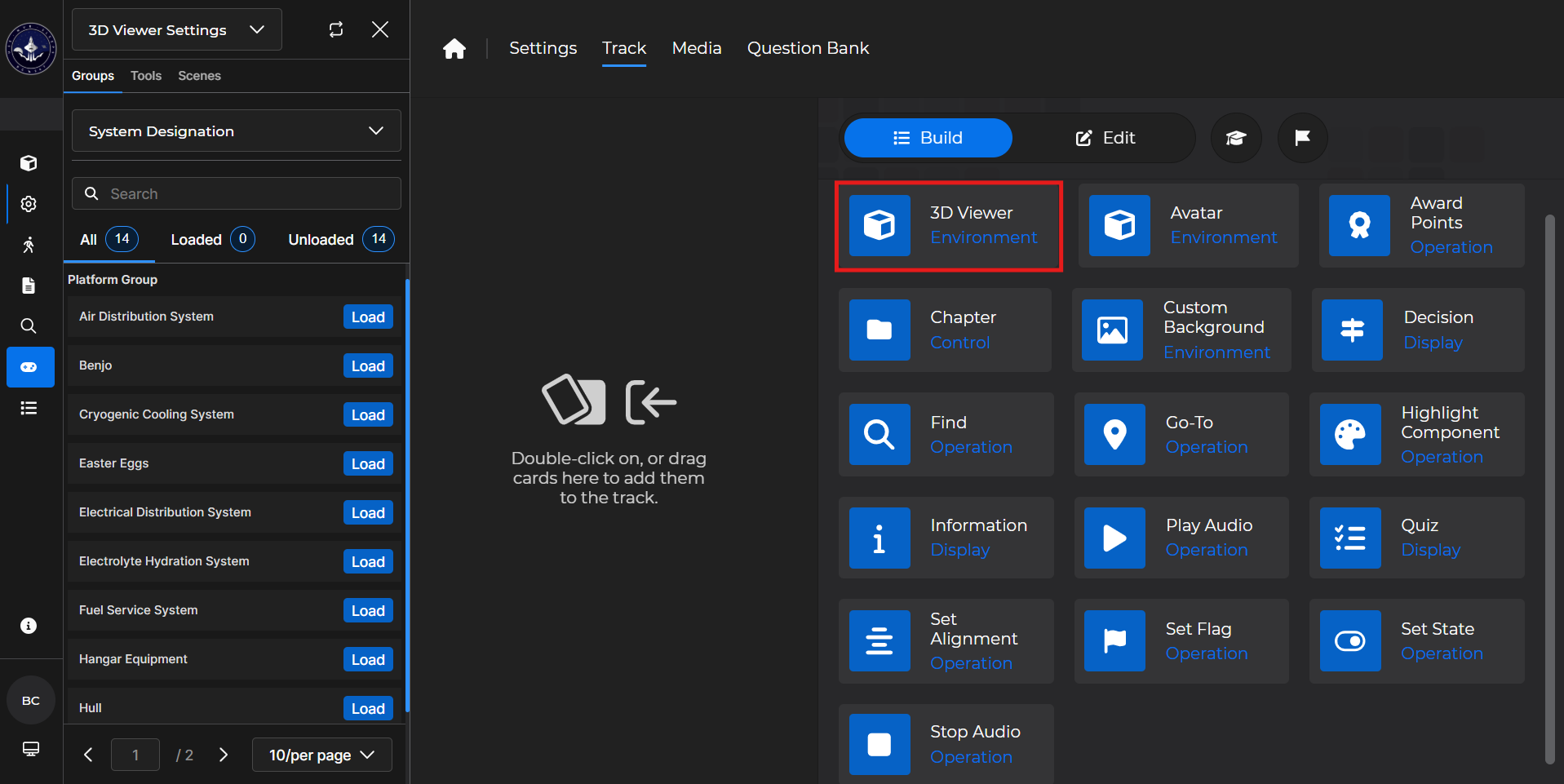
Building the Card
To add the card to the lesson track:
Left click and drag the card to the track
OR double click the card to add automatically
(1).gif)
To begin editing:
Left click the card on the track and then left click

OR double left click the card on the track to open editing automatically
(1).gif)
In the editing window, you can:
Toggle desired systems to visualize in the lesson
Adjust the Viewer Speed
Adjust the Hull Opacity
(1).gif)
Note
See the 3D Viewer section of the Knowledge Base to learn more about that plugin:
3D Viewer Card - Use Case
One popular use of the 3D Viewer card is to allow a learner to visualize specific system(s).
Example: Follow the steps below to show a 3D model of the Cryogenic Cooling, Fuel Service, and Propulsion systems in your lesson:
Toggle the Cryogenic Cooling System, Fuel Service System, and Propulsion System into the on position
 .
.Adjust the Hull Opacity to a desired amount.
Select
 .
.Optionally
 the card.
.gif)
NOTE
Once your card is set up appropriately, click and drag to position it in the lesson track.