Custom Background cards allow you to change the background environment to a solid color, an uploaded image, or a combination of both.
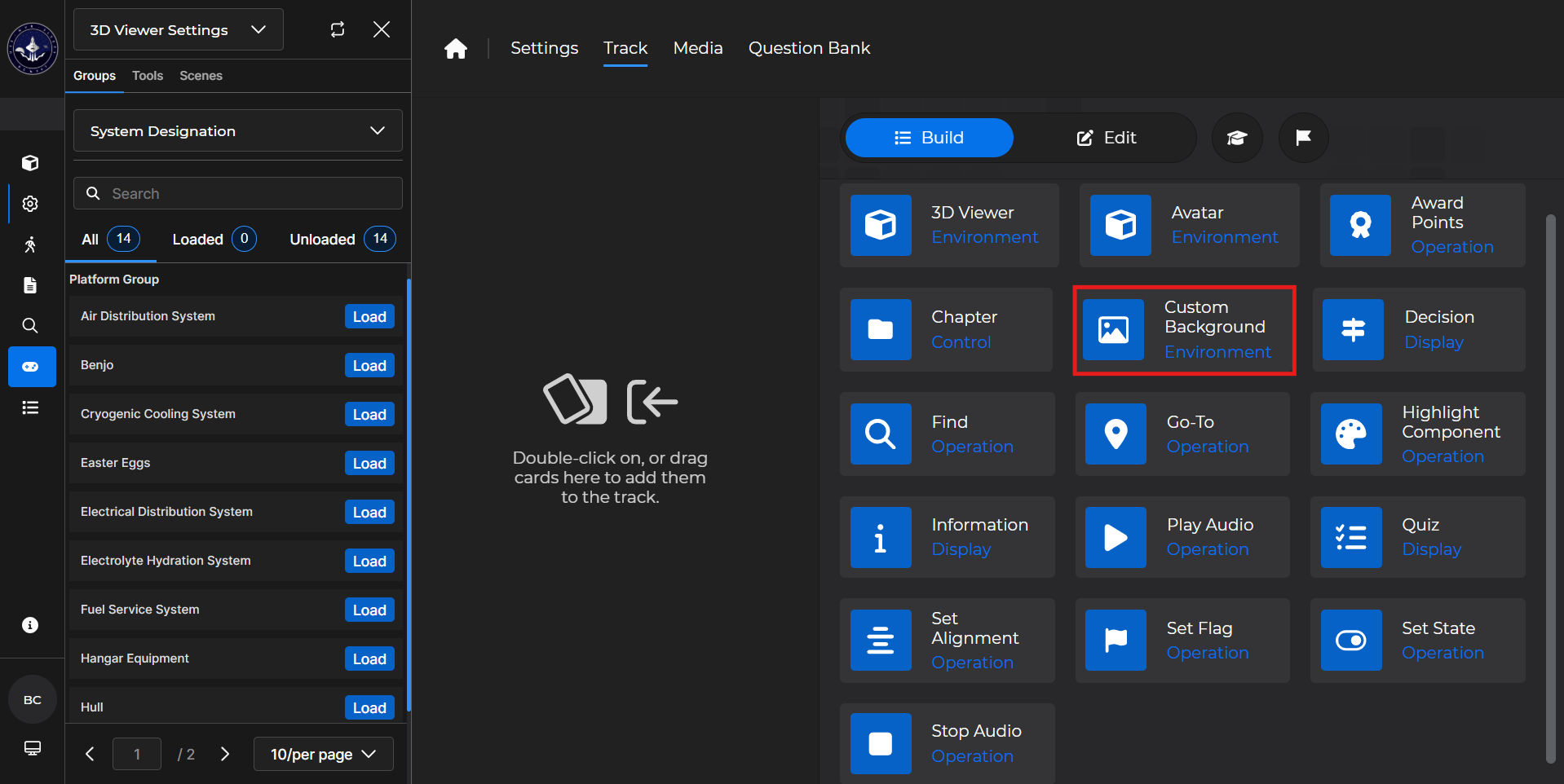
Building the Card
To add the card to the lesson track:
Left click and drag the card to the track
OR double click the card to add automatically
.gif)
To begin editing:
Left click the card on the track and then left click

OR double left click the card on the track to open editing automatically
.gif)
In the editing window, you can:
Change the background color
Upload a custom background image
Change the background image size
.gif)
Custom Background Card - Use Case
One popular use of the Custom Background card is to insert a logo to associate the lesson with particular branding.
Example: Follow the steps below to add a custom background to a lesson:
Place the Custom Background card above the first card where you’d like to have the background.
Every subsequent card will have this background until another Environment Card is applied
3D Viewer cards and Custom Background cards are Environment Cards
In the editing window, select the background color, custom image, or both.
If a custom image is selected, you can choose an image size
Select
 .
.Optionally,
 the card.
.gif)