Decision cards prompt a learner to make a decision to continue down that branching path.
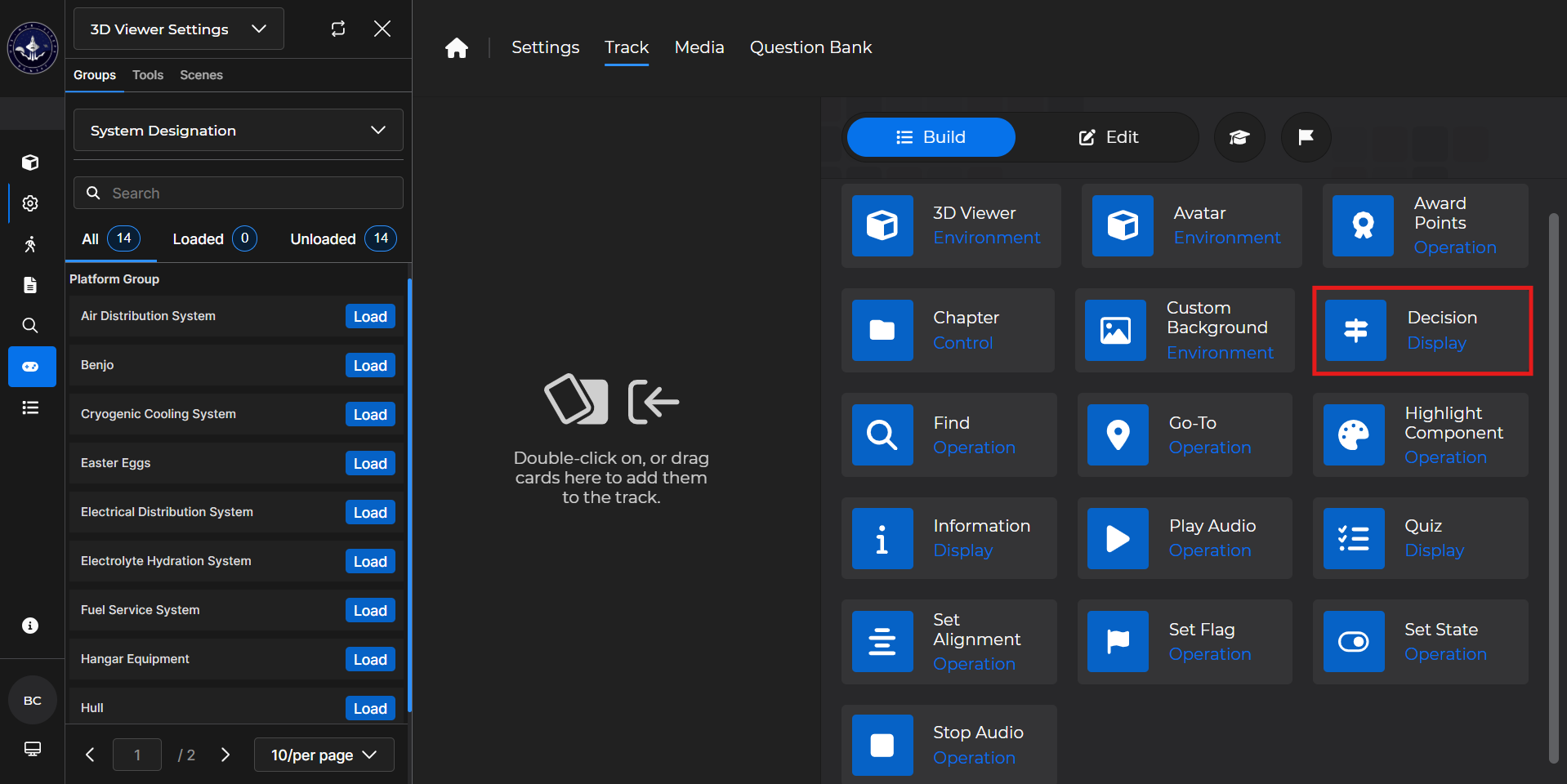
Building the Card
To add the card to the lesson track:
Left click and drag the card to the track
OR double click the card to add automatically
.gif)
To begin editing:
Left click the card on the track and then left click

OR double left click the card on the track to open editing automatically
.gif)
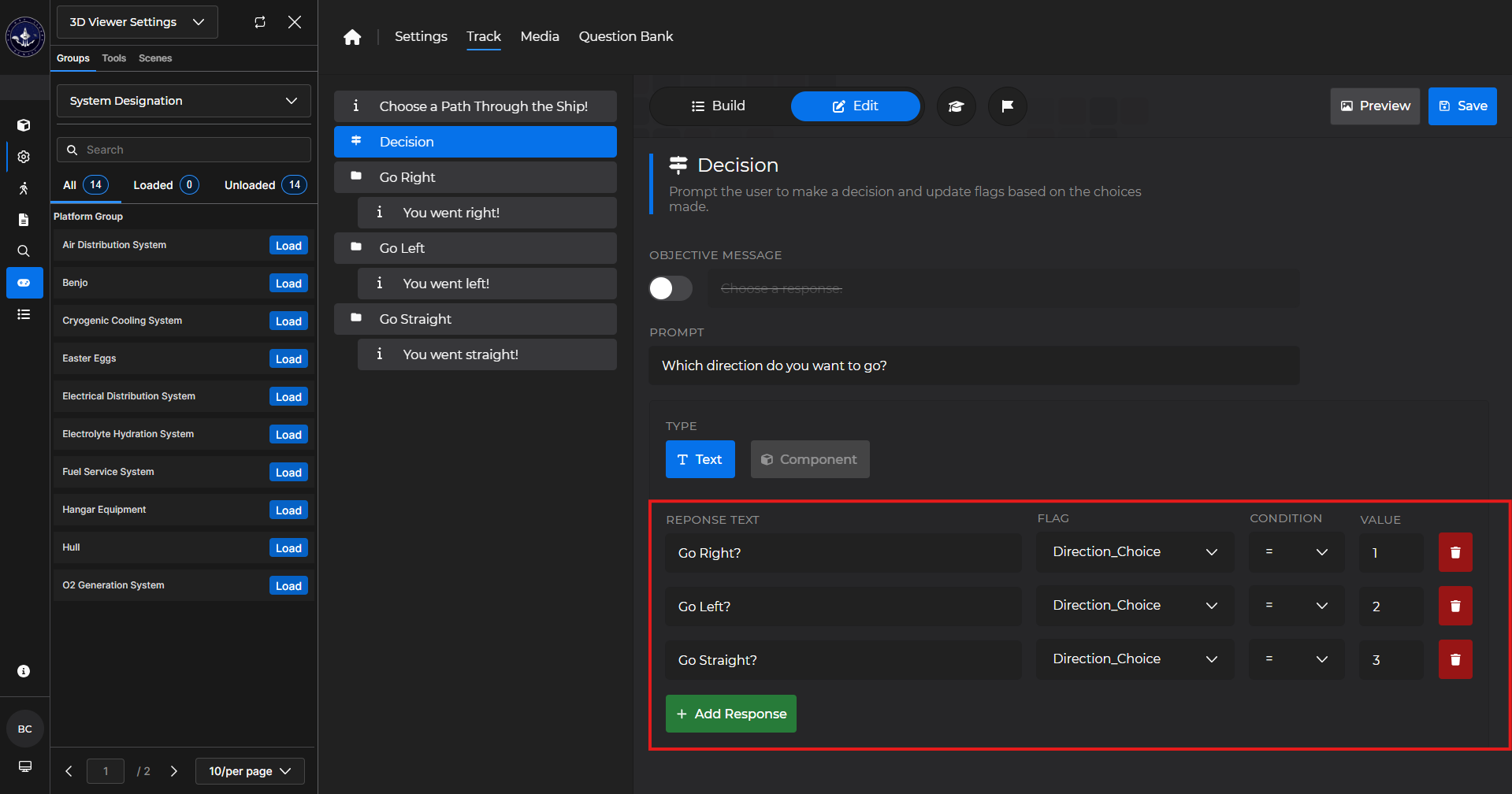
In the editing window, you can:
Toggle the Objective Message on or off
Enter the prompt for the learner’s decision
Add text responses
These are the options the learner can choose from
Set an appropriate flag for the response
Set an appropriate condition for the response
Set an appropriate value for a response
Delete a text response
.gif)
NOTE
To learn more about flags, please see the following article:
Decision Card - Use Case
One popular use of a Decision card is to have the learner select a choice that takes them along a certain route in a course.
Example: Follow the steps below to allow a learner to choose what path to follow in a ‘Find a path through the ship’ example lesson.
Add an Information card to give the learner an idea of what they’re going to do.
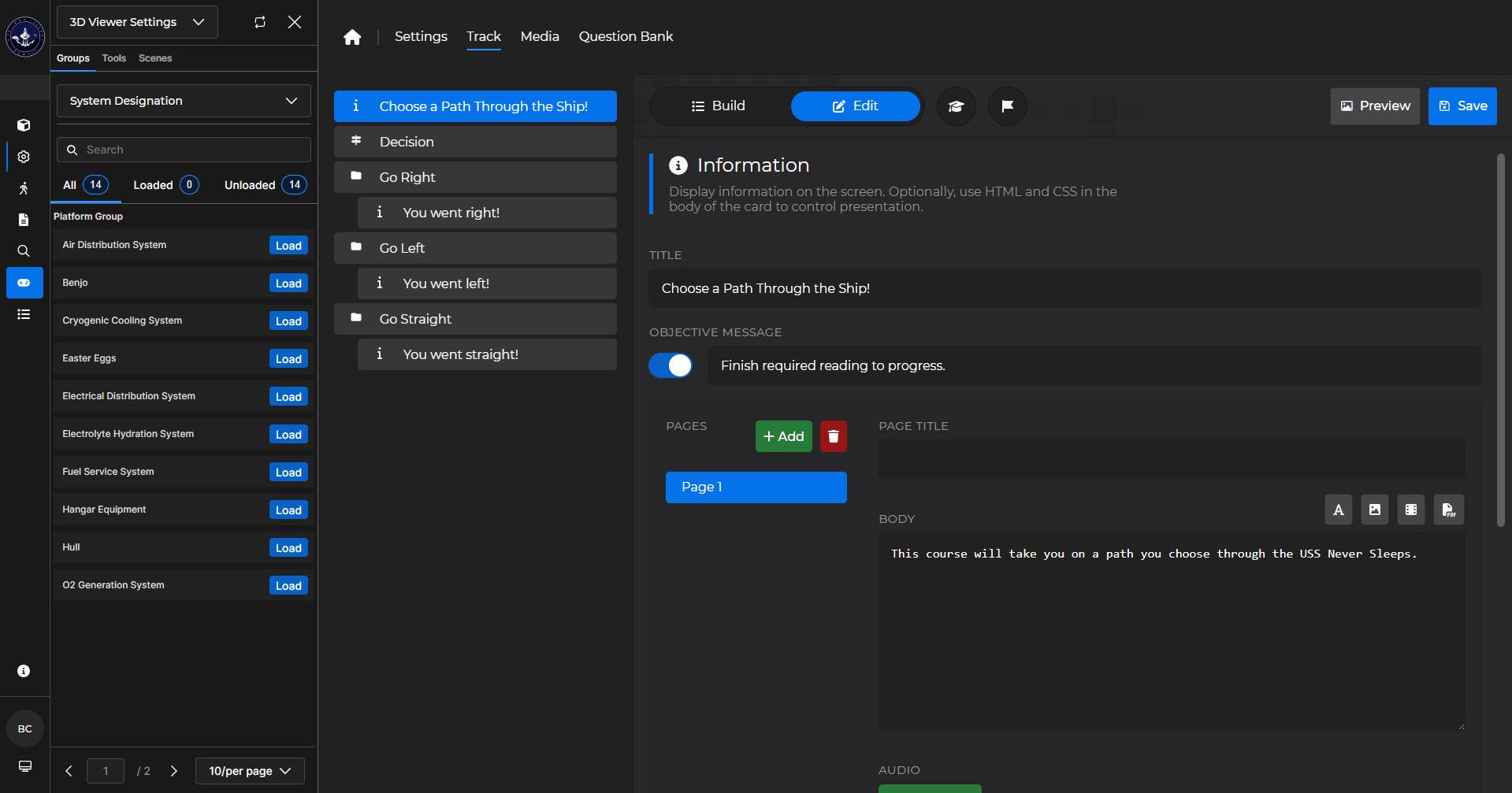
Add a decision card.
Set some response text and configure flags, conditions, and values.
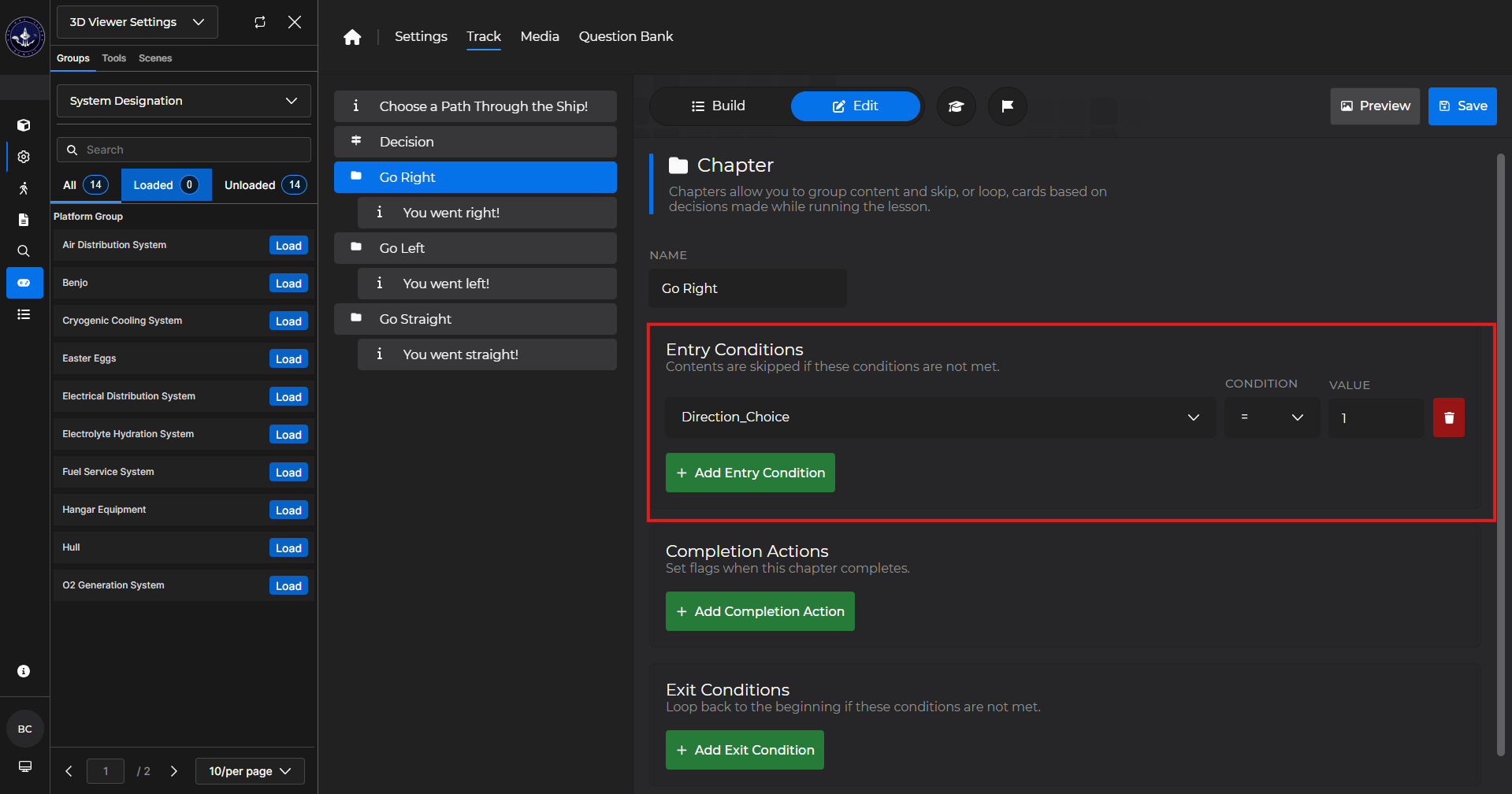
Underneath that, add a Chapter card.
Set an entry condition that matches your first decision.
Add an Information card that gives the learner more details.
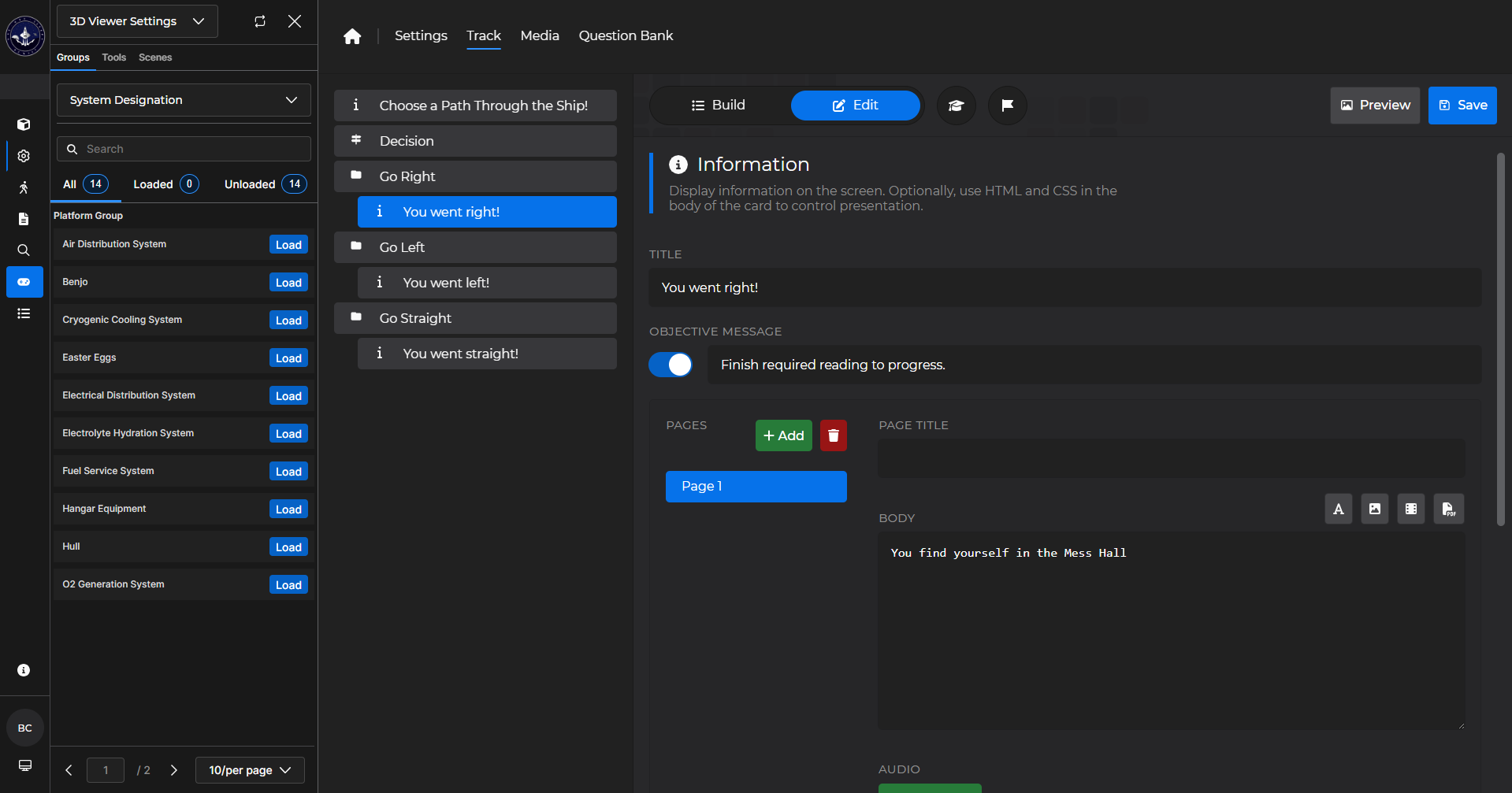
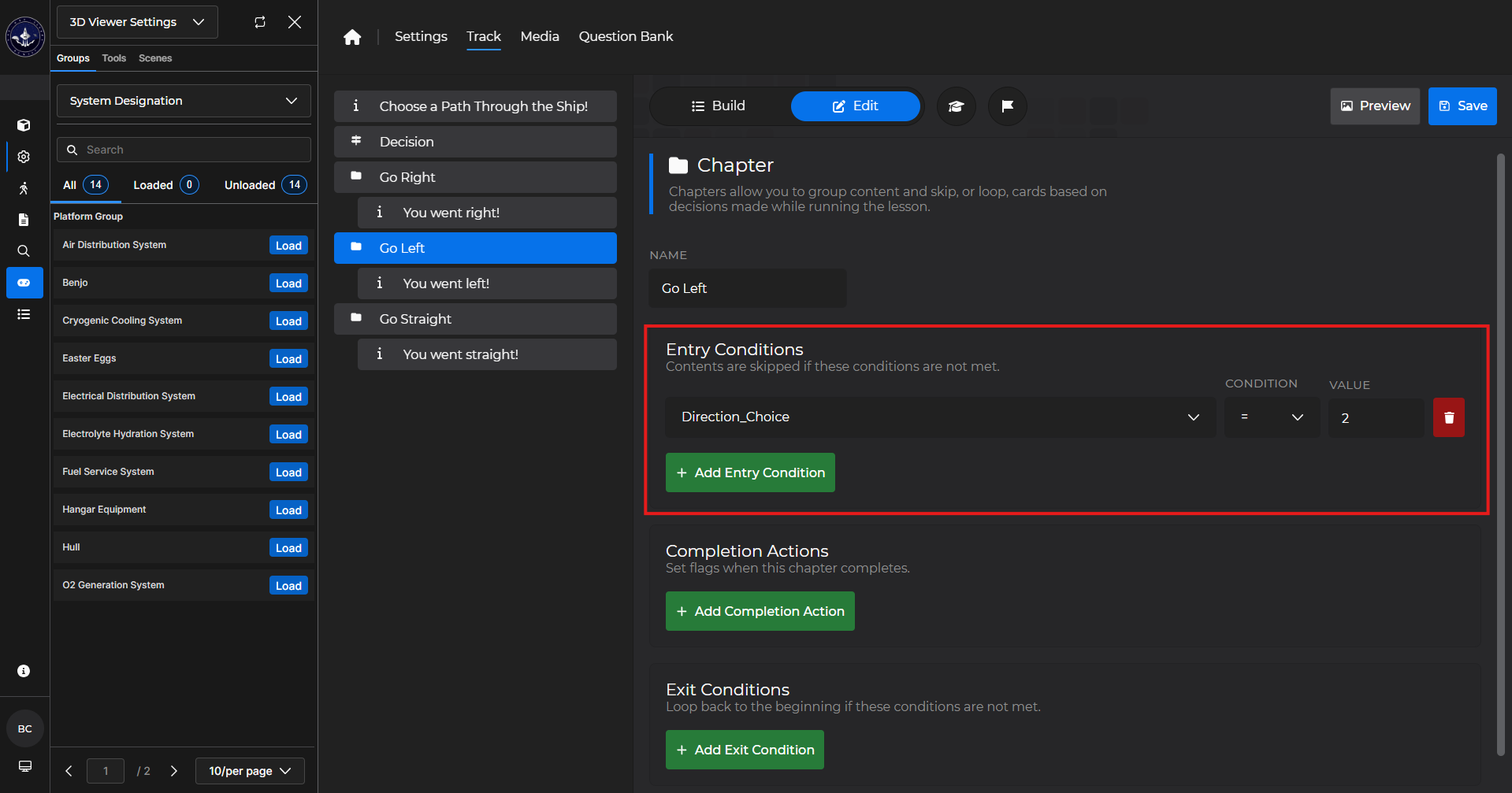
Add another Chapter card.
Set an entry condition that matches your next decision.
Add another Information card that gives the learner more details.
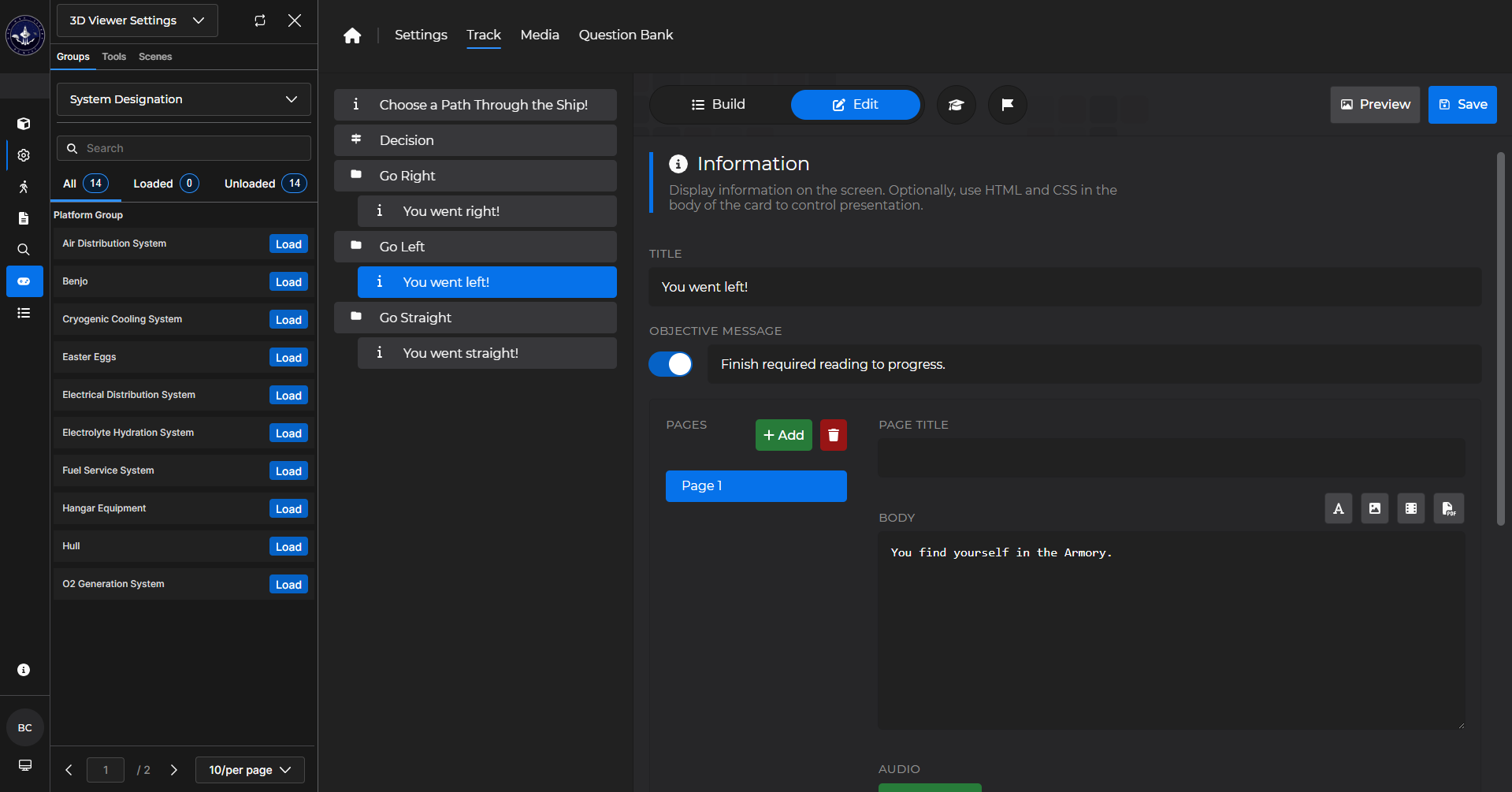
Add another Chapter card.
Set an entry condition that matches your next decision.
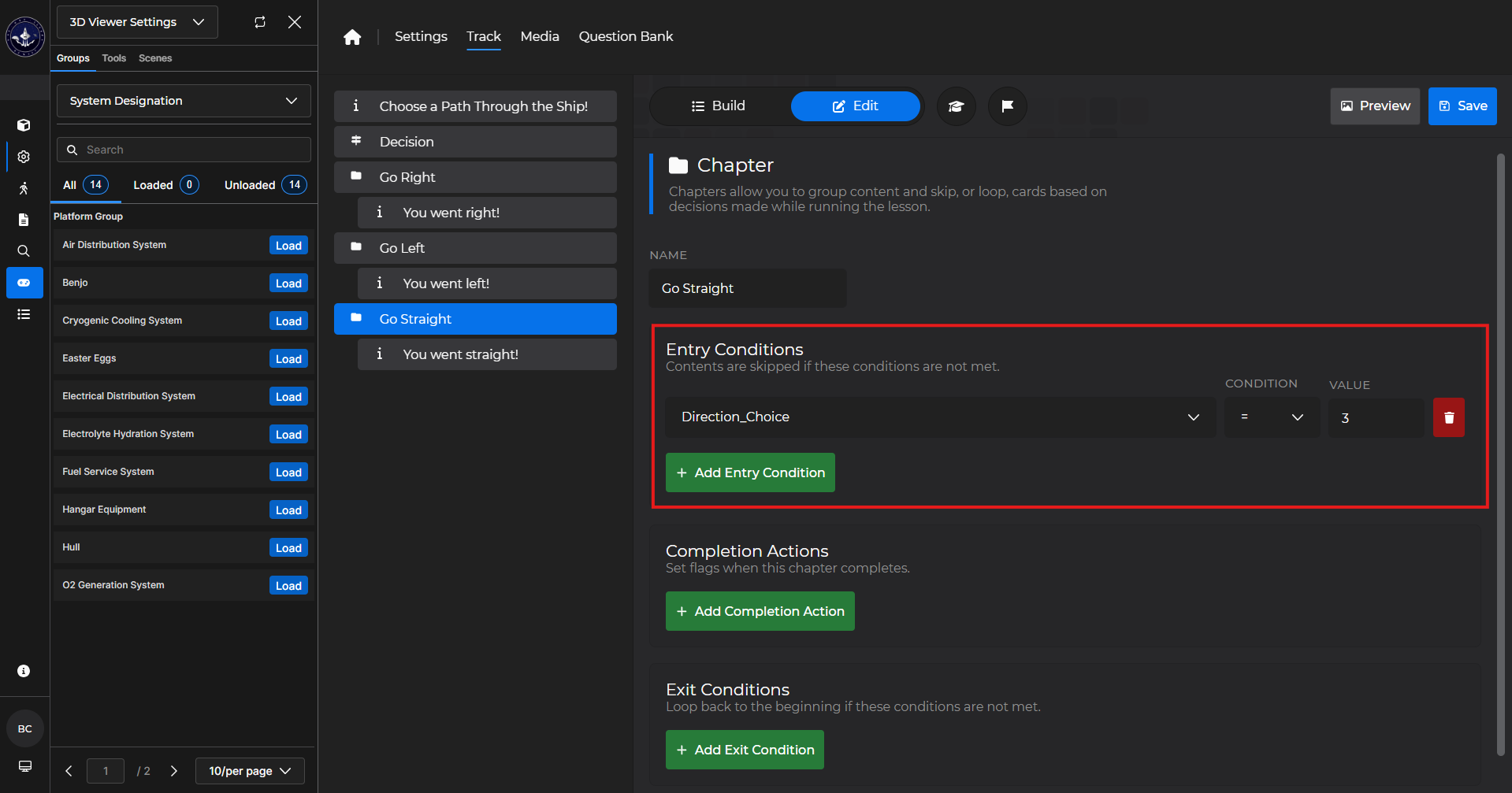
Add another Information card that gives the learner more details.
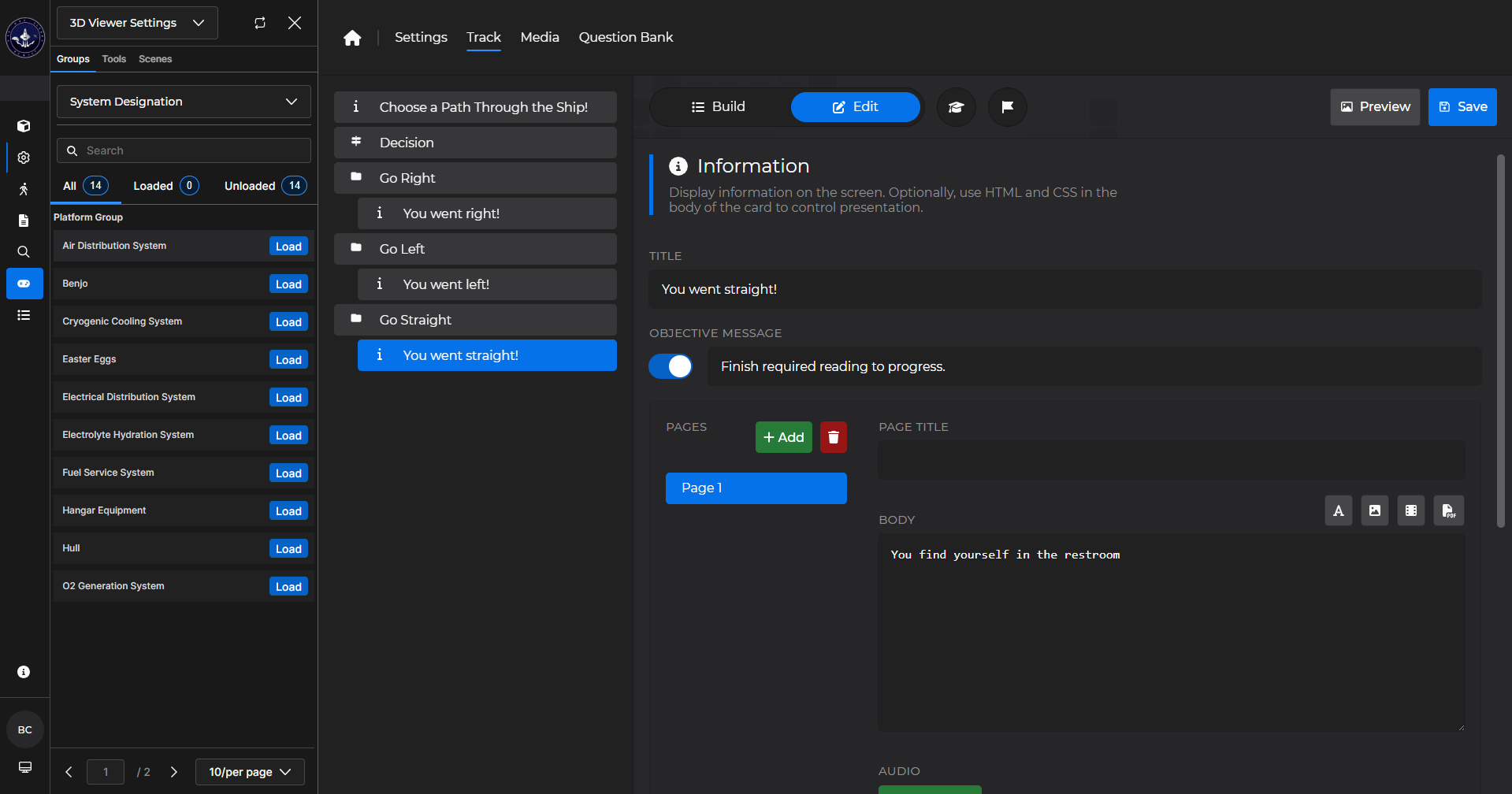
Complete steps 9 & 10 for as many decisions your Decision card contains.
This takes a learner on the path they’ve chosen without repeating sections.
.gif)
NOTE
To learn more about the other cards mentioned in the above use case, please see: