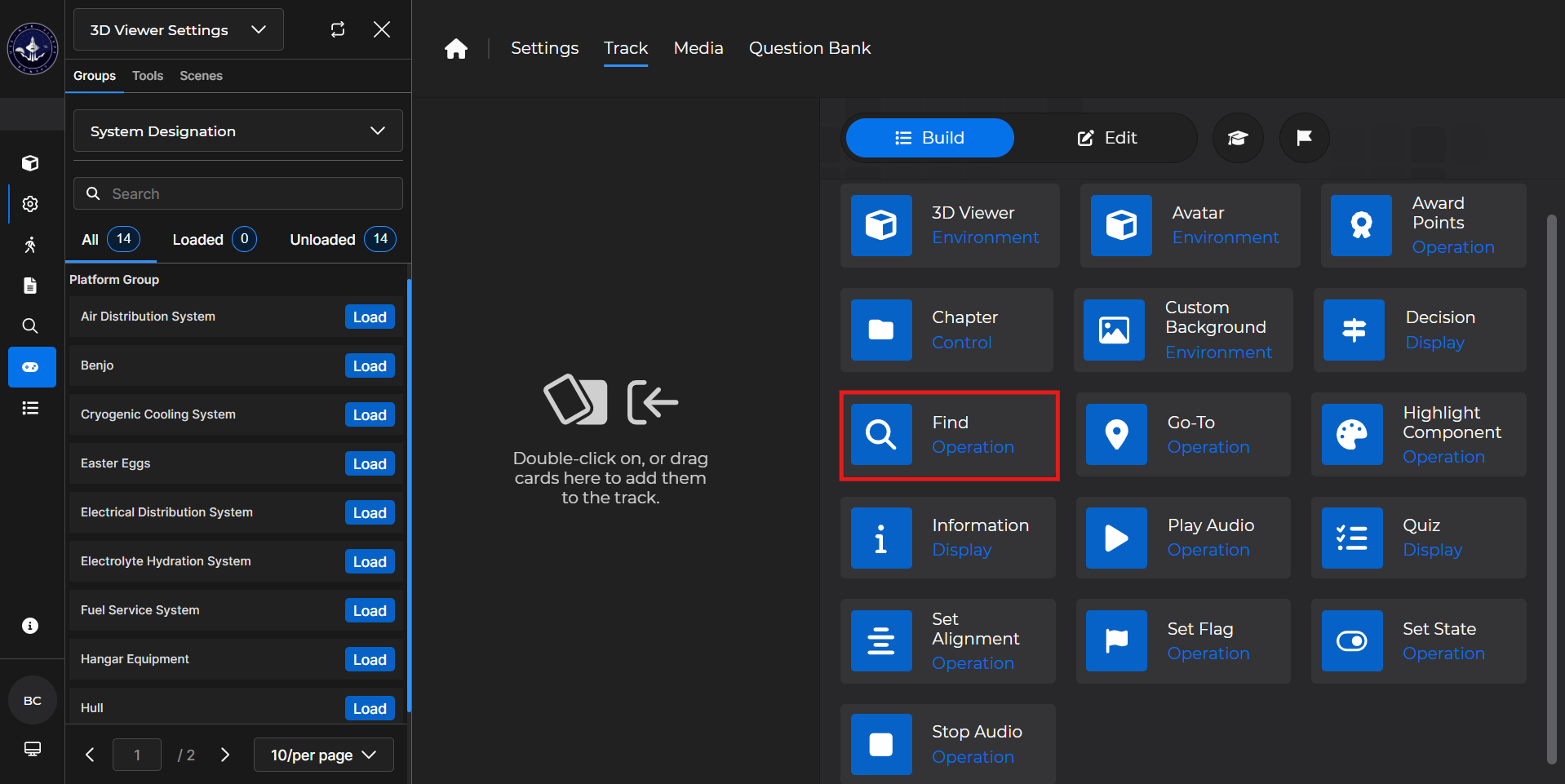
Use the Find card to prompt the learner to locate components in the active environment.
NOTE
You need to use a Find card after a 3D Viewer card for it to work properly.
Building the Card
To add the card to the lesson track:
Left click and drag the card to the track
OR double click the card to add automatically
.gif)
To begin editing:
Left click the card on the track and then left click

OR double left click the card on the track to open editing automatically
.gif)
In the editing window, you can:
Toggle and edit an Objective Message
Select the desired component you’d like the learner to find
You can only add one component per Find card
Highlight the component
Hide the component name(s)
Add a desired number of points to the card
.gif)
Find Card - Use Case
One popular use of a Find card is to have the learner click and select a specific component within a 3D scene.
Example: Follow the steps below to configure a lesson to have a learner find and select a specific component.
Add a 3D Viewer card to the lesson track.
Make sure that you load the system that contains the component(s) you want the learner to find
Add a Find card underneath the 3D Viewer Card.
Edit your Objective Message.
Search for the component you want the learner to find.
Highlight the component for easier location.
Keep the toggle off to add an extra level of difficulty
Repeat steps 2-5 for as many components you’d like the learner to find.
.gif)