Chapter cards allow you to group content, skip content, or repeat (loop) content based on decisions made while engaged in the lesson.
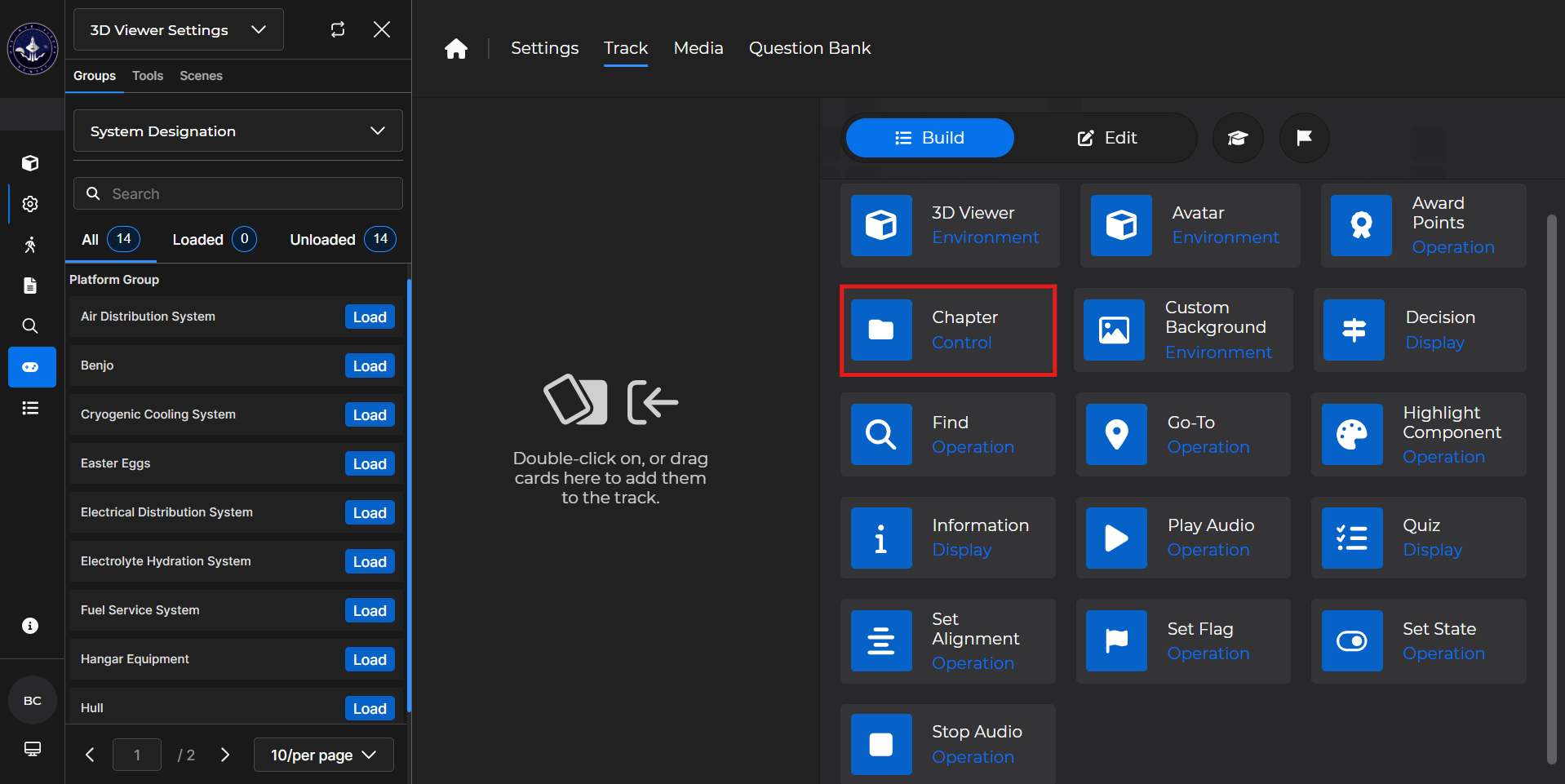
Building the Card
To add the card to the lesson track:
Left click and drag the card to the track
OR double click the card to add automatically
.gif)
To begin editing:
Left click the card on the track and then left click

OR double left click the card on the track to open editing automatically
.gif)
In the editing window, you can:
Rename the Chapter card
Add entry conditions
To define what set values allow a learner to enter a chapter
Add completion actions
To set chosen flags once the learner completes the chapter
Add exit conditions
To define what set values allow a learner to complete a chapter (otherwise contents are repeated)
Once conditions are added, you have the ability to delete them as needed
One common reason to delete a condition is to troubleshoot a flag configuration
(1).gif)
NOTE
If you decide to delete a Chapter card from the lesson track, keep in mind that everything nested underneath that Chapter card is deleted as well.
(1).gif)
Chapter Card - Use Case
One popular use of a Chapter card is to use it in concert with a Decision card to let a learner repeat a section of the course.
Example: Follow the steps below to create a repeatable section of a course using the Chapter card:
Name your Chapter card something recognizable.
.png)
Set as many exit conditions as there are decisions on your Decision card.
(1).gif)
Add your Decision card underneath this Chapter card.
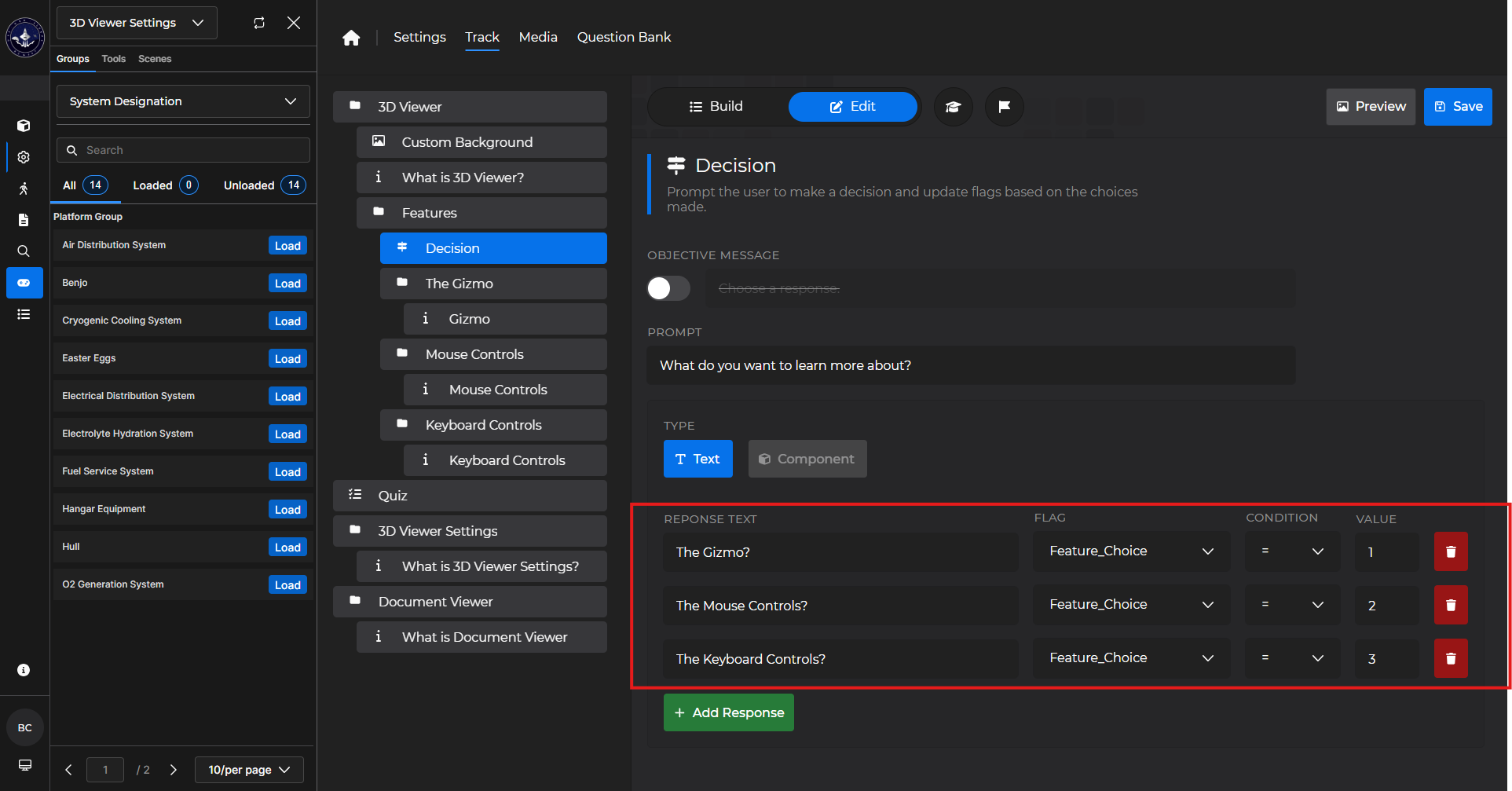
Add a second Chapter card under this Decision card.
Set the appropriate entry and completion conditions
Make sure not to set any exit conditions for this Chapter card
.gif)
Add an Information card for the learner to get more details about their first choice.
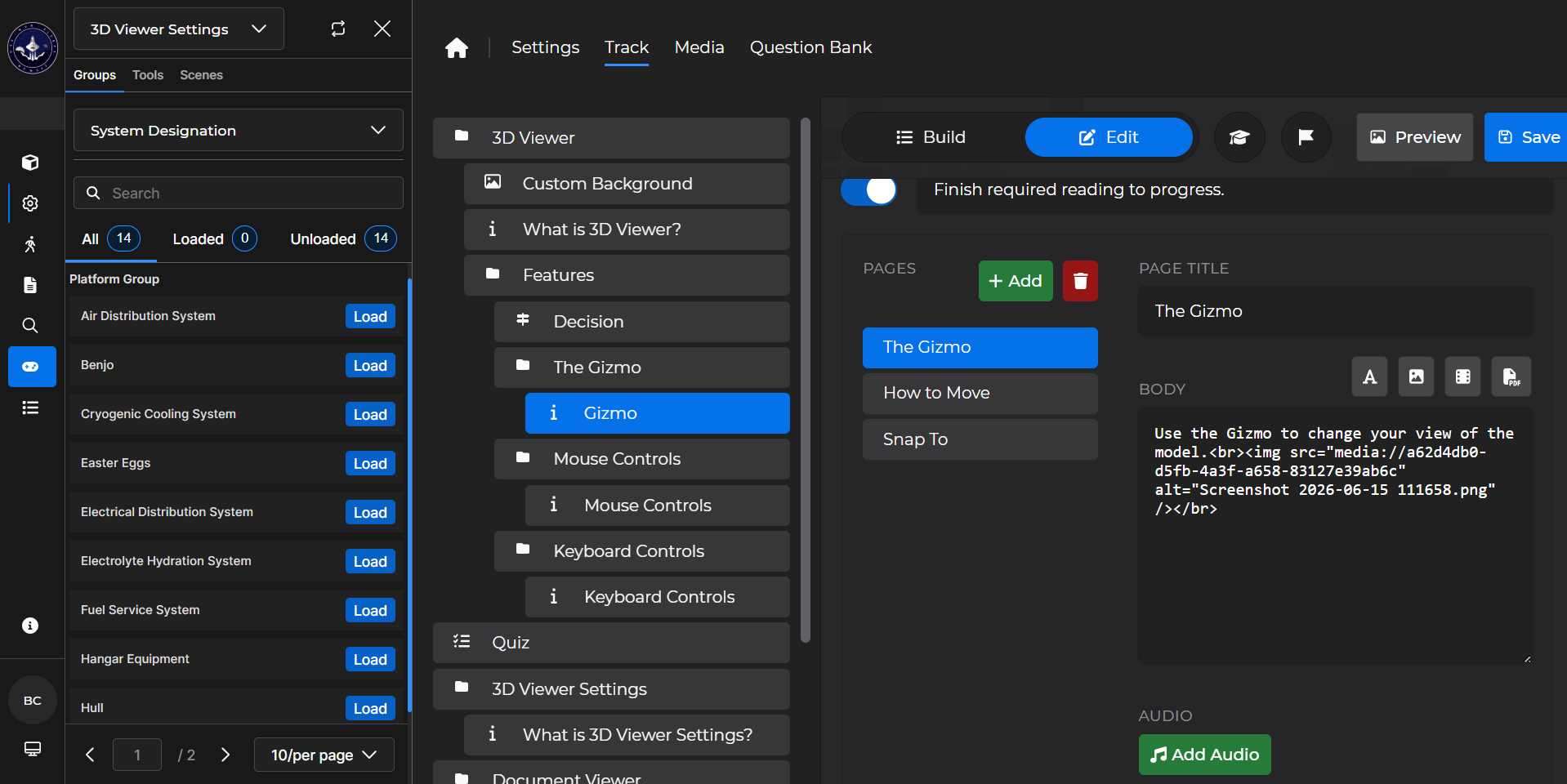
Repeat steps 4 & 5 for the number of options on your Decision card.
This repeats this Decision card until the learner selects each option to get more details.
(1).gif)
NOTE
To learn more about some of the cards mentioned in this article, please see the following: