The Media Tab houses all the media that can be used in a Learning lesson.
Media Viewing Options
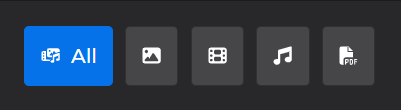
All icon: Default view - Shows all media uploaded to the lesson
Image
 icon: Shows images uploaded to the lesson (.png, .jpeg, .gif, etc.)
Film
 icon: Shows videos uploaded to the lesson (.mp4)
Audio
 icon: Shows audio clips uploaded to the lesson (.mp3)
PDF
 icon: Shows documents uploaded to the lesson (.pdf)
To preview media:
Left click to select a listed item.
A media Preview Pane displays to the left of the listed items.
Media Thumbnail - Left click to open in a new tab for a better look (or to play an audio file)
Actions section - Provides options to delete or replace this item
Sharing section - Check the box if you want to allow this media to be used in another lesson
Details section - Displays the File Type, Upload Time, and File Size
(1).gif)
NOTE
Two things to keep in mind:
Audio files allow you to add a transcript
Shared media can only be edited in the lesson it was originally uploaded to
Shared media is identified by text underneath the Media Thumbnail
.png)
(1).gif)
To add new media:
In any media view, left click
 in the top right of the screen.
Choose a piece of media from your machine.
The uploaded media will automatically save under the appropriate icons
Example
You are in the Image view when you upload an .mp3 file type.
The uploaded file will only display when you select the All or Audio icons
(1).gif)