The Track Tab shows the full lesson track and allows you to edit the structure of your lesson.
Track Tab Layout
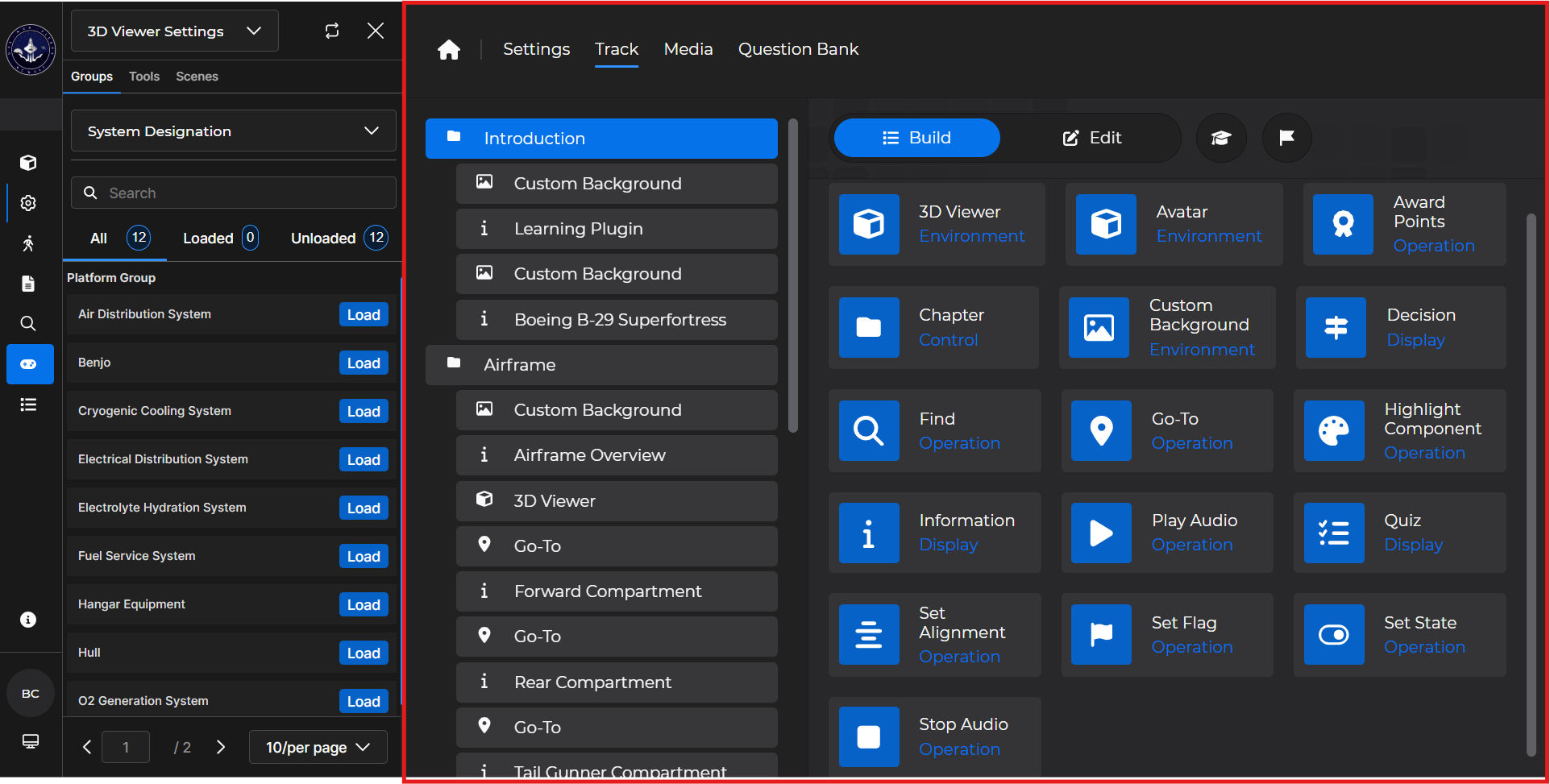
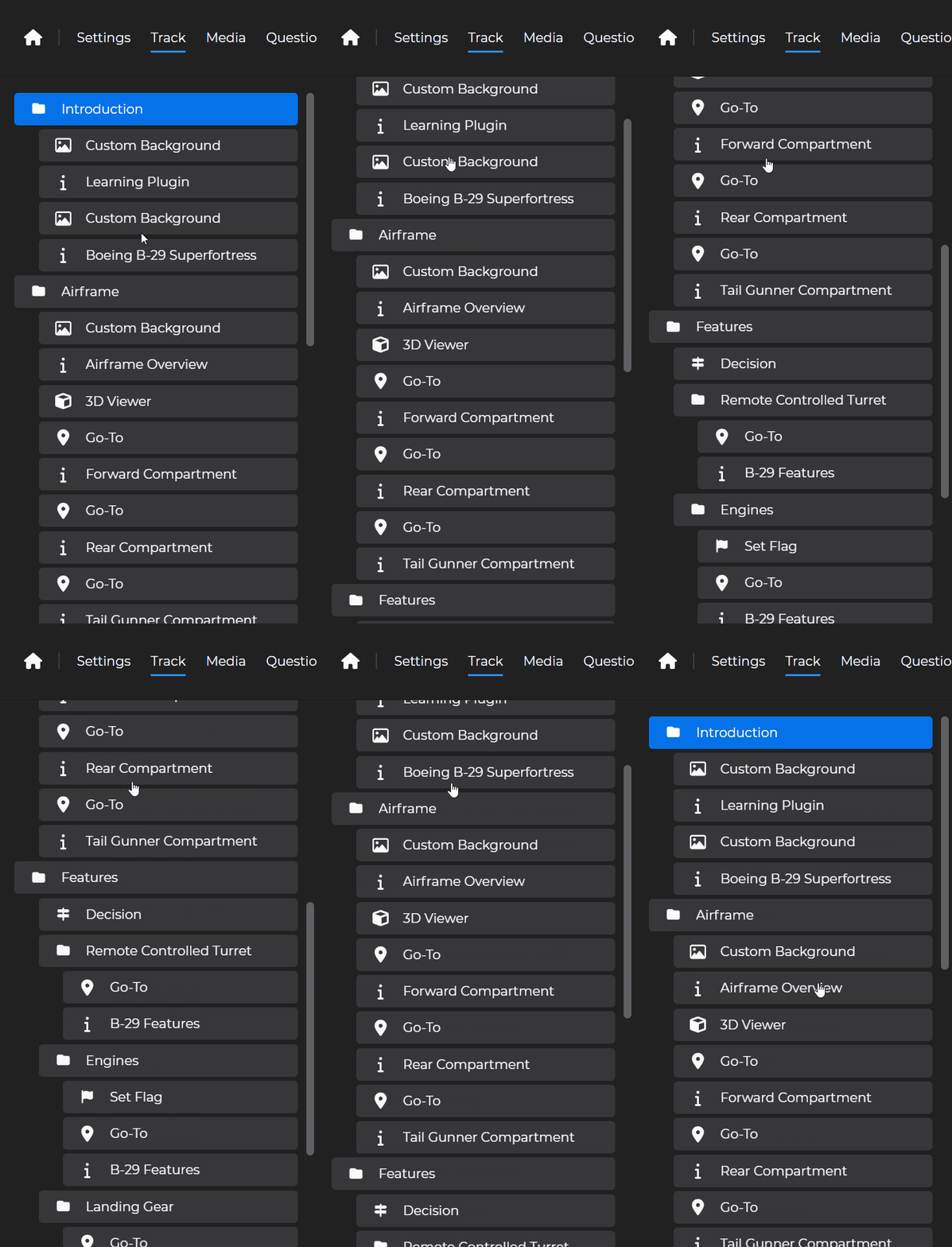
The left side of the Track Tab screen is the lesson track, which lists the current order of all cards currently included in the lesson.
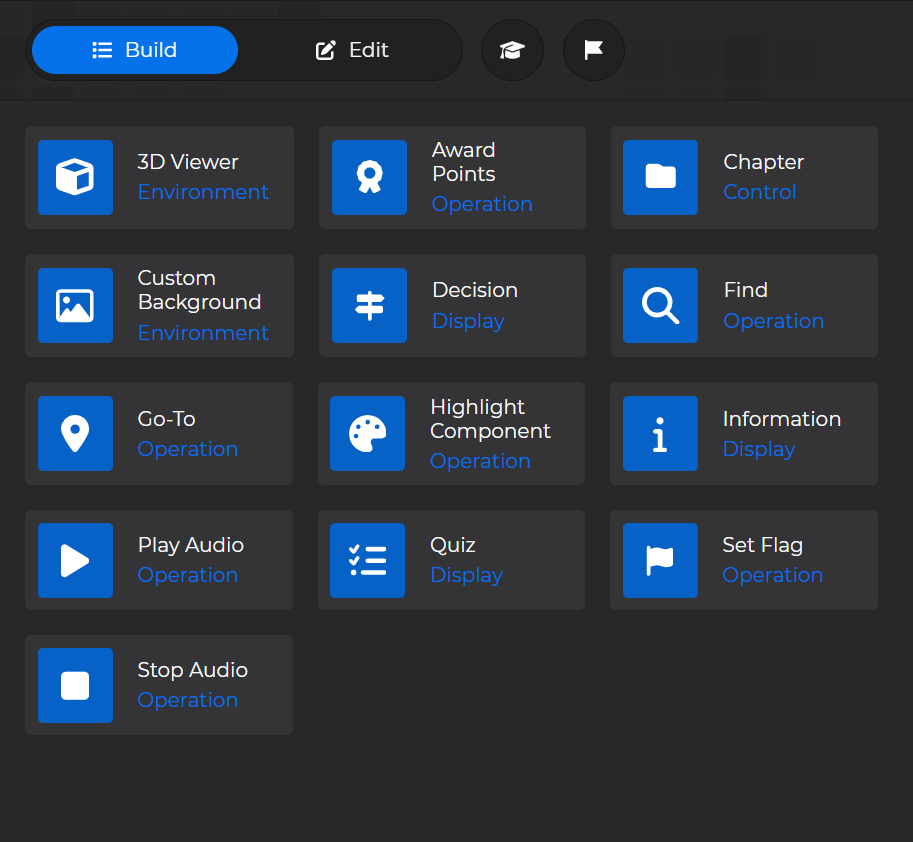
The right side of Track Tab screen displays the available cards that can be added to a lesson.
NOTE
See the Building Lessons section for more information about each card.
To edit cards on the lesson track:
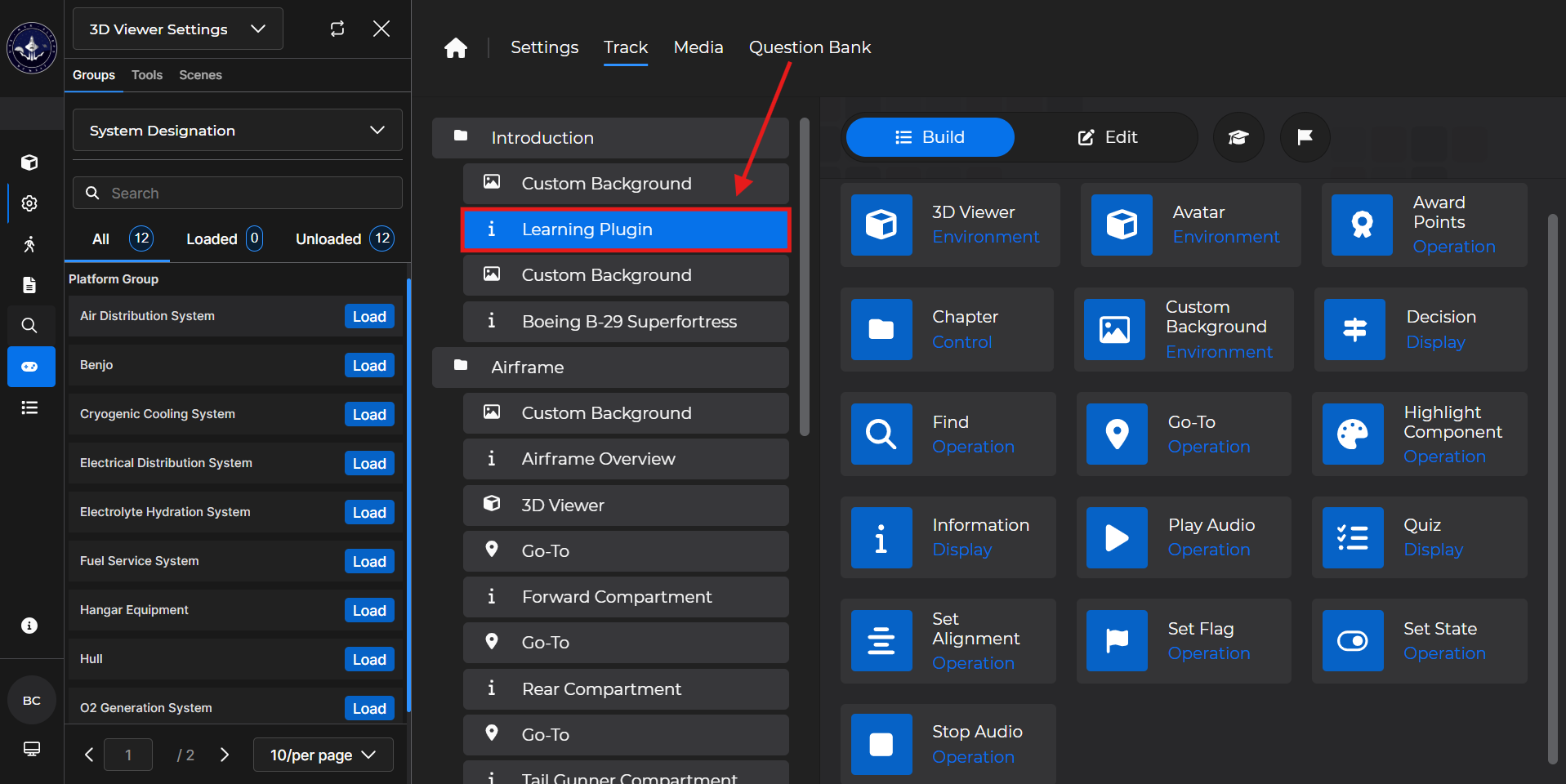
Left click a desired card.
The card will highlight blue once selected
Switch the selection from Build to Edit above the available cards.
OR double click the highlighted card in the track
(1).gif)
Make the necessary updates and click
.png) .
.
OR click
 to see what the card will look like in the lesson
Select
 in the upper right corner to shut the preview window
(1).gif)
NOTE
You can use the preview option with the following lesson cards:
3D Viewer
Custom Background
Decision
Quiz
Chapter
Information
To add cards to the lesson track:
Ensure that the course is toggled to Build.
Two ways to add cards to the lesson track:
Left click and drag the desired card to the lesson track
This option allows for more immediate customization
OR double left click the desired card
This option places the selected card at the bottom of the lesson track by default
Left click and drag the cards already on the track to rearrange as needed.
(1).gif)
To remove a card from the lesson track:
Ensure that the course is toggled to Build.
Left click and drag into the available cards section on the right.
(1).gif)
Additional Features
The Track tab has graduation cap and flag icons for immediate visualization of certain properties of the lesson.
The flag icon is currently a placeholder for future functionality

Left click the graduation cap to view all lesson cards that award points within the course.
The total number of awarded points displays at the bottom of the available cards section.
Select a card to view its current point value.
(1).gif)