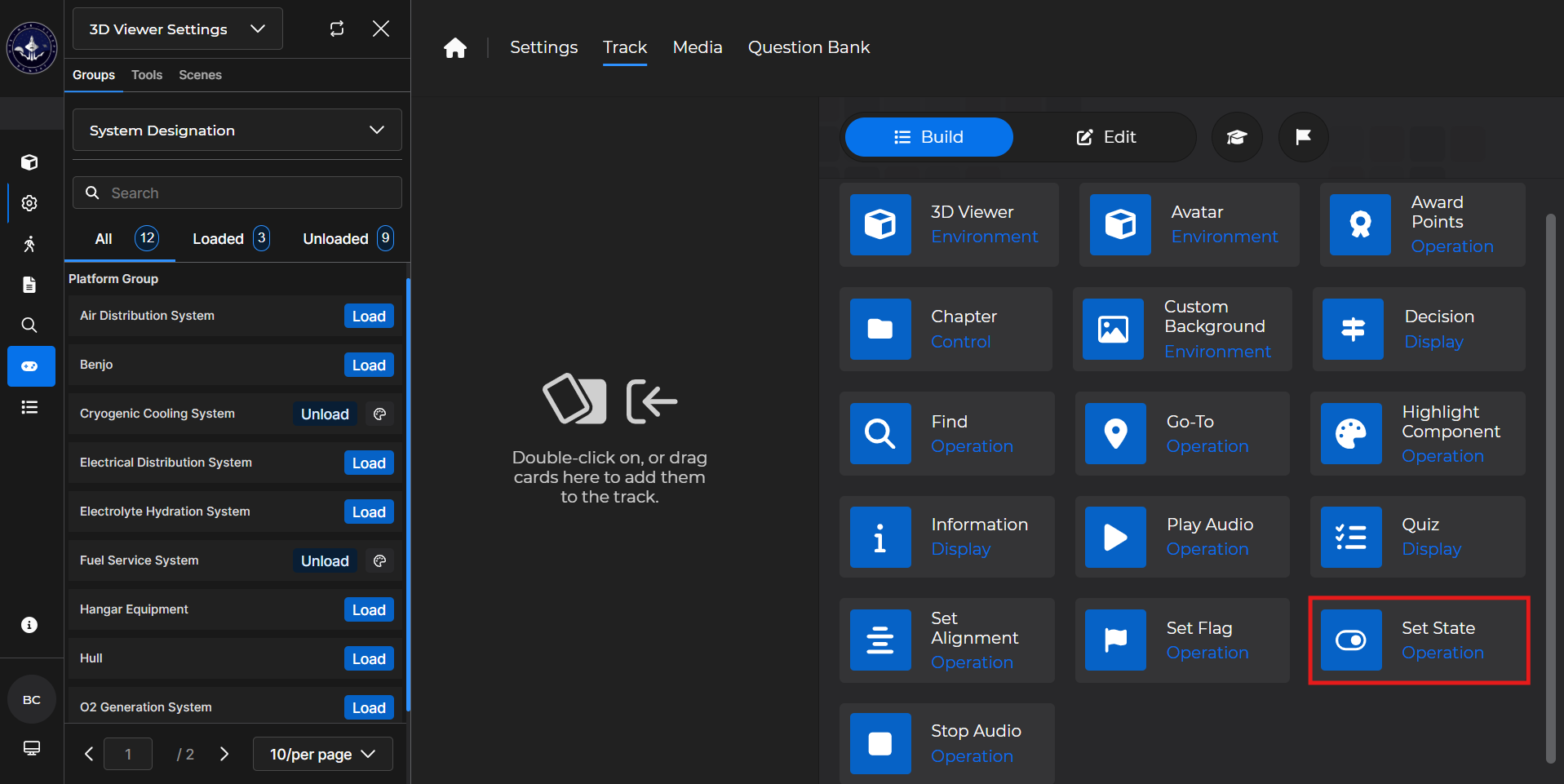
Set State cards allow you to alter the state of one or more components in concert with a 3D Viewer card.
NOTE
While the Set State card is functional on its own, it works best when paired with either an:
Information card
Avatar card
Building the Card
To add the card to the lesson track:
Left click and drag the card to the track
OR double click the card to add automatically
(1).gif)
To begin editing:
Left click the card on the track and then left click

OR double left click the card on the track to open editing automatically
.gif)
In the editing window, you can:
Search for desired component(s) to add to the card
Toggle the desired component(s) enabled or not
Toggle the desired component(s) damaged or not
Delete a component from the card
.gif)
Set State Card - Use Case
One popular use of a Set State card is to show a specific component is broken in the 3D Viewer.
Example: Follow the steps below to pair a 3D Viewer card with a Set State card:
Add a 3D Viewer card to the lesson track.
Make sure that the component group that contains the component(s) you want to visualize is toggled on
Add the Set State card underneath it.
Ensure the component you’d like to show as broken has the appropriate toggles in place
Add an Information card to add some context.
Launch the lesson.
Click a component and see a small menu appear in the bottom right.
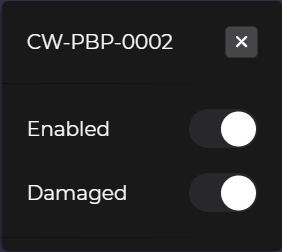
Click around to find the broken component.
.gif)
NOTE
For more information, please see the following articles: