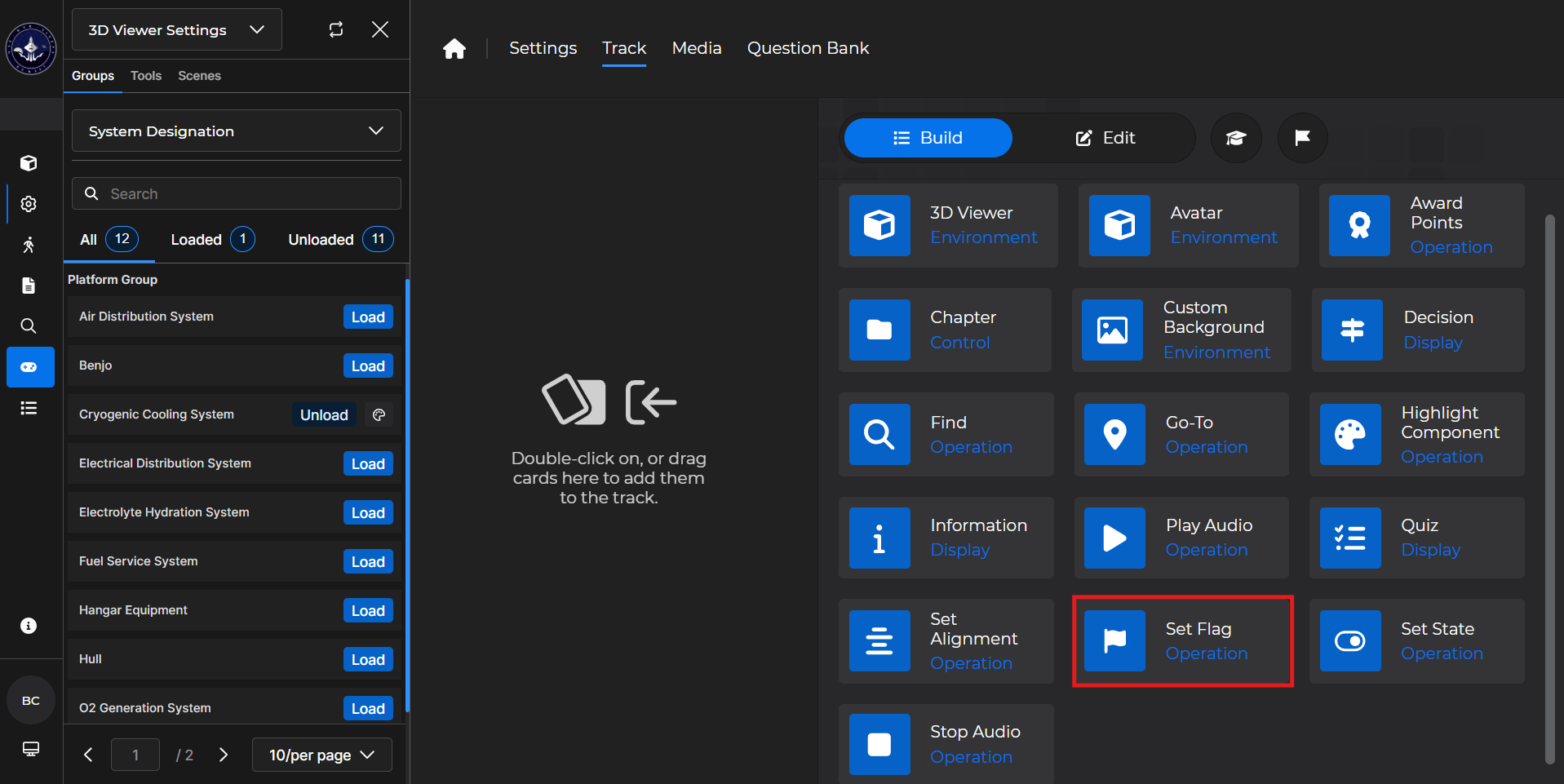
Set Flag cards allow you to add one or many expressions that set, add to, or subtract from flags when the card is reached.
What are Flags?
Flags are used to route lessons based on learner interaction. It’s encouraged to name your flags something recognizable and tied to what you want to do.
There are 3 conditions that flags can have:
Equal sign (=)
A flag equals a static value (-1, 0, 1, etc.)
Plus sign (+)
A flag adds to a static value (+1, +2, +3, etc.)
Minus sign (-)
A flag subtracts from a static value (-1, -2, -3, etc.)
NOTE
A good example of how to use this is setting up a flag included in a Loop. It sets, adds to, or subtracts from the current value each time it’s executed. Then, a Chapter Card reads the value and the learner exits or repeats the chapter.
When to use Flags:
To assign values to loop sections of a lesson
To assign values to skip a section of a lesson
To assign values to a choice (example: A Decision card)
This takes a learner down a specific path based on a flag setting
Building the Card
To add the card to the lesson track:
Left click and drag the card to the track
OR double click the card to add automatically
.gif)
To begin editing:
Left click the card on the track and then left click

OR double left click the card on the track to open editing automatically
.gif)
In the editing window, you can:
Select a desired flag
Set a desired condition
Set a desired value
Add an Expression
This populates an additional flag to edit
Delete flags
.gif)
NOTE
See the Settings Tab article to learn more about how to create Flags.
Set Flag Card - Use Case
One popular use of a Set Flag card is to use it in concert with a Chapter card to repeat a section of the lesson.
Example: We will revisit the previous case outlined above. We’ll add a Set Flag card in a repeatable section of a lesson.
Begin with a 3D Viewer card and ensure the component group with the component(s) you want to visualize is toggled on.
Put a Chapter Card on top of the section you want to repeat.
Set appropriate exit condition(s)
In our example, the exit condition is Decision = 0
Add a Decision card.
Add appropriate response texts, conditions, and values
In our example, the flags are set as Component_Choice = 1, 2, and 3
Add Chapter card.
Set an appropriate entry condition
In our example, the flag is Component_Choice = 1
Make sure that you do not set any completion or exit conditions for this card
Add a Go To card.
Add an Information card.
Add a Set Flag card.
In our example, the Flag is set to Decision = 1
Repeat steps 4-6 for as many decisions that are on your Decision card.
In our example, the other two Set Flag cards are configured as Decision + 1, and Decision - 2
This repeats the Chapter if the decisions are not clicked in a certain order.
.gif)
NOTE
For more information, please see the following articles: