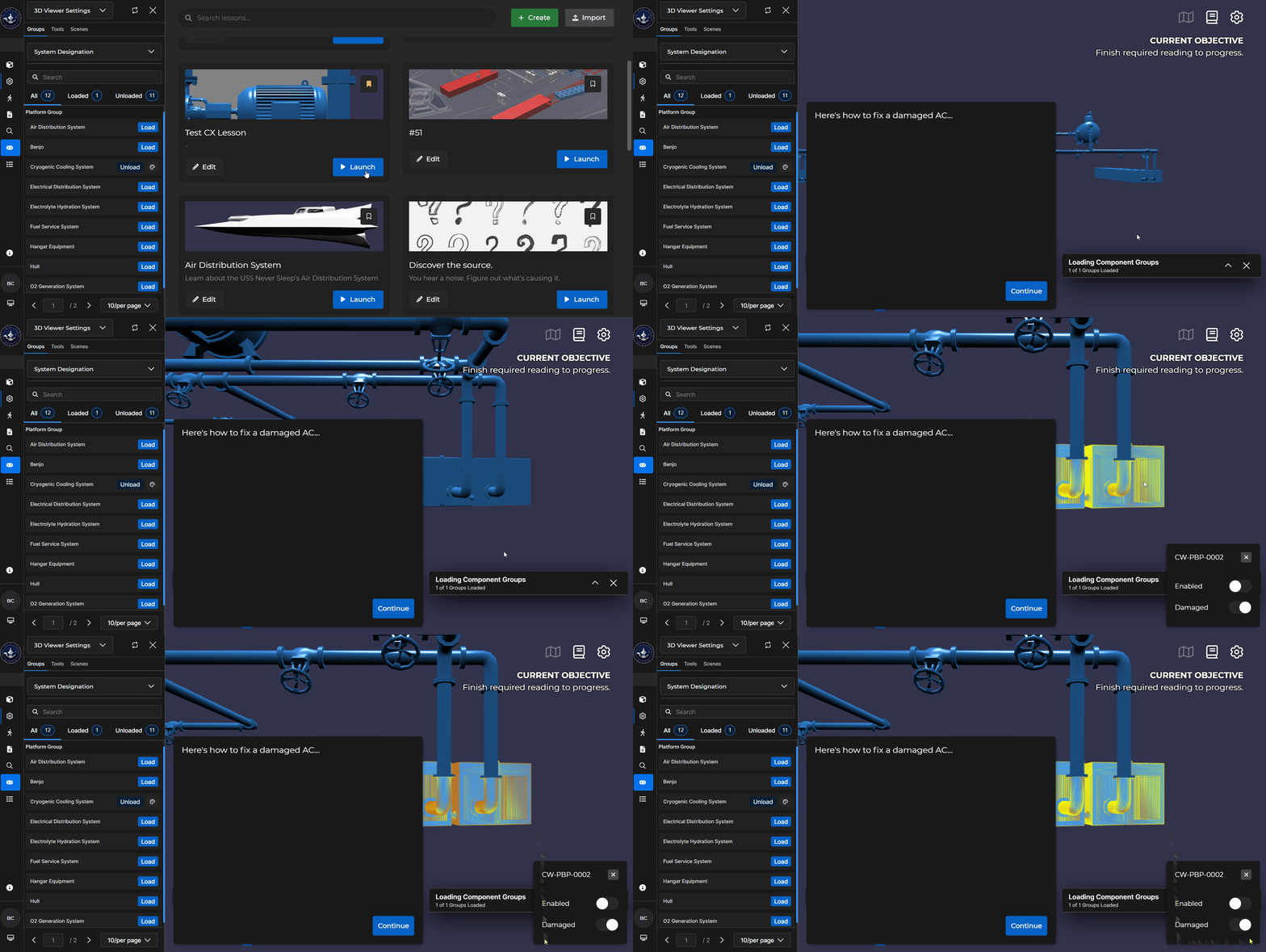
Use the Set Alignment card to realign all components to a desired default state.
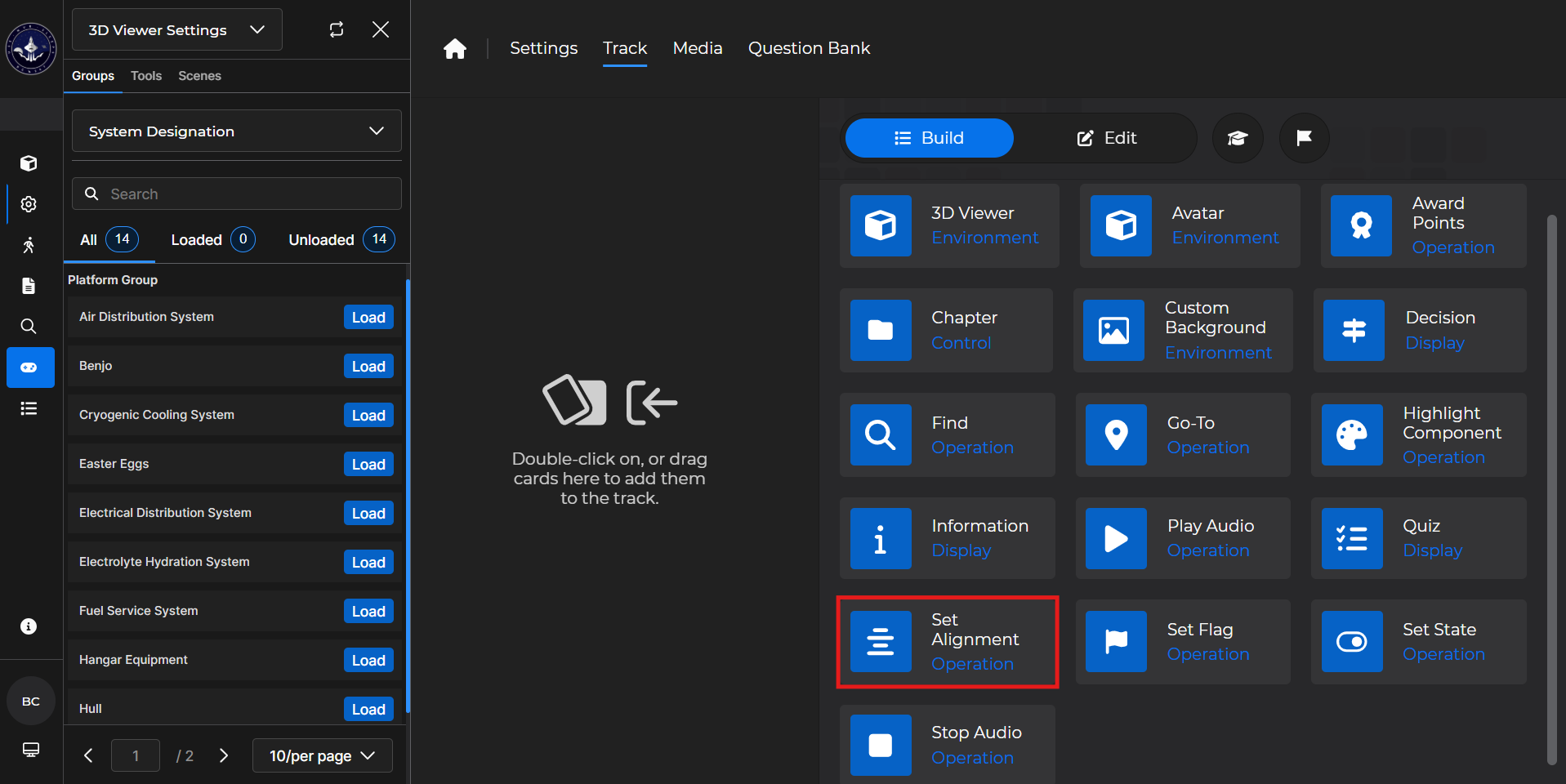
Building the Card
To add the card to the lesson track:
Left click and drag the card to the track
OR double click the card to add automatically
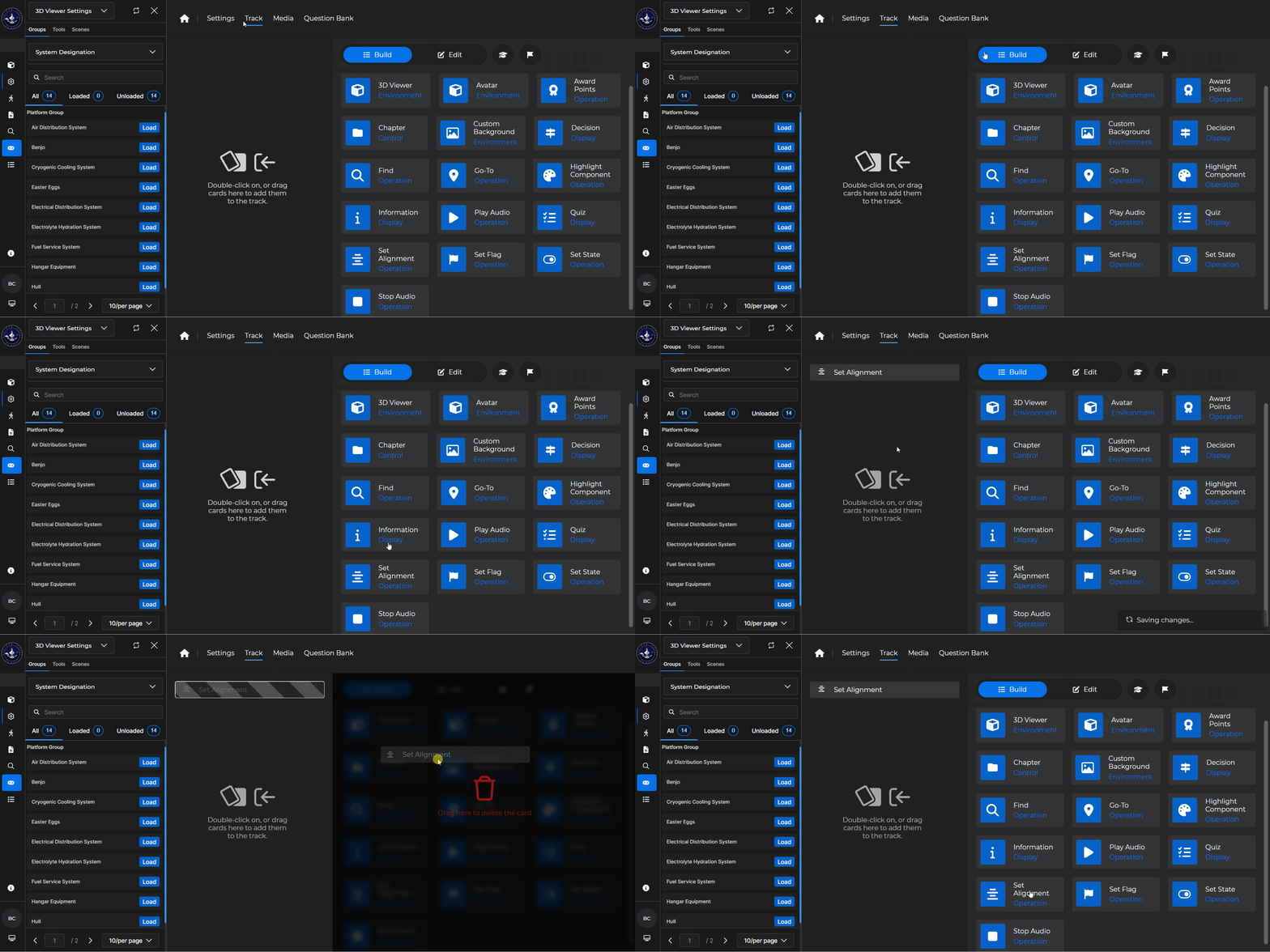
To begin editing:
Left click the card on the track and then left click

OR double left click the card on the track to open editing automatically
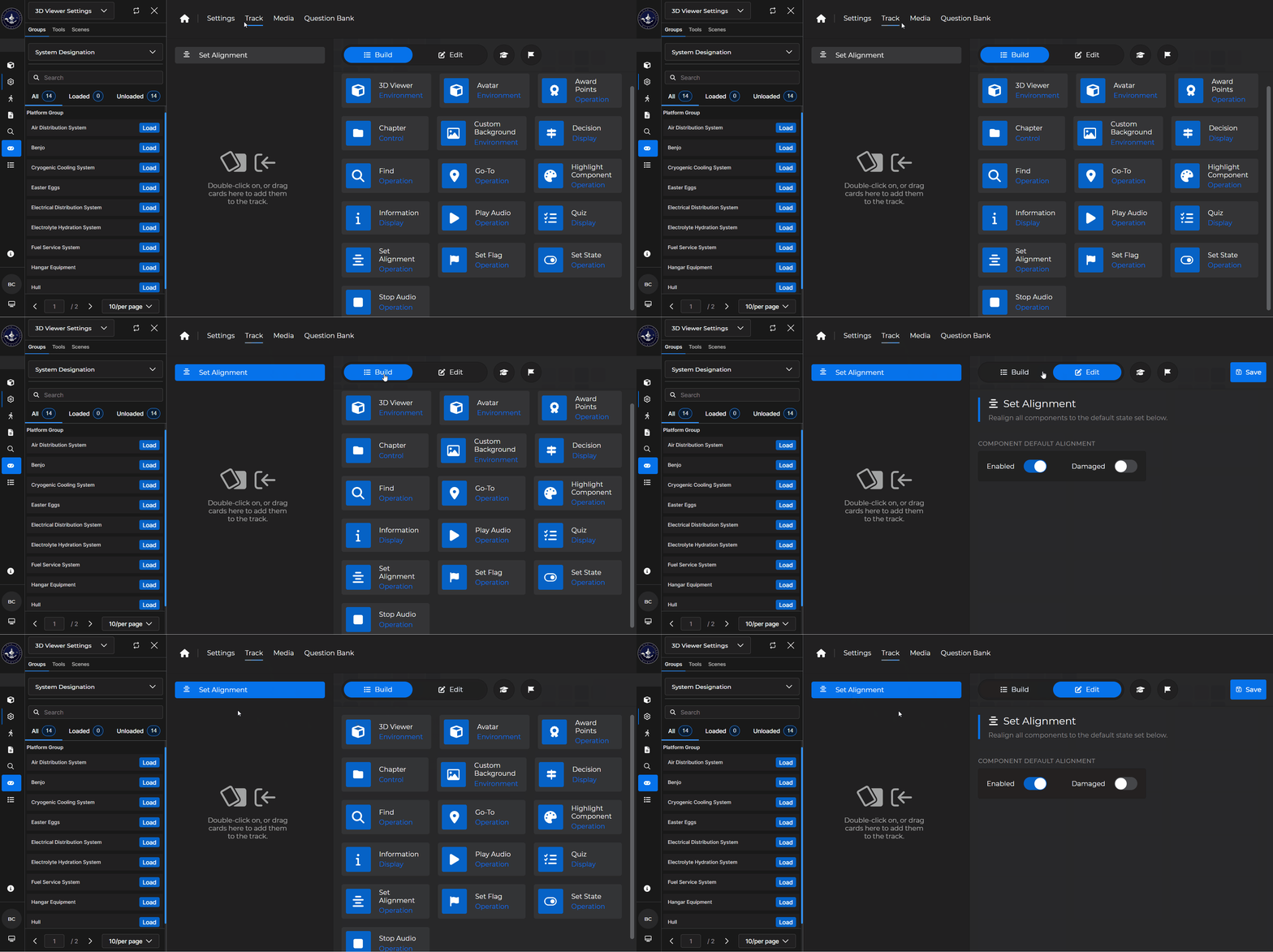
In the editing window, you can:
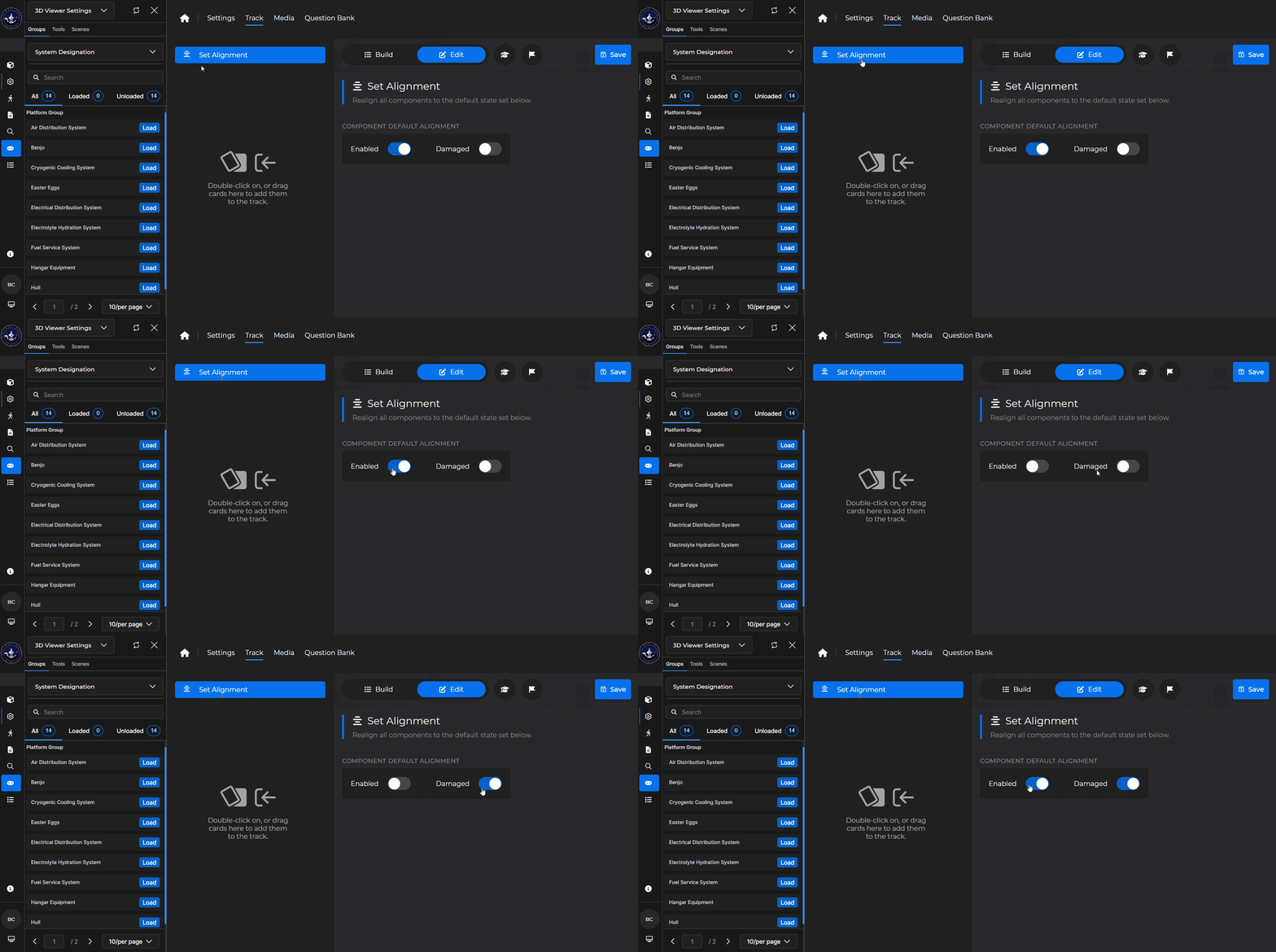
Set a default component alignment:
Just damaged
Just enabled
Enabled and damaged
Neither
Set Alignment Card - Use Case
One popular use for a Set Alignment card is to set the default component state to enabled and damaged and then instruct a learner to fix it.
Example: Follow the steps below to create a flow that teaches a user how to fix a broken component:
Add a 3D Viewer card to the lesson track and ensure the component group with the components you want to visualize is toggled on.
Add a Set Alignment card and set the component default alignment accordingly.
Add a Go To card.
This brings the learner directly to the component you want to teach about first
Add an Information card.
Once a learner clicks a component, it will show with the default alignment you set up in step 2.