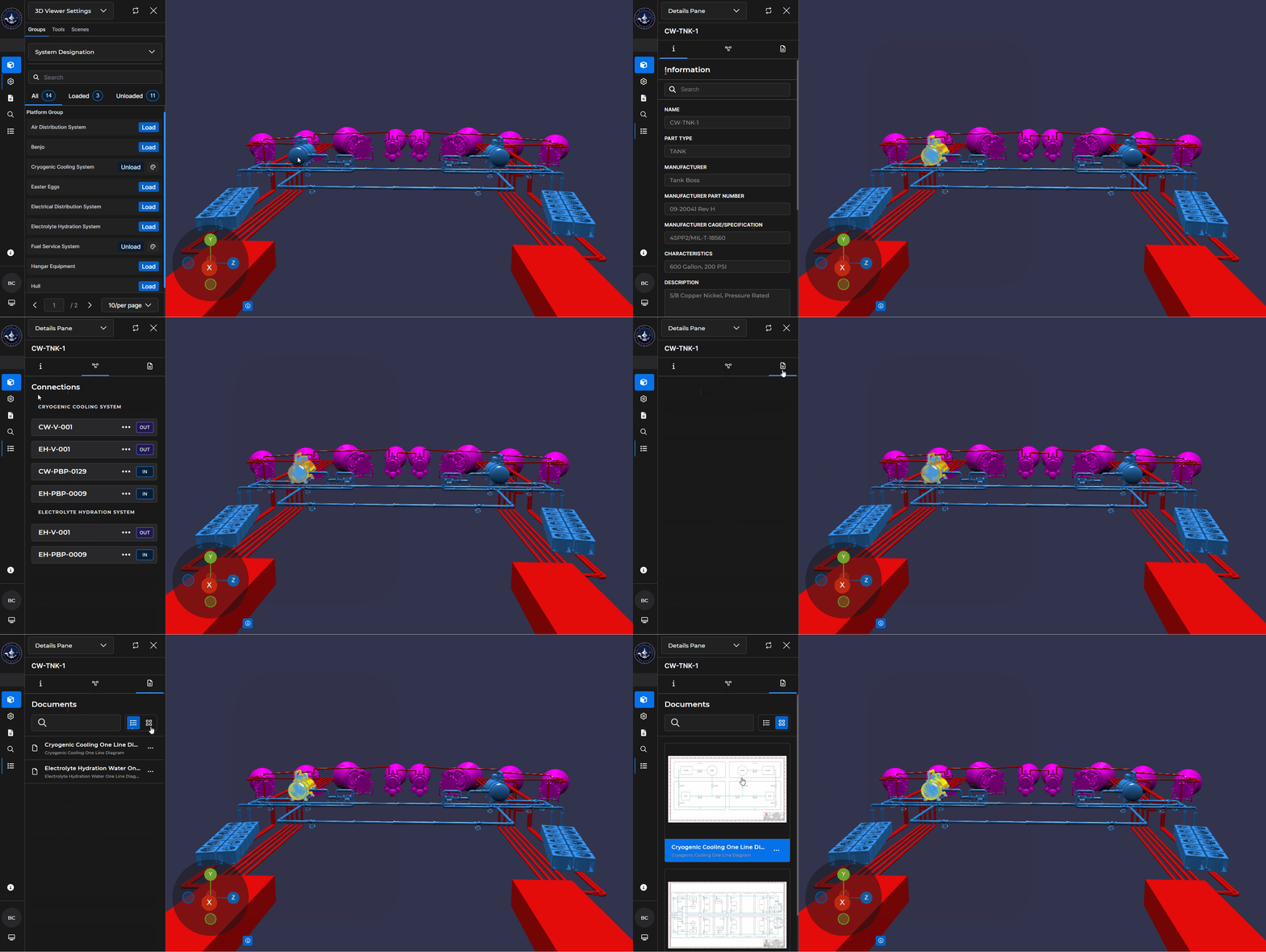
Use the Details Pane alongside the 3D Viewer to gather additional information about a selected component. Access the Details Pane in the left-hand content pane to view and interact with a loaded 3D Model on your main screen.
Select a Component on Your 3D Model
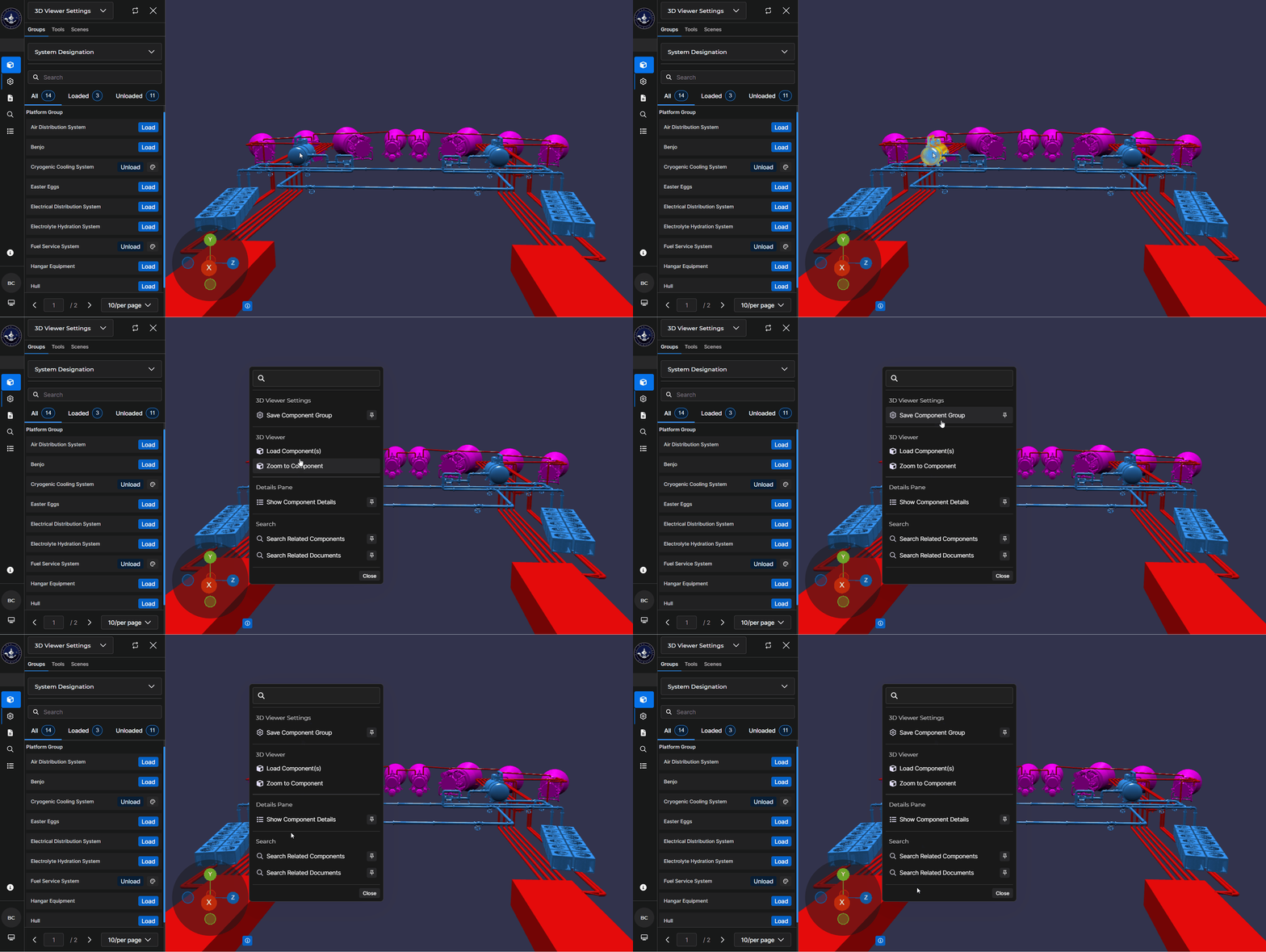
On the 3D Viewer Settings → (default) Groups tab:
Load at least one Component Group or Component group into the 3D Viewer
When your 3D Model loads, left click the component you want to learn more about
Right click the highlighted component to open a pop-up Action Menu (which may temporarily hide the highlighted component)
Open the Details Pane
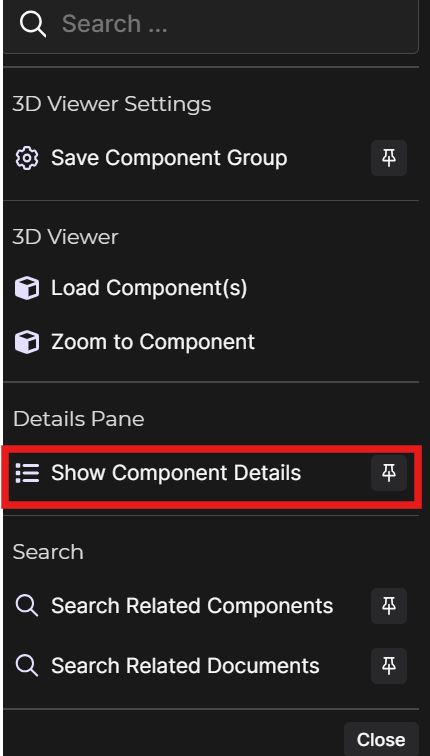
Select a desired component on the 3D Model, then select Show Component Details on the pop-up Component Action Menu.
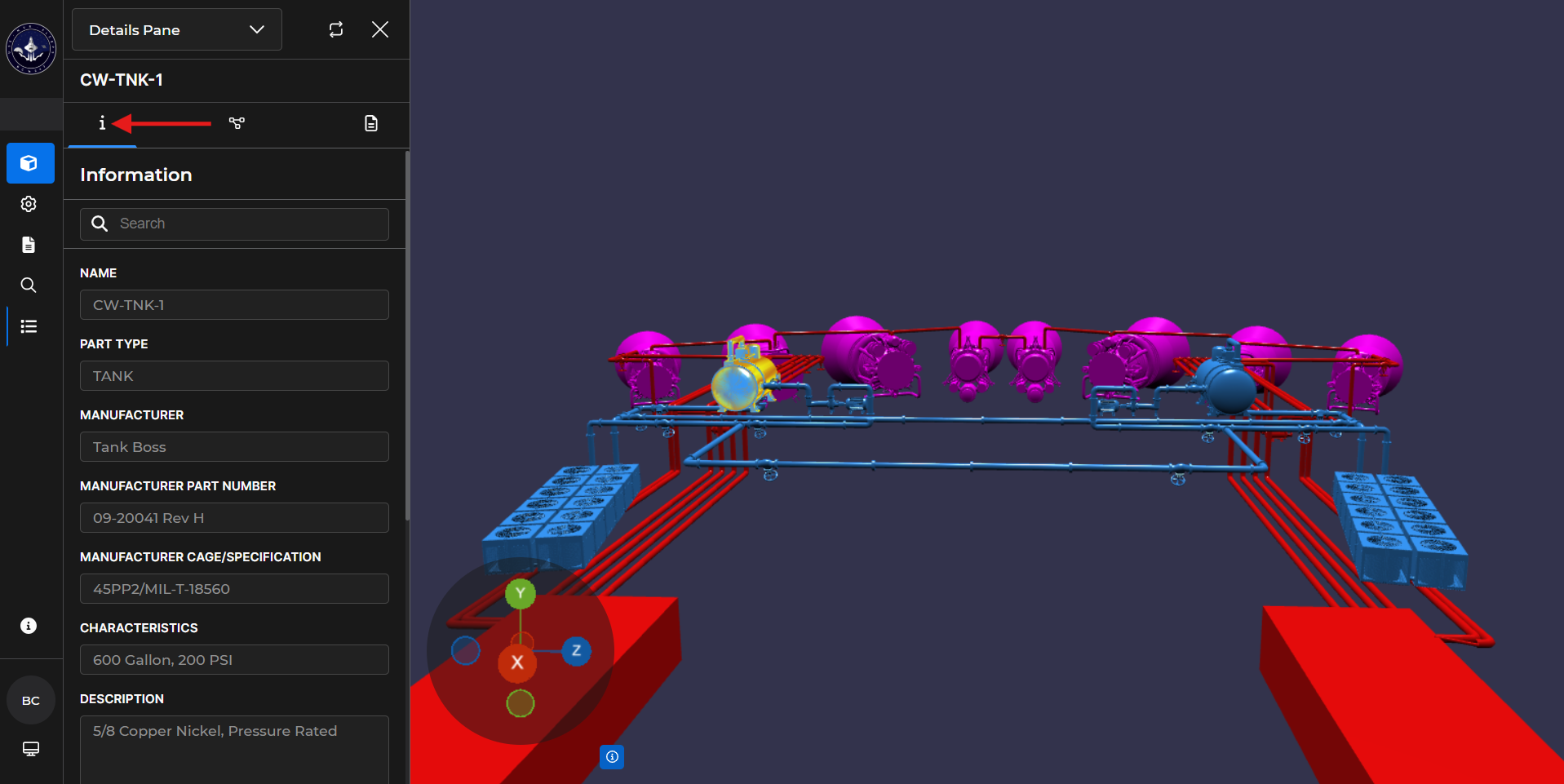
The Details Pane opens in the left-hand content pane.
The default Information tab displays available metadata relevant to the selected component.
Navigate the Details Pane
Click the icons 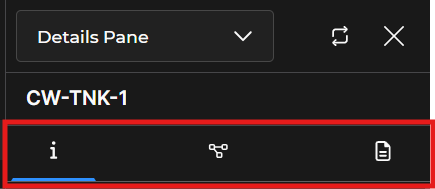 near the top of the Details Pane to view additional details about your selected component.
Refer to the Details Pane Overview article for additional information.