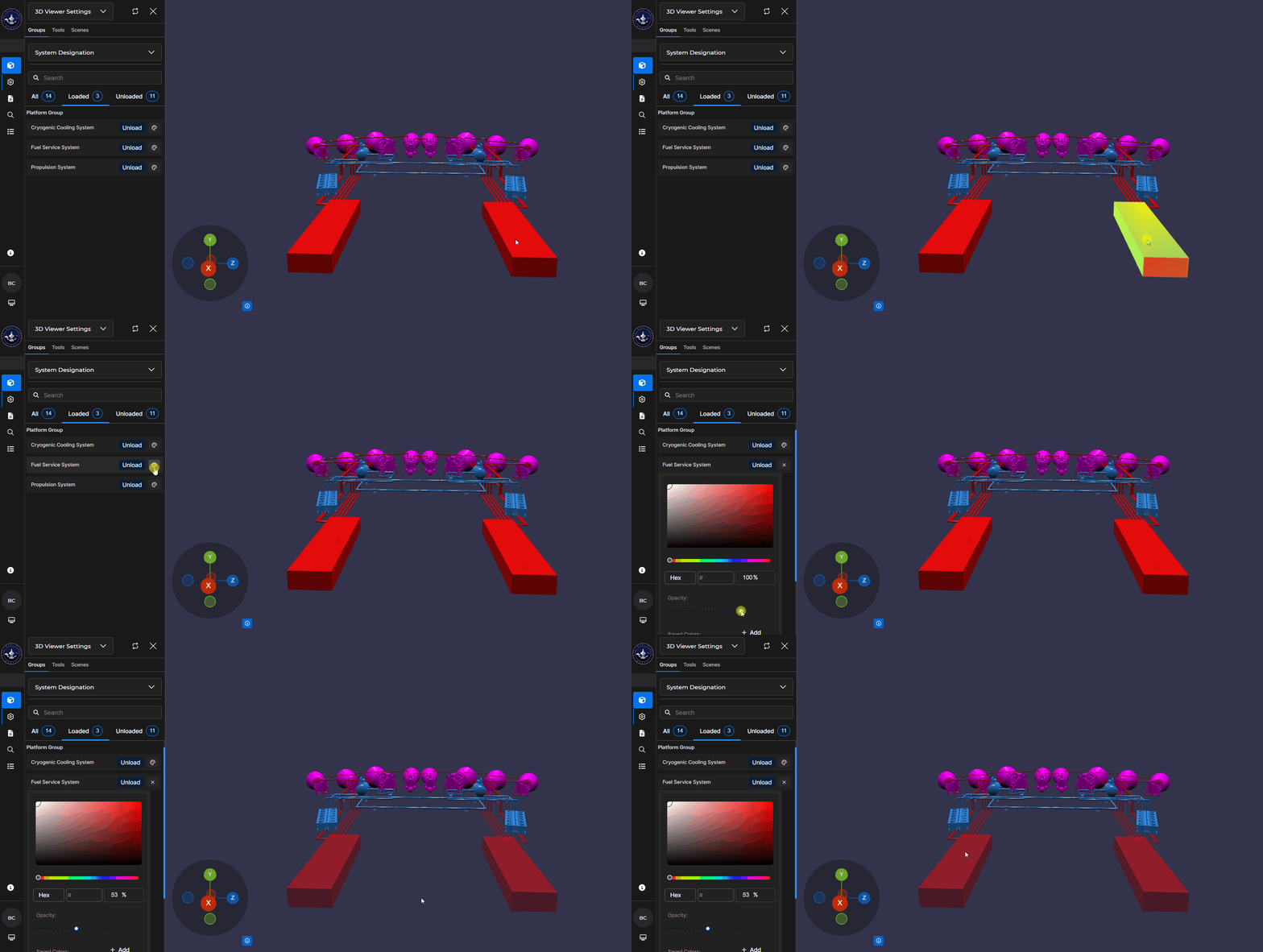
Changing the opacity percentage in the Beast Core 6 3D Viewer Settings plugin allows you to customize the look of loaded 3D Models to suit your viewing purposes.
How to Change Opacity Settings
Load your desired Component Groups on the 3D Viewer Settings → Groups tab.
NOTE
See the Load Your Workspace article for additional information.
Left click the color palette icon next to name of the loaded system you want to modify.
.png)
The current Opacity percentage displays in the color picker menu:
Numerically - In the editable percentage textbox
Defaults to

Positionally - As a white circle on the opacity slider
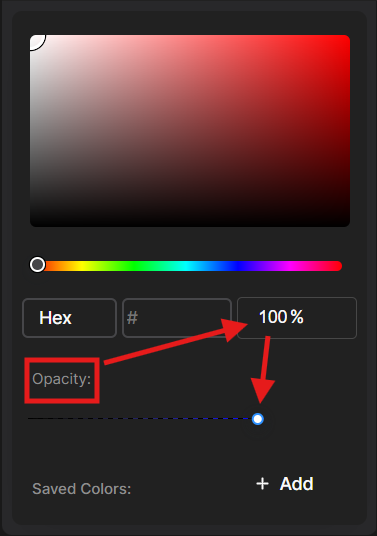
To change the opacity percentage, either:
Left click inside the editable numerical percentage
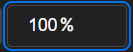 textbox, then:
 Use the backspace key to erase the current percentage, then manually enter a desired percentage
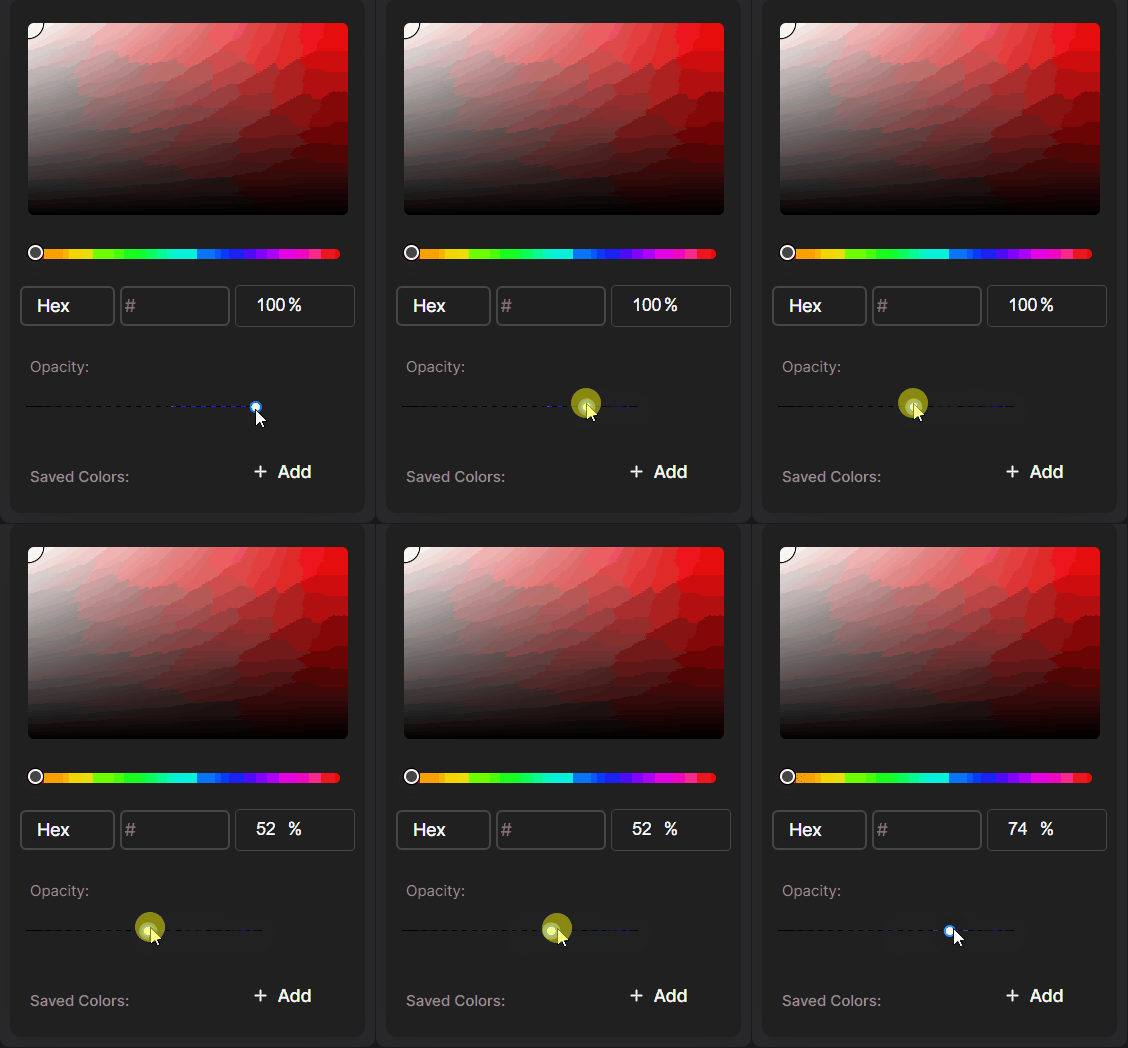
Or left click and drag the opacity slider to the desired percentage
The percentage dynamically changes in the numerical textbox when you release the mouse
When to Change Opacity Settings
To view loaded 3D Models of systems and components in the context of their environment:
Ensure the Hull is one of the loaded items on the 3D Viewer Settings → Groups tab
Change the loaded hull opacity to
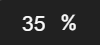 (or less)
To select (highlight) components in a 3D Model to learn more about them:
Leave all loaded systems (excluding the hull) at the default
 opacity
NOTE
Modeled components in systems set to less than 100% opacity are not selectable.
To see behind, around, beyond, or within certain modeled components:
Ensure your desired systems are loaded on the 3D Viewer Settings → Groups tab
Reduce the opacity of each relevant system individually by:
Left clicking the color palette
 icon beside each system that needs an opacity change
Setting your desired opacity percentage in each system’s pop-up color picker window
Use your mouse and keyboard controls to navigate within the 3D Model
NOTE
Reset a system’s opacity percentage to 100% to make its components selectable again.