Use the Component Details page in the Beast Core 6 Workspace Configuration plugin to configure component attribute information in ways that maximize its readability and usefulness.
To understand how these settings affect the user experience, refer to the Interact with Components and Systems article.
Access the Component Details Page
Left click the far left page with pencil
 icon.
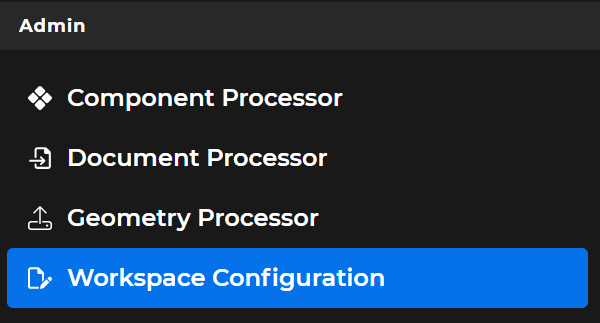
icon.Or select Workspace Configuration in the Admin section of the left-hand navigation pane
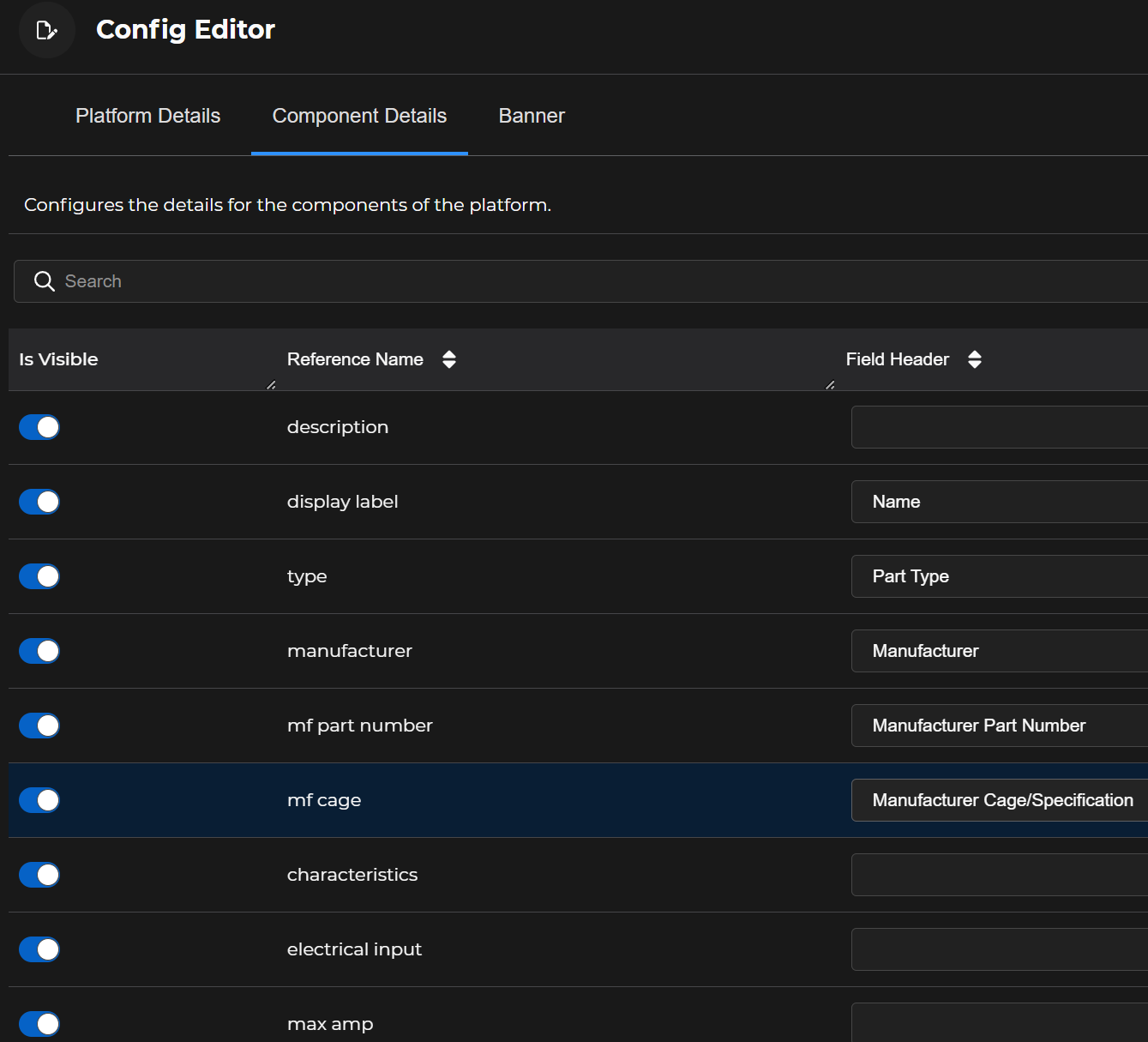
Select the Component Details page tab in the main screen Config Editor window.
Page Functionality
Use the
 textbox feature to locate a particular word in a Reference Name or Field Header entry by keyword.
Use the Is Visible toggle to show (toggle right) or hide (toggle left) a particular Reference Name metadata textbox in the user view.

NOTE
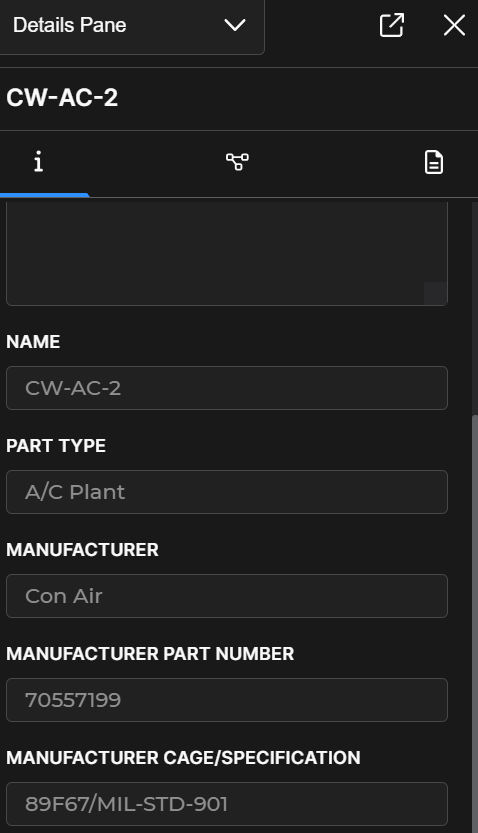
Users can view a selected component’s visible metadata on the Details Pane → Information tab.
Use the Reference Name or Field Header filters to display items in those columns in A-Z or Z-A order.

Items in the Reference Name column represent the different categories of component information stored in the database.
NOTE
Listed Reference Names may only be edited via the Component Processor editing tool’s export/import CSV files feature.
See the Export and Import Component Metadata article for additional information.
If a particular Reference Name is toggled Is Visible, the end user sees a textbox containing the information stored in the database for that attribute category
Example: The “Part Number” Reference Name is toggled Is Visible

The end user sees a selected component’s actual part number in that attribute textbox

To avoid potential end-user confusion:
Add Field Header identifiers (easy-to-read captions) for all Reference Names (component attributes) toggled Is Visible
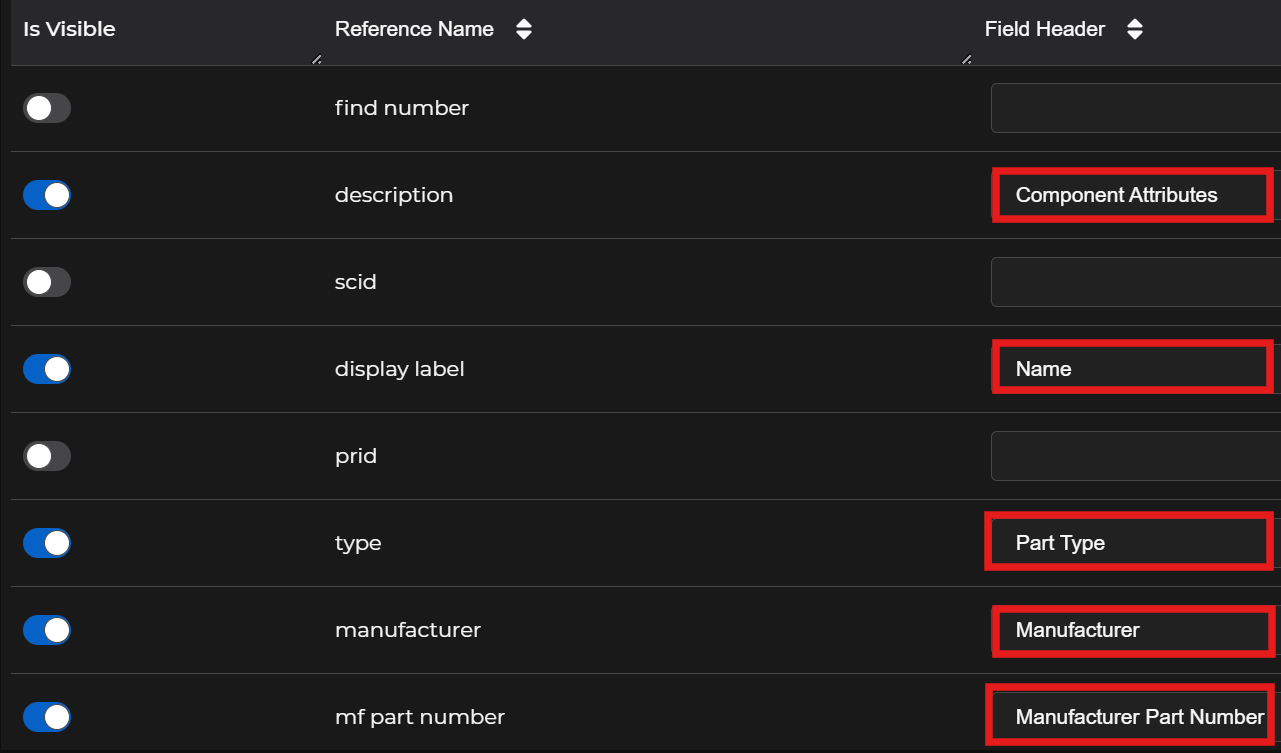
Use non-technical wording
Spell out acronyms (unless commonly known)
NOTE
Field Header names (for a component currently selected by the user):
Display in ALL CAPS above the component metadata textboxes on the Details Pane → Information tab
Provide context and meaning to maximize the data’s usefulness
Disable the Is Visible toggle for all component attributes that do not have Field Header entries
NOTE
Unlabeled component data is difficult to interpret and use because it lacks context.
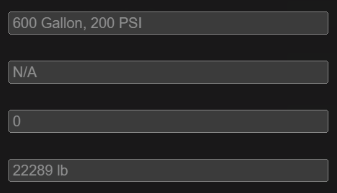
The screenshot below shows how unlabeled component metadata displays on the Details Pane’s Information tab (when Reference Names without Field Headers are left visible to the user).
Notice that it’s impossible to determine what the N/A and 0 data means without accompanying Field Headers.