Use the Beast Core 6 Search plugin’s filter feature to reduce the number of unique results (table rows) on a search results table for more streamlined viewing.
Filter an Active Search Results Table
Left click the
 button in the upper right corner of an active search results table.
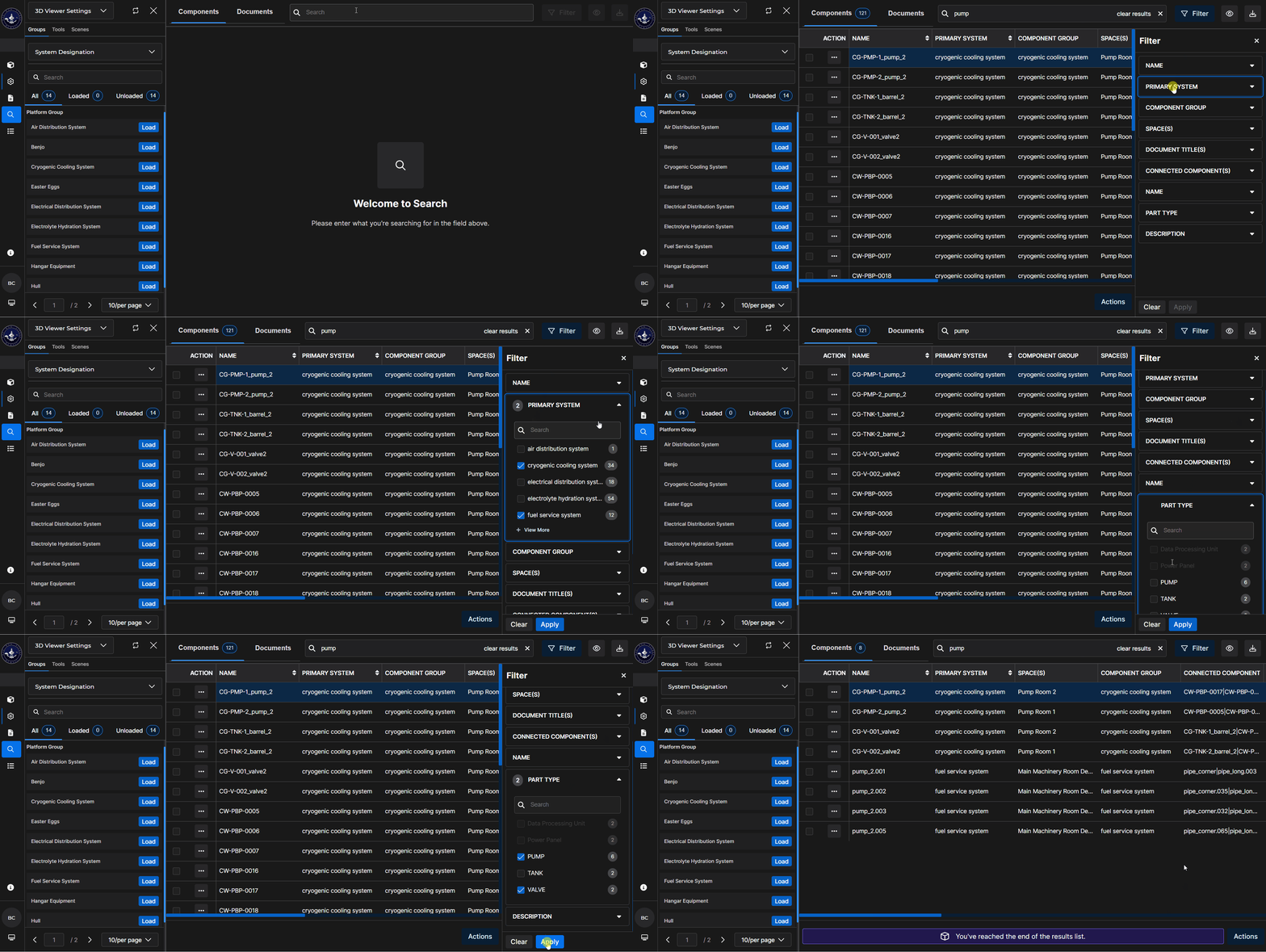
The pop-up Filter menu:
Lists all available column names on the current search results table
Provides a down arrow beside each listed column title for accessing its drop-down menu
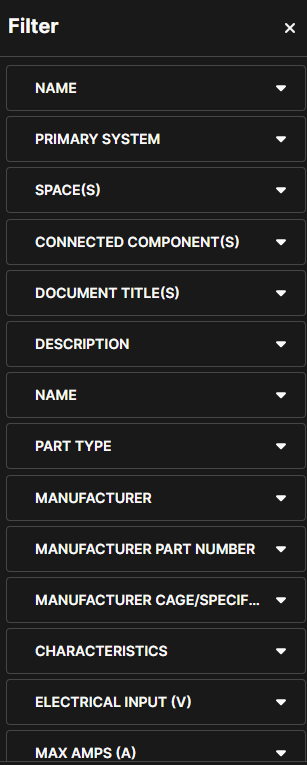
Left click the down arrow beside a listed column name.

The resulting drop-down menu:
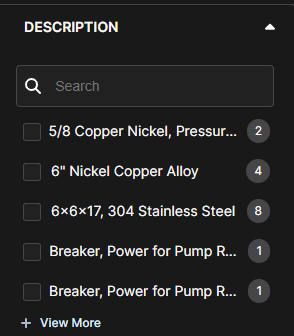
Contains an optional Search textbox
Lists all unique metadata entries included in that column (if any)
Displays the number of instances for each unique listing
Contains a
 button in the lower left corner when menu options exceed the size of the pop-up window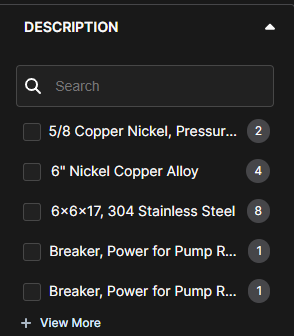
Left click to select one or more menu options, then left click the up arrow to close the filter submenu.
NOTE
Selecting a particular filter on one column name’s filter submenu may impact which options are available on the filter submenus for other column names.
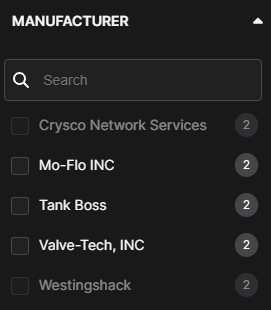
Unavailable filters display in grayscale.
EXAMPLE:
A user selects a particular System filter then opens the Manufacturer filter menu. The only selectable manufacturer filters are those that supply parts for the selected system.
Repeat Step 4 for each column you desire to filter.
Left click the
 button at the bottom of the menu to apply the selected filter(s).
The updated search results table displays only the filtered items.
The reduced number of unique results (table rows) makes it easier to find your desired search result(s)
Left click the
 button at the bottom of the Filter menu to remove all selected filters.
To close the Filter menu, either:
Left click the X in the upper right corner of the pop-up Filter menu
Or left click the Filter button in the upper right corner of the search results table
NOTE
If desired, use the Configure Table feature to further customize your active search results table.
See the Configure a Search Results Table article for additional information