Stop Audio cards allow you to stop any audio playing on specific channels, or all of them at once.
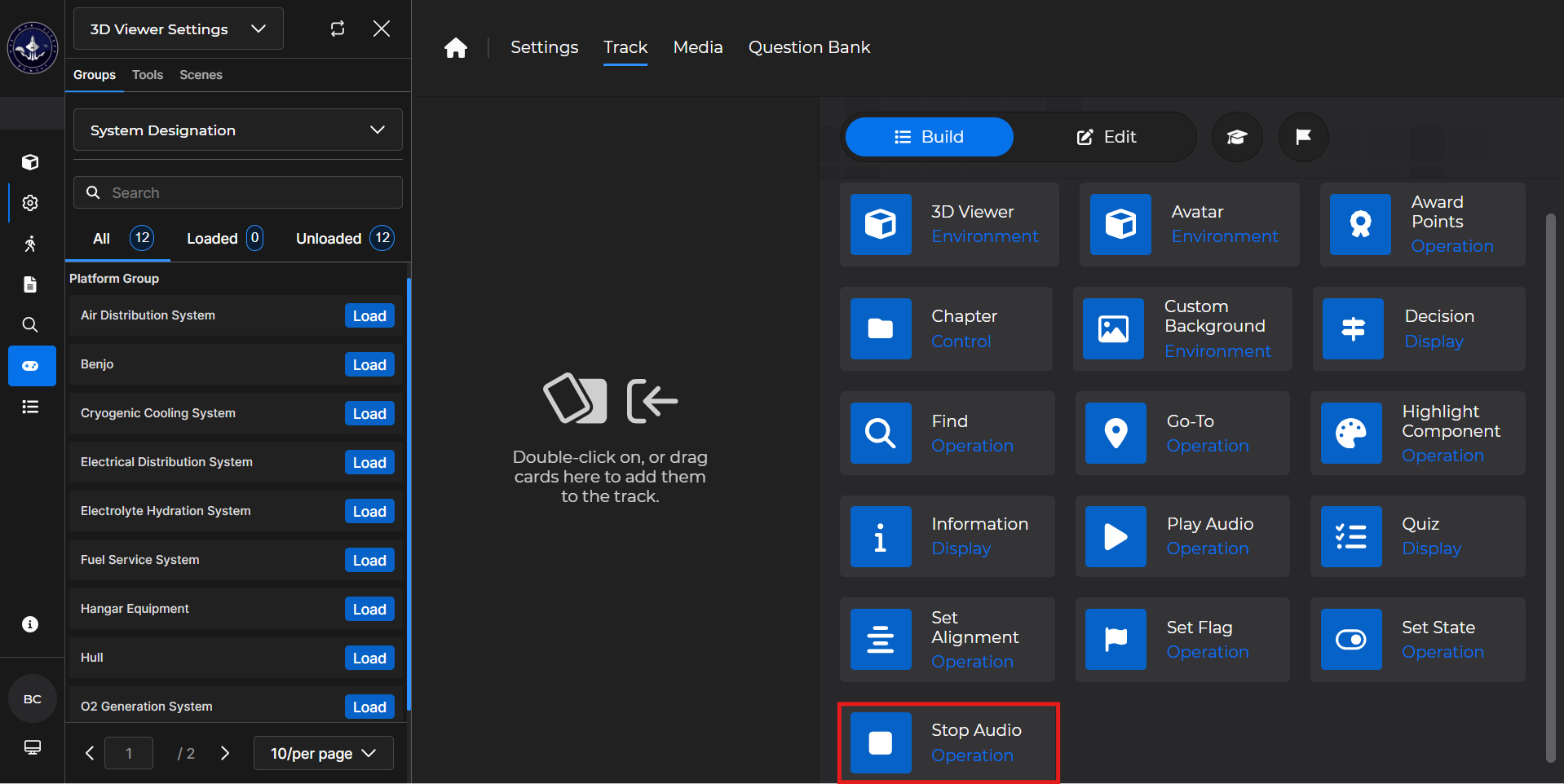
Building the Card
To add the card to the lesson track:
Left click and drag the card to the track
OR double click the card to add automatically
.gif)
To begin editing:
Left click the card on the track and then left click

OR double left click the card on the track to open editing automatically
.gif)
In the editing window, you can:
Choose a specific channel to stop the audio on
Choose to stop audio on all channels
.gif)
NOTE
Stop Audio cards are generally used after Play Audio cards in the lesson track. See the below article for more information:
Stop Audio Card - Use Case
One popular use of a Stop Audio card is to stop audio playing in a lesson to increase immersion.
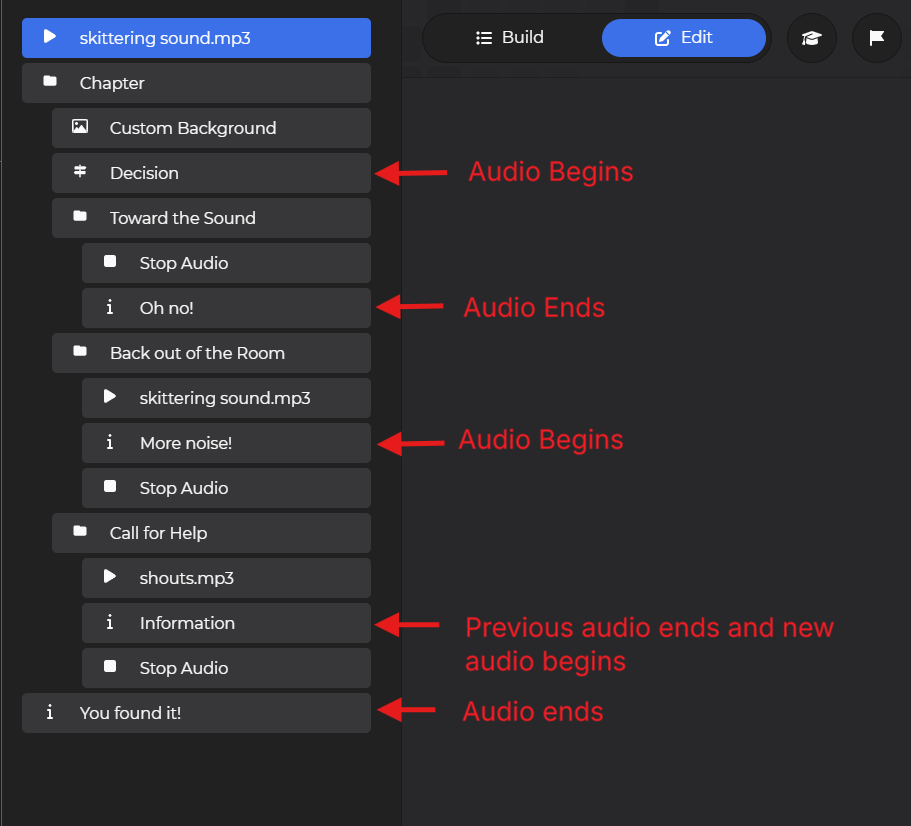
Example: Follow the steps below to set up a section of a lesson where a learner hears some noise and must decide what to do:
Start with the desired audio on the Play Audio card.
Add a Chapter card.
Add appropriate exit conditions
Add a Custom Background card to further increase immersion.
Add a Decision card.
Edit the prompt, response text, flags, conditions, and values
Add a Chapter card for the first Decision card choice.
Set appropriate entry and completion conditions
Repeat this step for each decision the learner can take
Add a Stop Audio card to have the noises cease once the learner discovers the goal.
NOTE
For more information, please see the following articles: