Using the Zoom feature in the Beast Core 6 3D Viewer quickly moves you to a close-up view of a selected component.
Zoom to a Component in a Loaded 3D Model
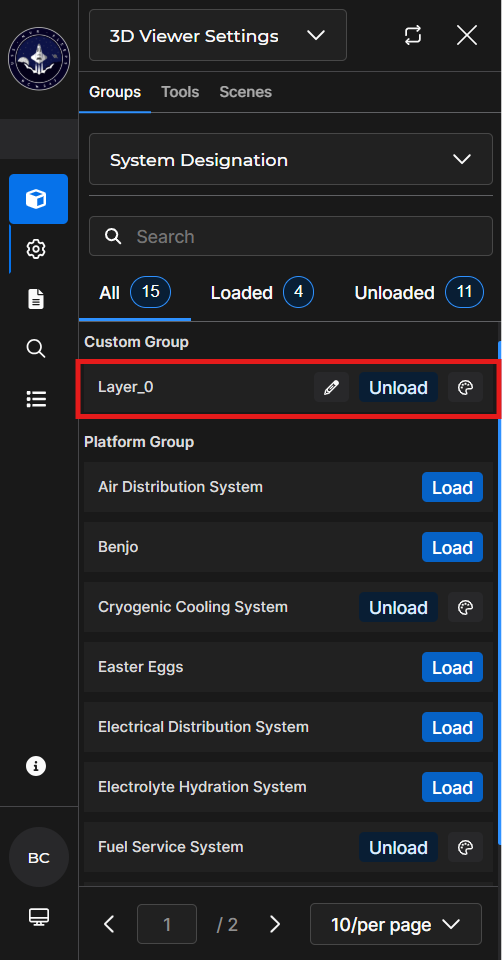
Load your desired Component Group(s) via the 3D Viewer Settings → Groups tab, then left click to highlight a Component on the 3D Model.
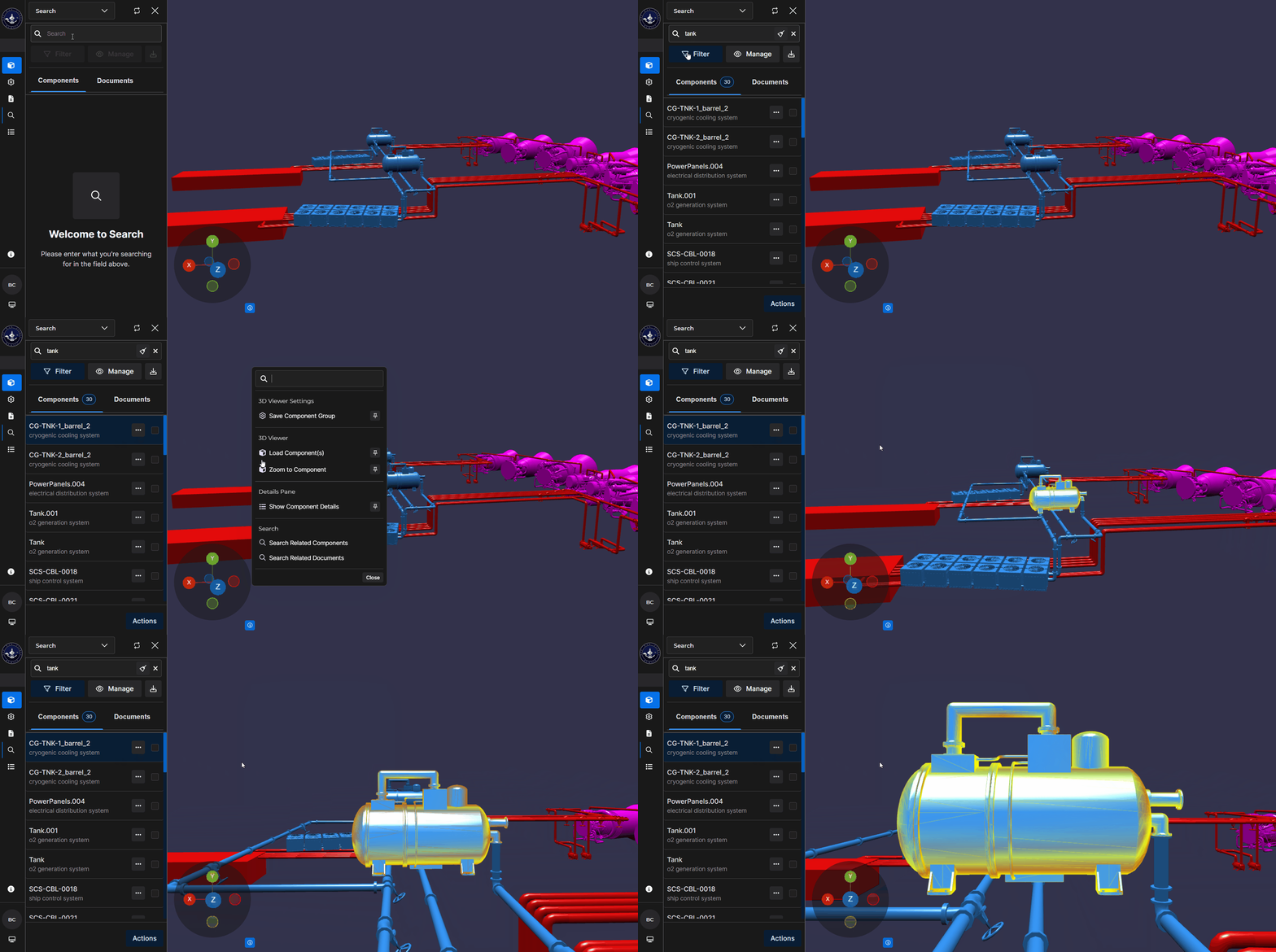
After right clicking a highlighted component, a pop-up Component Action Menu shows available options for further exploration.
.png)
Select Zoom to Component to Zoom directly to that location in the 3D Model.
Use the mouse wheel, the W, A, S, D keys, arrow keys, left click & drag or the Gizmo to adjust your view.
Zoom to a Searched Component
Search for a component in the Search plugin.
On the search results table, left click the Ellipsis
 icon.
icon.Select Zoom to Component on the pop-up Action Menu.
NOTE
Refer to the Search Overview article’s Using Search section for more information.
Zoom to a Component from the Document Viewer
Left click the page icon
 on the far left side of the screen to open the Document Viewer plugin on the main screen.
Left click to open the Diagrams directory, then select a desired diagram document.
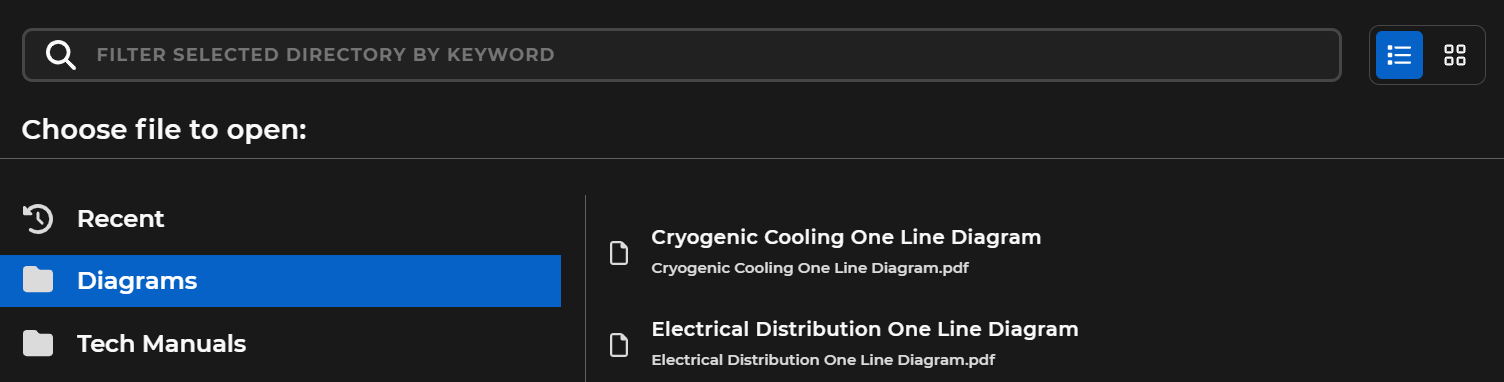
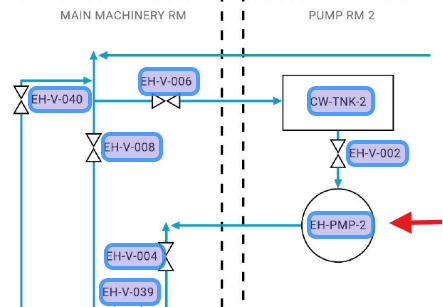
Left click any hyperlinked component name on the open diagram.
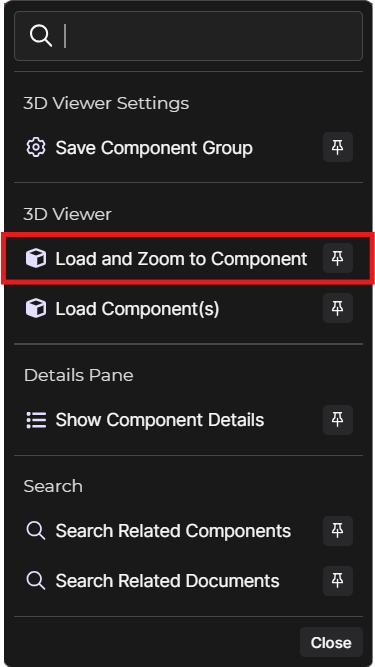
Left click the Load and Zoom to Component option on the pop-up Action Menu.
The 3D Viewer opens in the left-hand content pane and displays a 3D Model of the selected component.
Left click the Swap
.png) button at the top of the content pane to move the 3D Viewer to the main screen, if desired.
button at the top of the content pane to move the 3D Viewer to the main screen, if desired.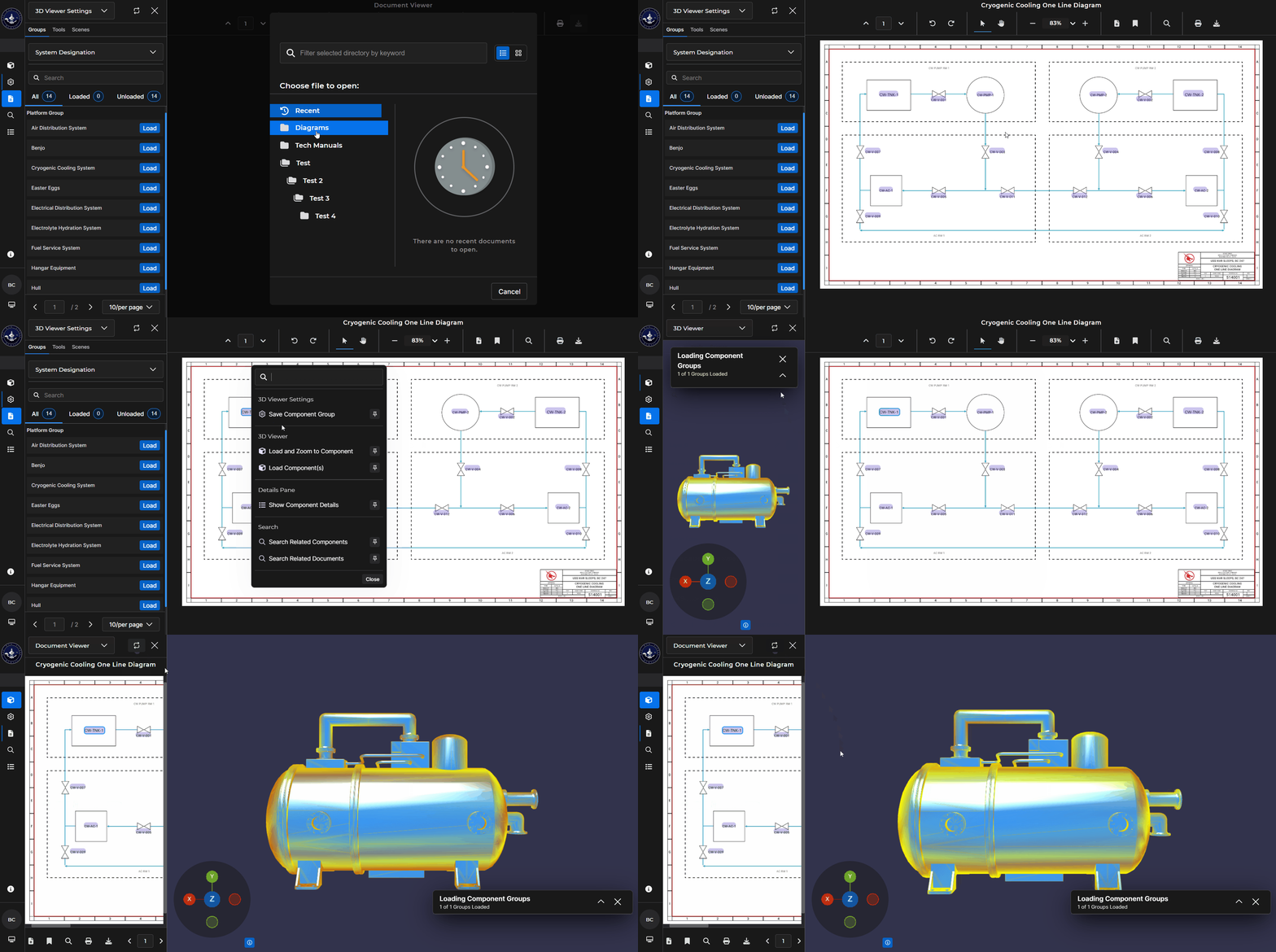
Zoom to a Component Connection from the Details Pane
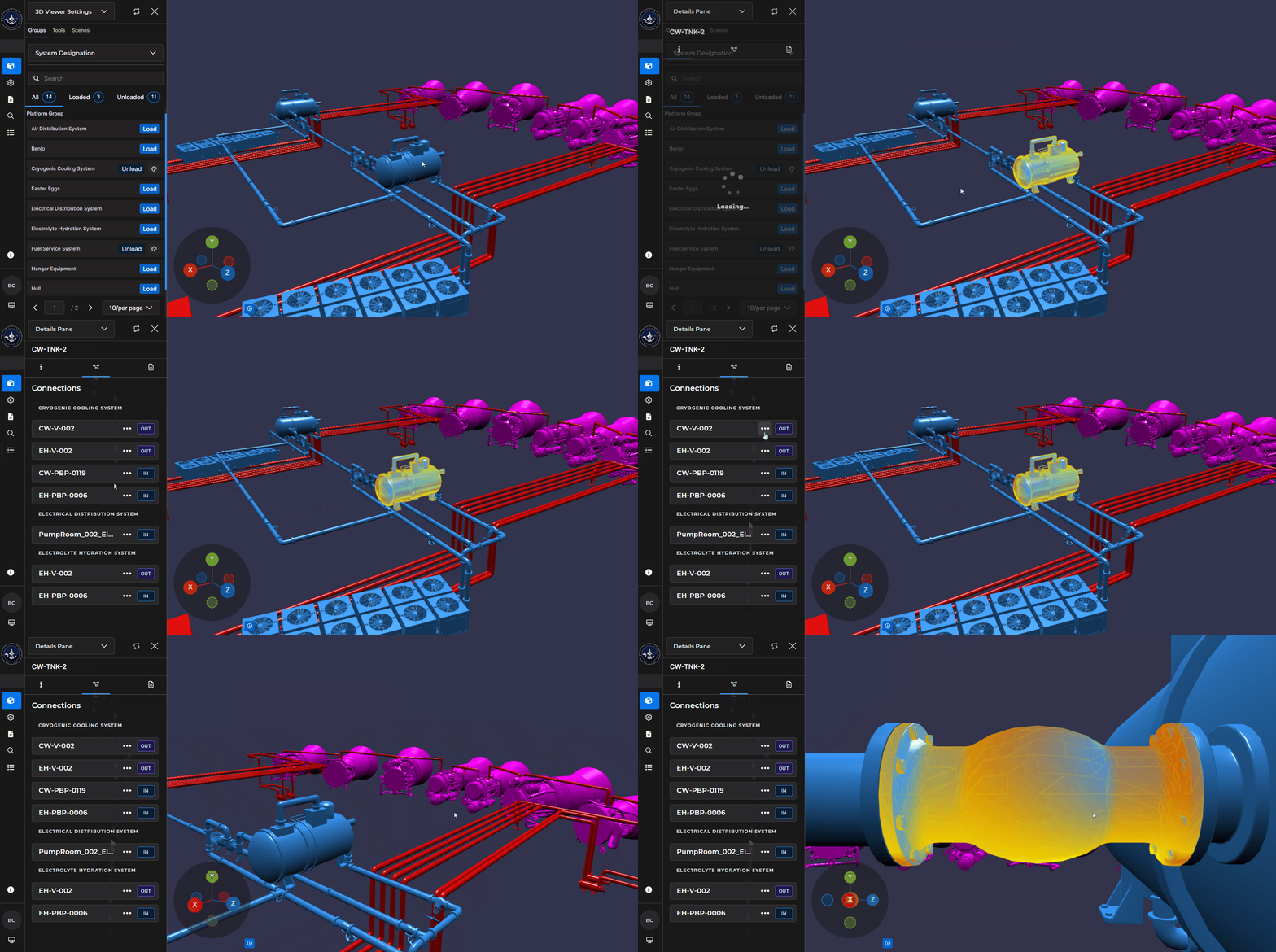
Left click to highlight a component on the 3D Model.
Right click a highlighted component and select Show Component Details on the pop-up Component Action Menu.

Click the Connections
 icon at the top of the Details Pane.
Left click the Ellipsis (three-dot) button to the right of the listed component you’d like to view.

Choose Zoom To Component on the Component Action Menu to move the viewer camera directly to the selected connection.
NOTE
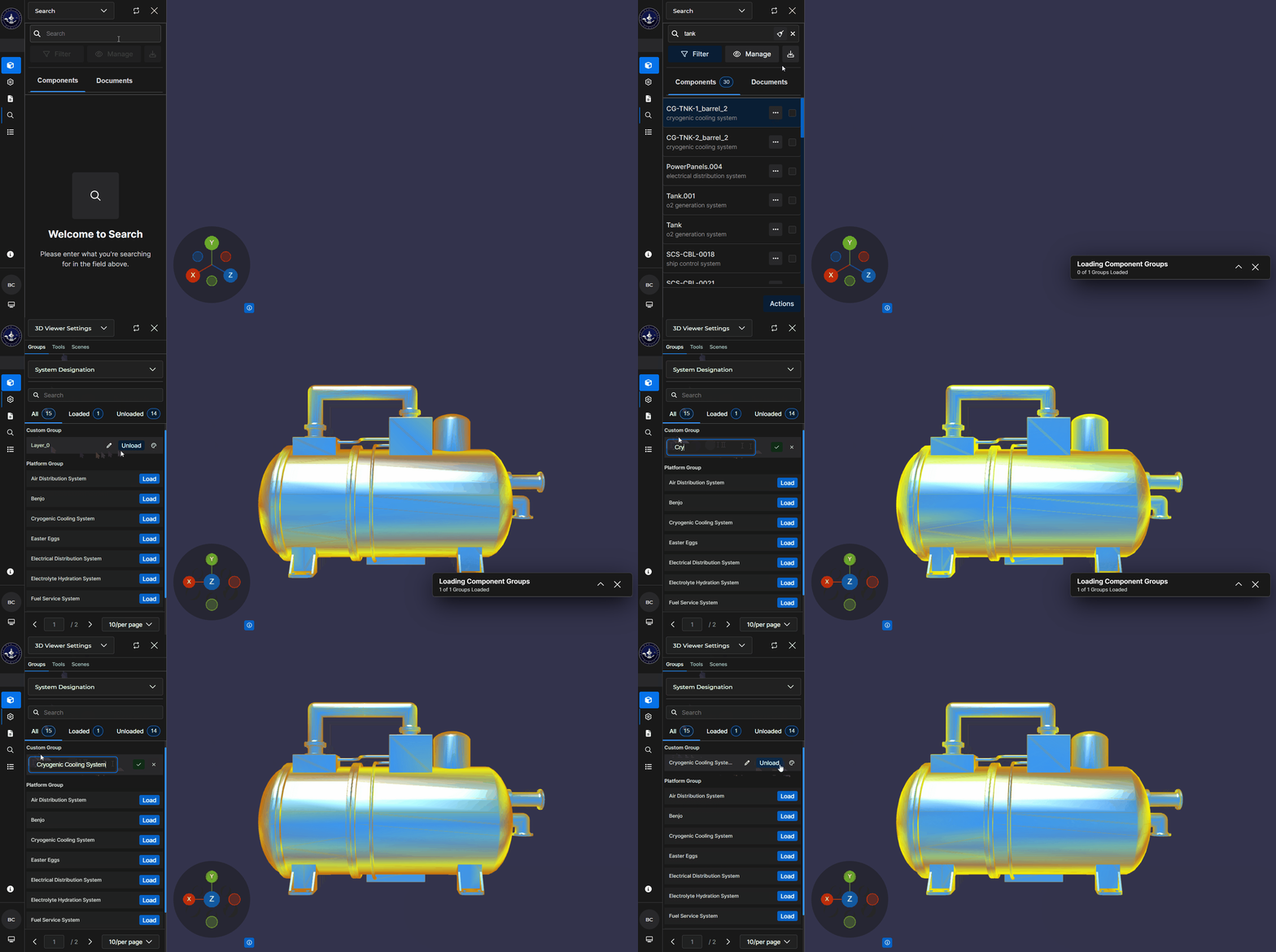
When you Load or Load and Zoom to a component in any Beast Core plugin, that component automatically loads in the 3D Viewer Settings → Groups Tab → Custom Group section.
The loaded component name defaults to the Layer_0, Layer_1, Layer 2, etc. naming format
Left click inside the editable textbox to rename the loaded component
Left click the
button beside the component name to remove the zoomed to component from the 3D Viewer
Or left click the
button beside the component name to reload it into the 3D Viewer