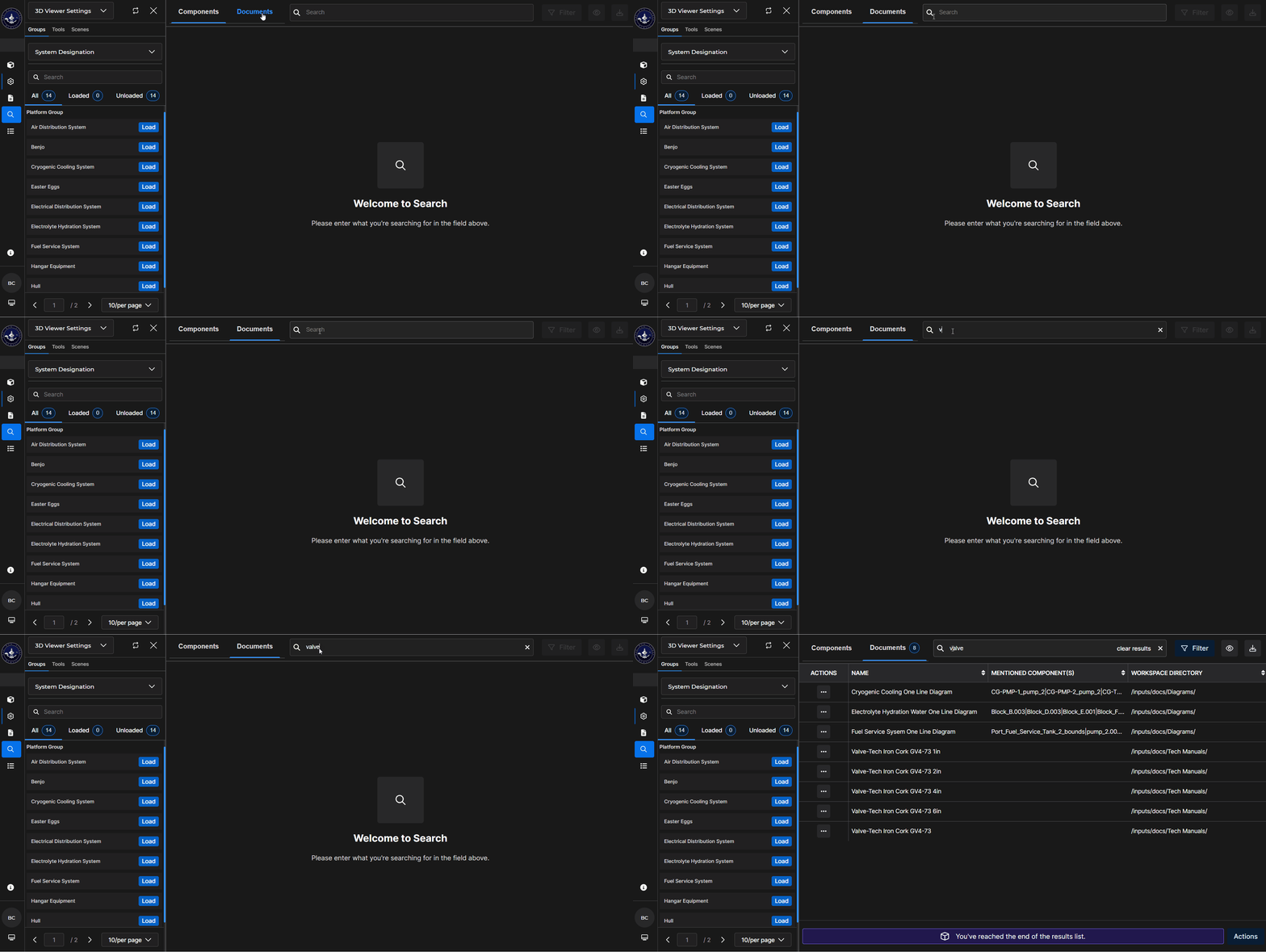
Beast Core 6 has a powerful Search plugin with functionality that is logical and easy to use.
Open the Search Plugin
Click the far-left magnifying glass
 icon to open the Search plugin on the main screen.
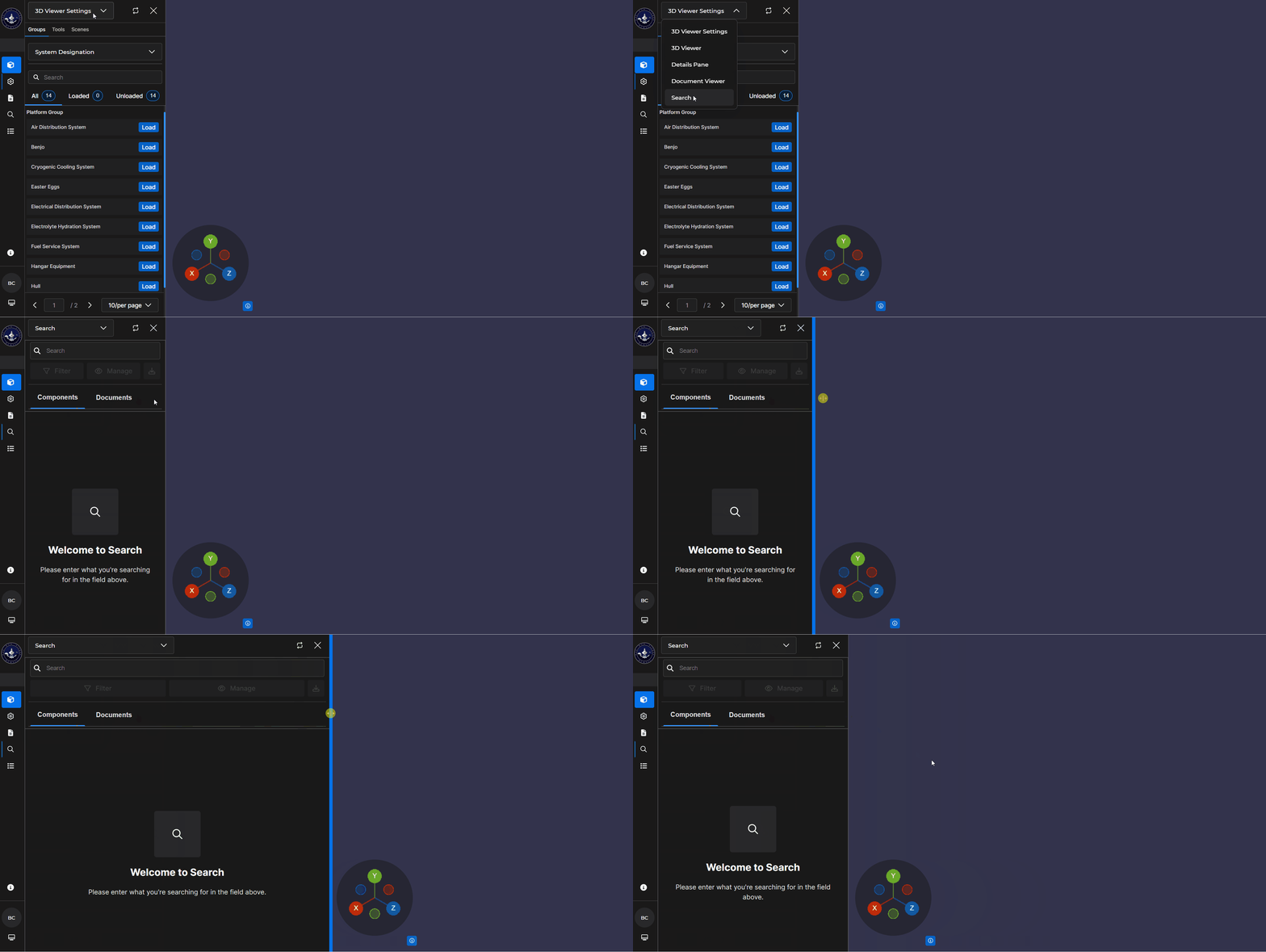
Or select Search in the expandable left-hand content pane’s drop-down menu to open Search in that pane
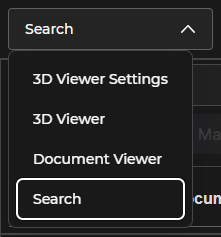
Refer to these articles for additional information:
Use Search Features
The Search plugin:
Provides two search category tabs and a Search textbox

Conducts a global search for related program data when you enter a keyword
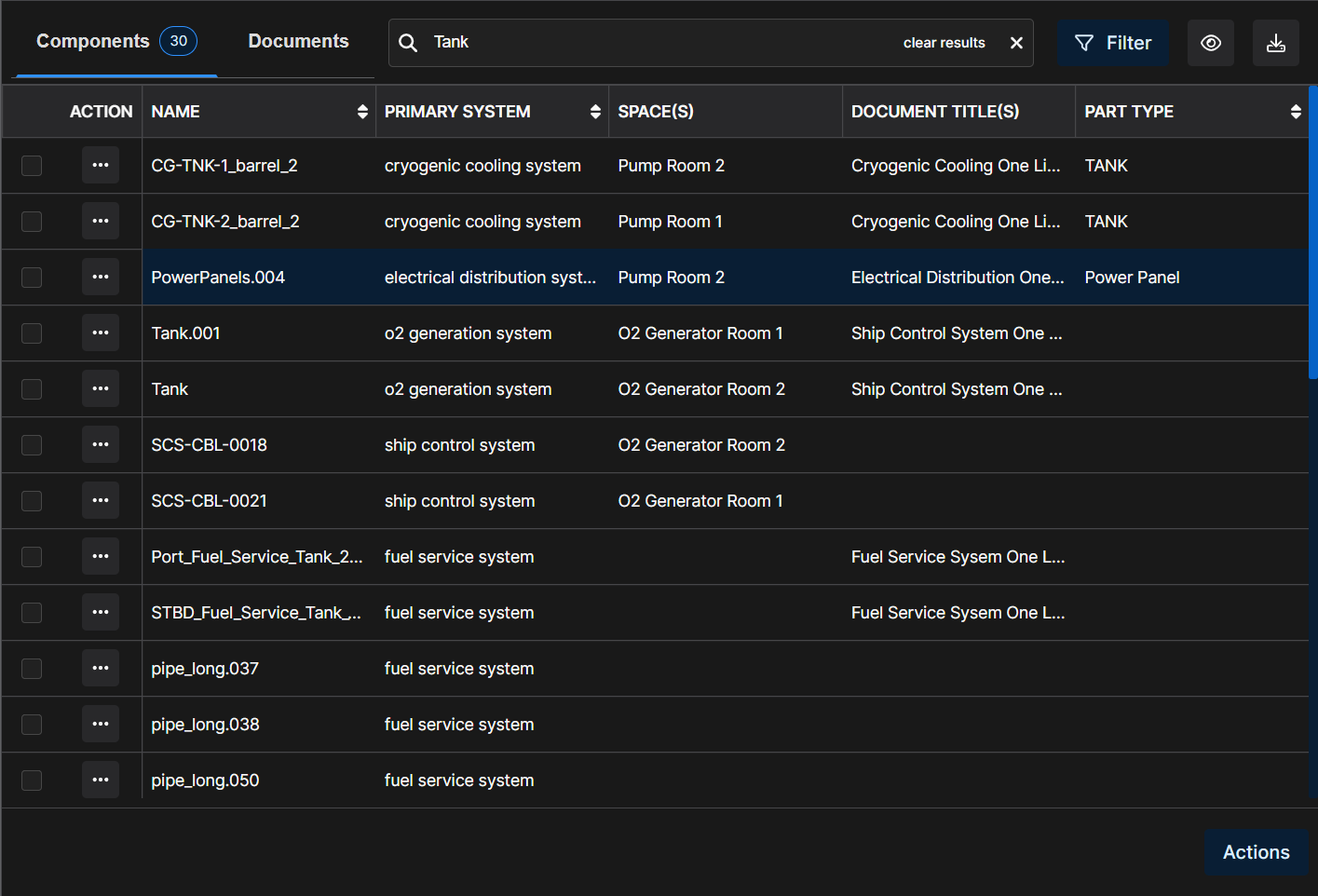
You can sort
 some search results table columns:
Alphabetically (A-Z; Z-A)
Numerically (low to high; high to low)
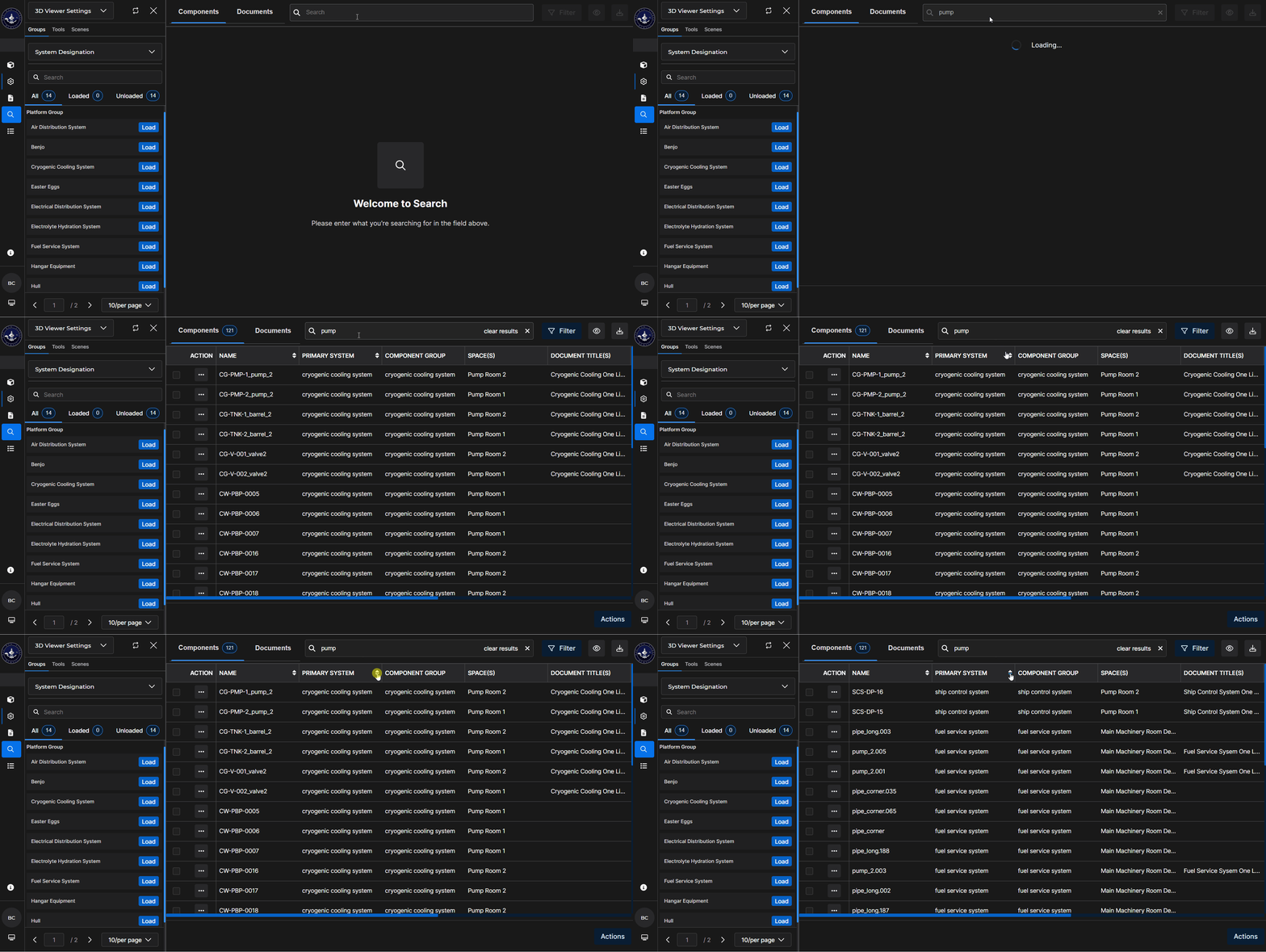
If applicable, use the horizontal scroll bar to access items outside of the viewing window.
NOTE
Search results that exceed the size of the search window display via an infinite scroll function.
Additional content loads automatically when the vertical scroll bar (or your mouse wheel) reaches the bottom of the window.
Use the search results Filter feature to reduce the number of unique search results (table rows)
Left click the
 button in the upper right corner of the search results table to access the filter submenus
See the Filter Search Results article for additional information
Use the Configure Table menu to reduce the number of columns (metadata topics) that display on a search results table
Left click the
 eye icon in the upper right corner of the search results table to open the Configure Table menu
See the Configure a Search Results Table article for additional information
Search for Components
Select the (default) Components tab to search for specific component metadata by keyword.
Returned search results are in a columned format when you conduct a search on the main screen
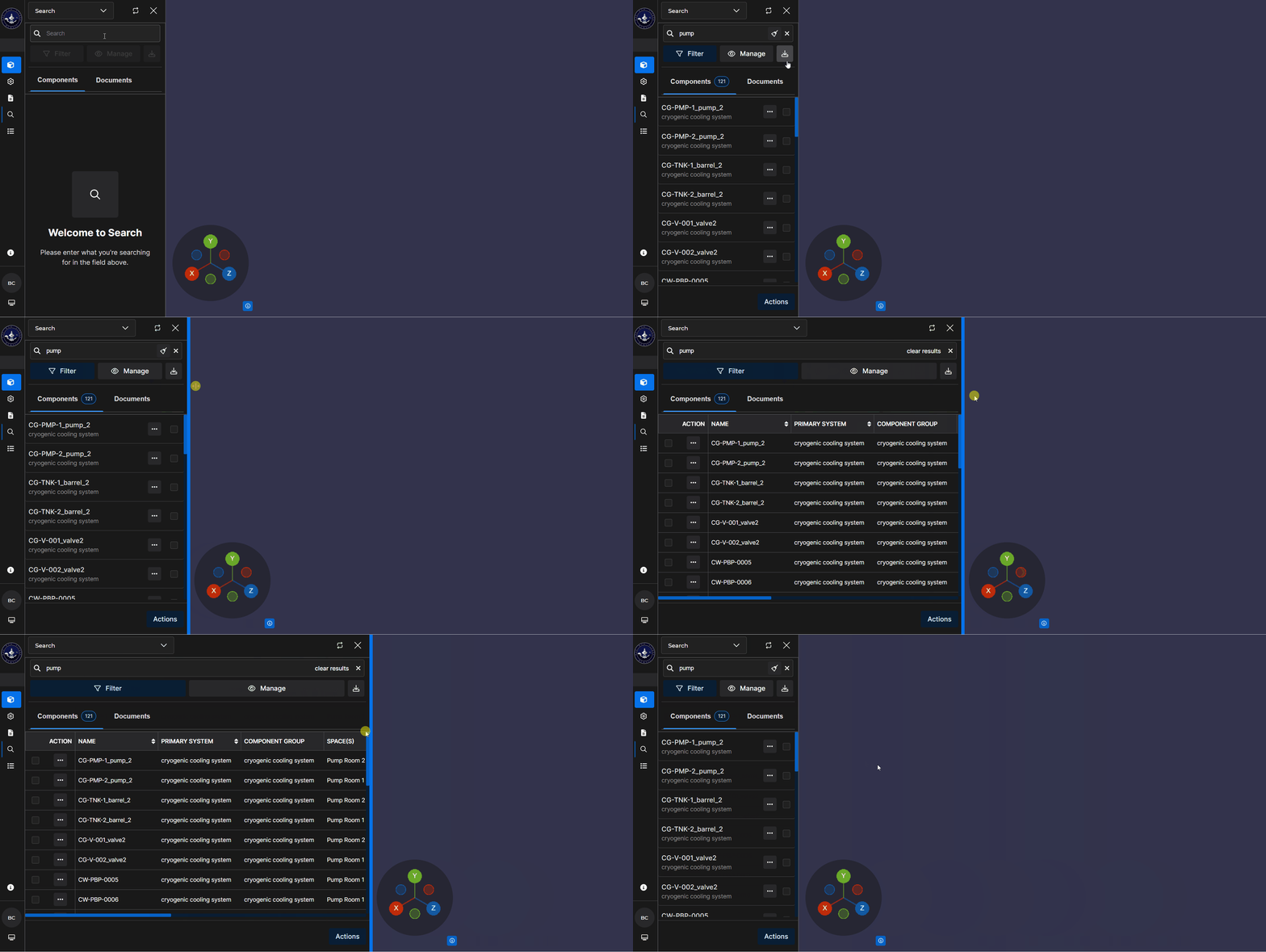
Your keyword query returns abbreviated results when you conduct a search in the left-hand content pane
To expand this pane, hover over the right edge of the content pane and click and drag the blue vertical line
Left click the Ellipsis
 in the Action column to open an Action Menu for your selected component.
.png)
See these articles for additional information:
Search for Documents
Select the Documents tab to search (by keyword) for reference documents relevant to a specific component or system.
To open a desired document:
Click the Ellipsis
 in that document’s Actions column
Select Open Document on the Document Action Menu
.png)
See the Search for Documents article for additional information.