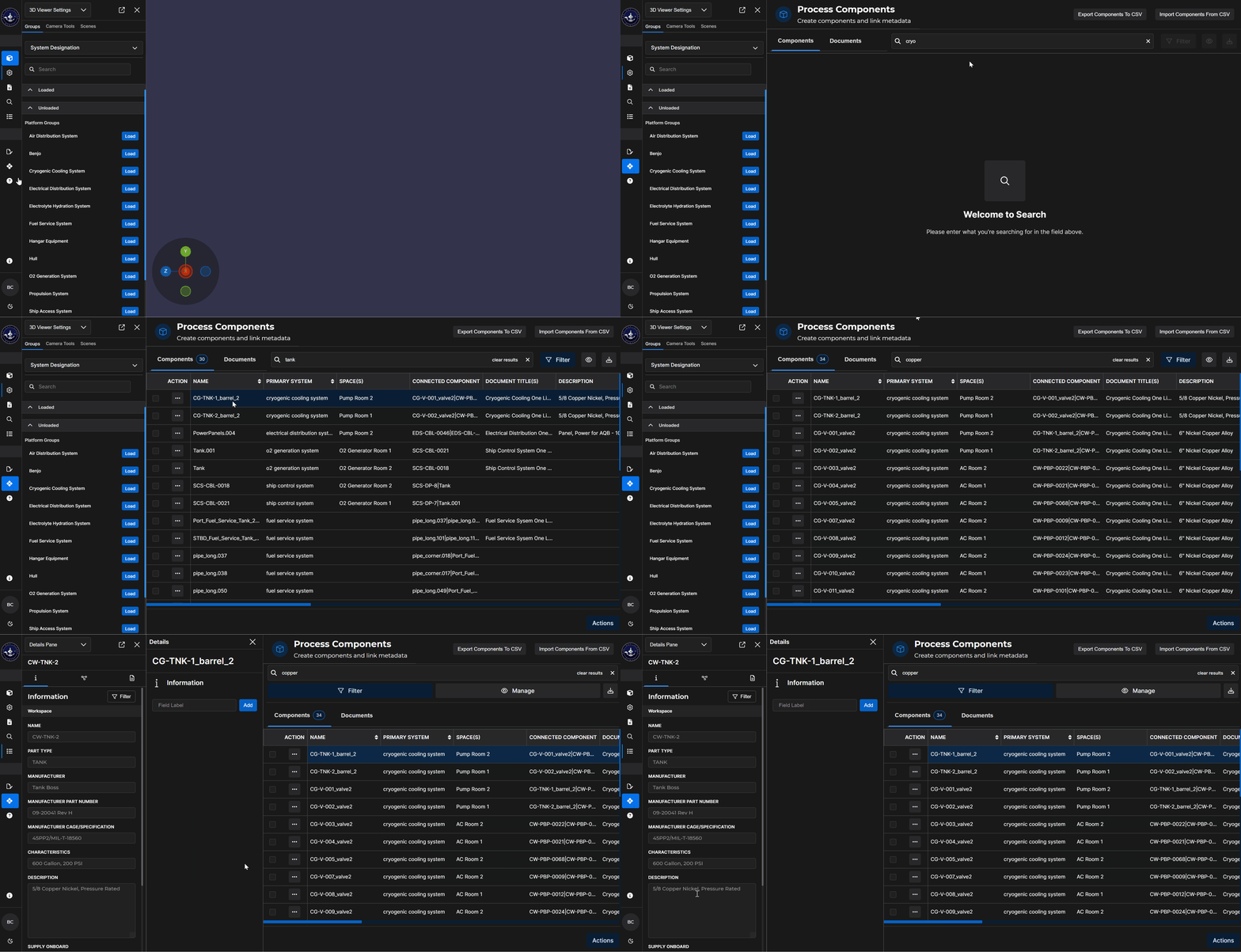
Easily locate and view component metadata via the Components tab and Search feature in the Beast Core 6 Component Processor editing tool.
Search for a Specific Component’s Metadata
Click the four-diamond icon
 on the far-left side of the screen to access the Component Processor.
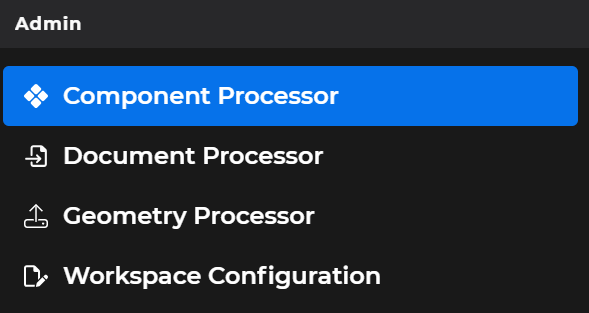
Or, select Component Processor in the left-hand navigation pane’s Admin section
The Process Components screen opens in the default Components tab view.
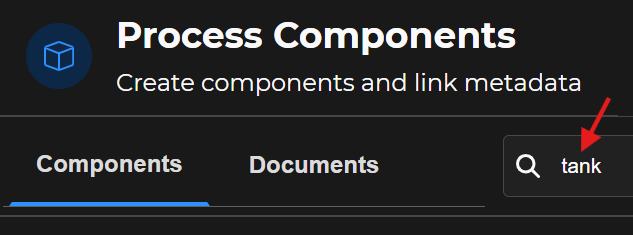
Type a keyword into the Components tab’s Search textbox.
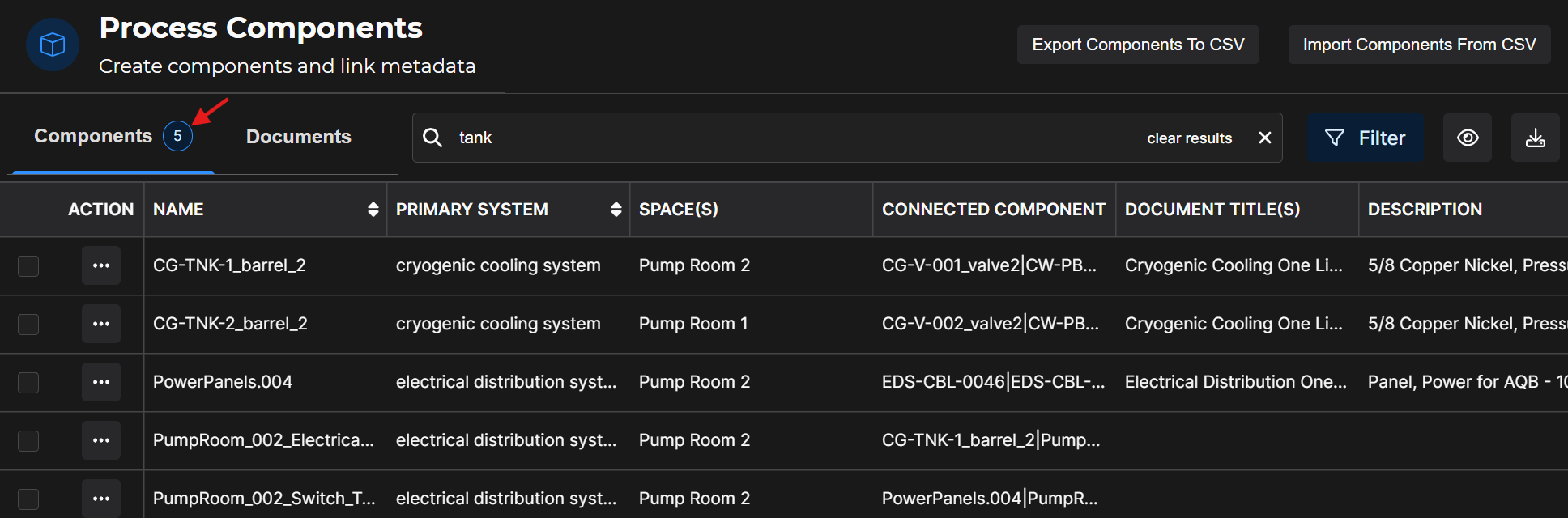
Check the displayed search results table for your desired component information.
The total number of returned results displays beside the Components tab
Try a different keyword if a searched word yields no component metadata results.
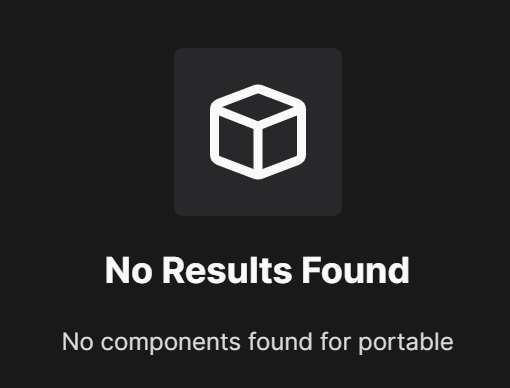
NOTE
A keyword must be in the stored component metadata to return a search result.
If desired, use the search Filter
 and Configure Table
  buttons to refine how your search results display.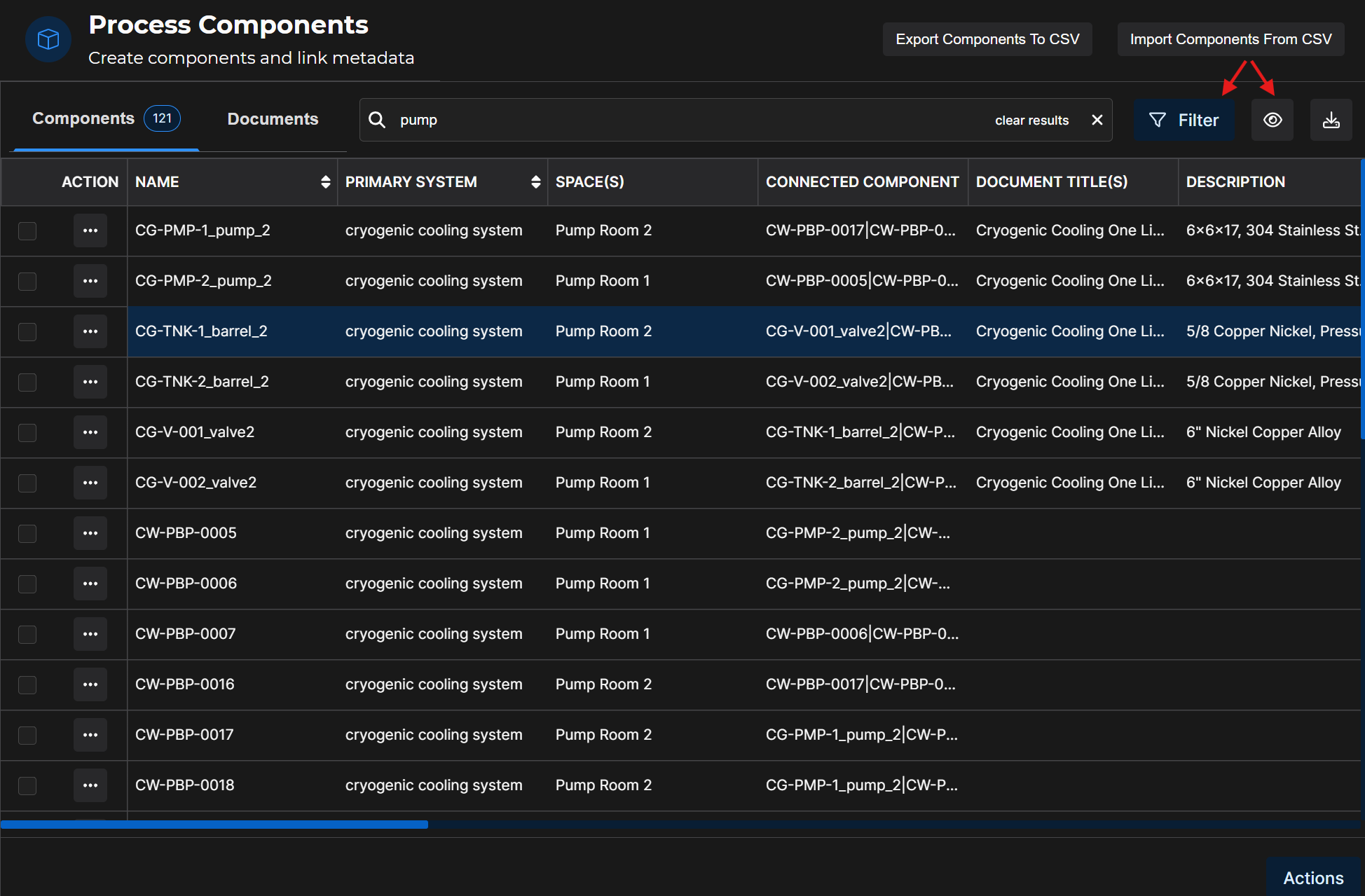
Filter by metadata category, then left click the
 button
Or, select which metadata categories you want the table to display, then left click the
 button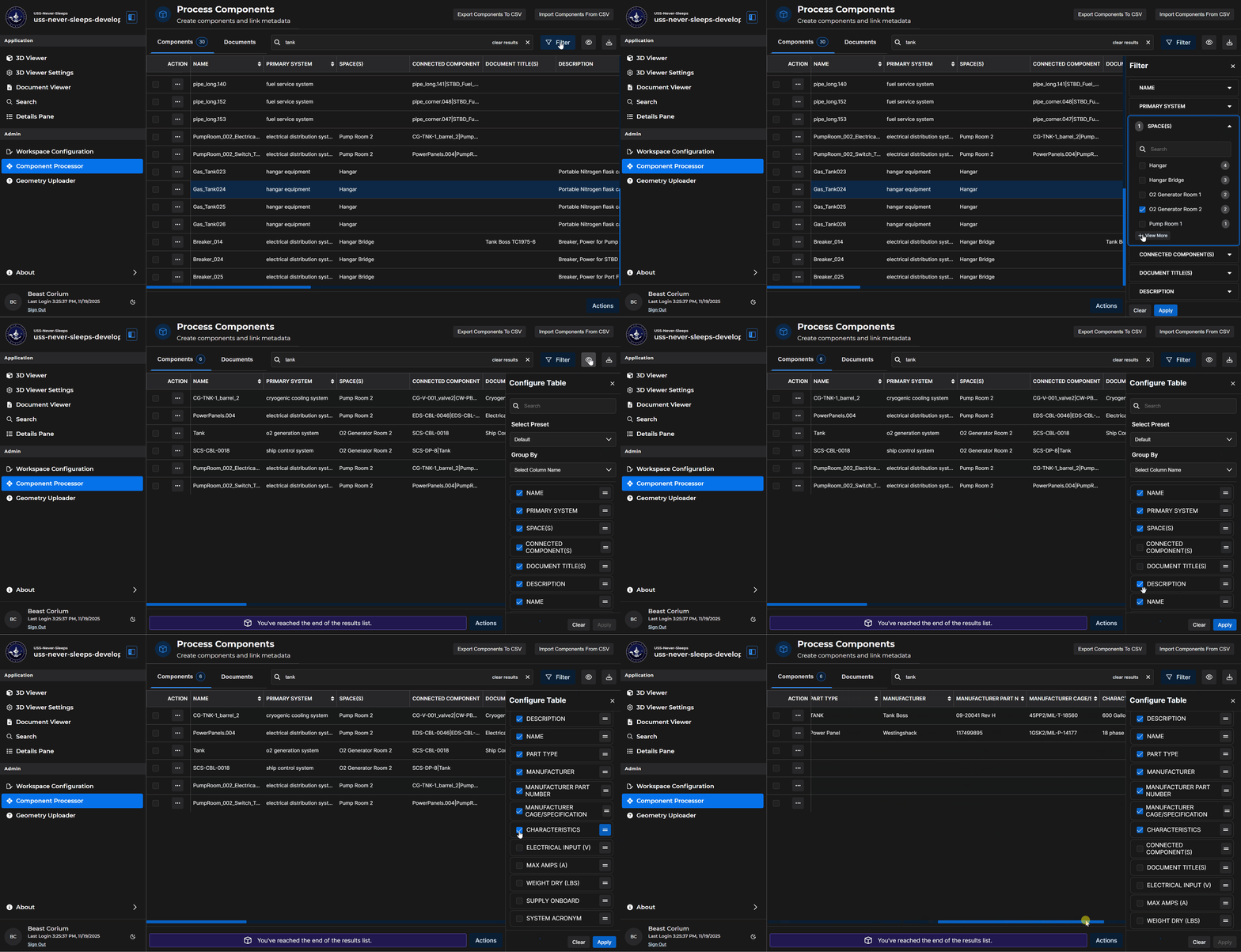
To learn more about a searched component (or to view and interact with a 3D Model of it):
Click on the Ellipsis
 in that component’s Actions column on the search results table
Select your desired action in the pop-up Component Action Menu
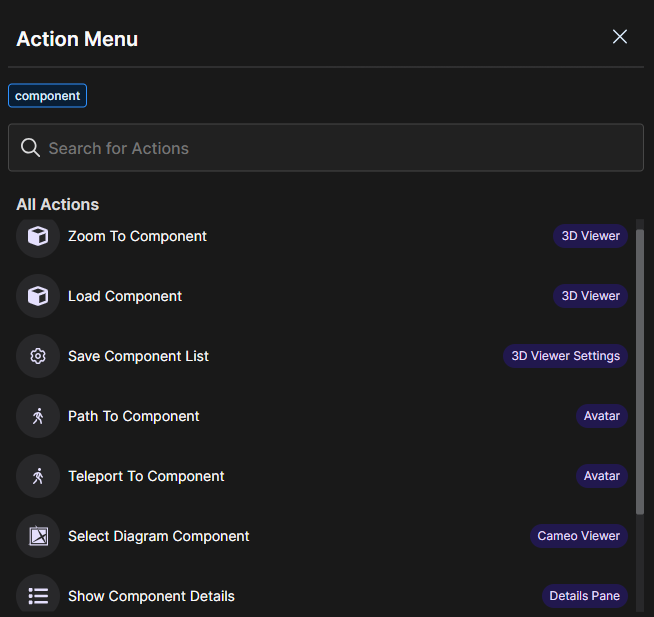
NOTES
Selecting Show Component Details in the Action Menu opens a read-only version of the Details Pane.
The Modify Component Data on the Details Pane article explains how to access the editable Details Pane for a specific component.