To view other components that directly connect to a selected component in Beast Core 6, left click the Connections (three connected shapes) icon at the top of the Details Pane.
Locate and View Component Connections
Prerequisite
Select a component in another Beast Core plugin prior to accessing the Details Pane.
Refer to these articles for additional information:
The Details Pane initially opens on the (default) Information
 tab.
tab.Select the Connections tab
 icon.
icon.View a list of Components with direct Connections to your selected component.
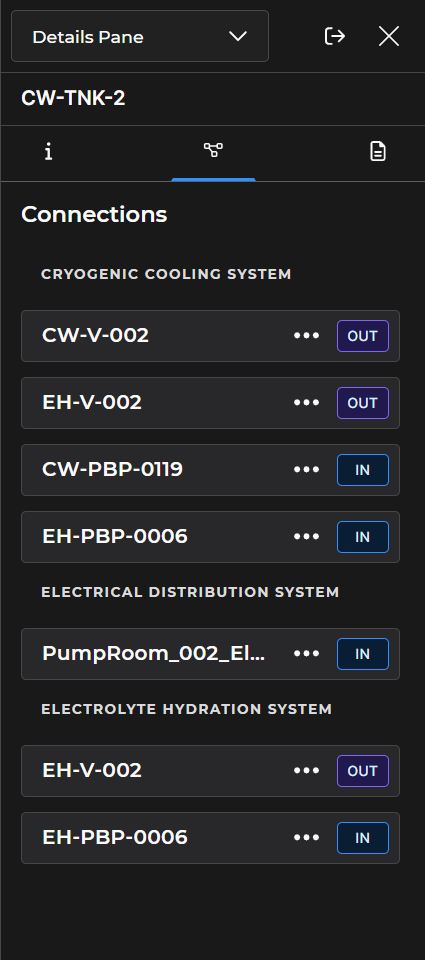
The IN, OUT, (or BOTH) designator to the right of a listed connection:
Describes the relationship of that connection to your selected component
Indicates the direction of how flow is carried through that connection
Left click the Ellipsis
 on the right side of a listed connection to access that component’s Action Menu.
.png)
NOTE
The number of available Action Menu options varies, depending on your selected component.
.gif)