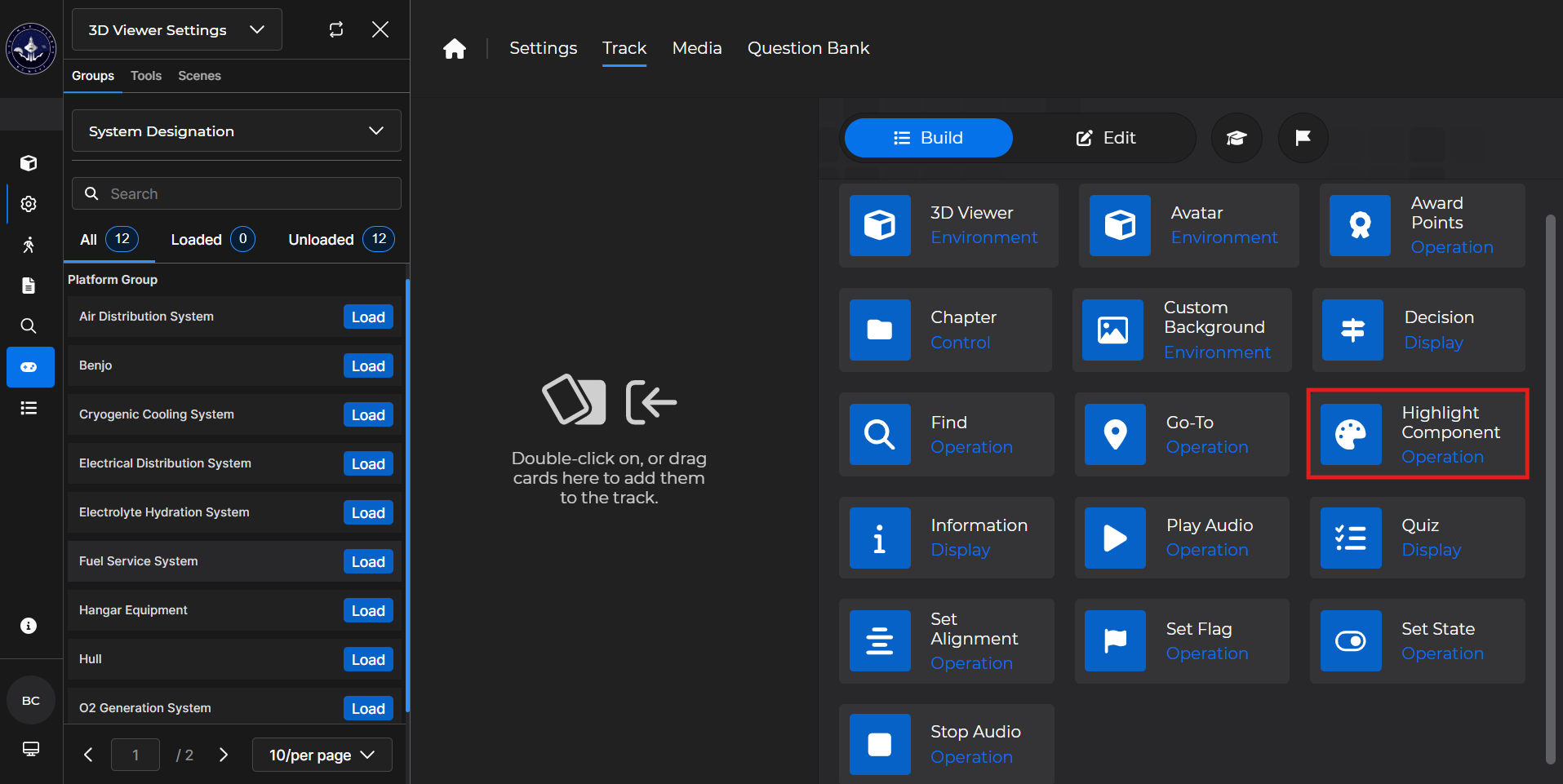
Highlight Component cards allow you to highlight one or more components in the active environment.
Building the Card
To add the card to the lesson track:
Left click and drag the card to the track
OR double click the card to add automatically
.gif)
To begin editing:
Left click the card on the track and then left click

OR double left click the card on the track to open editing automatically
.gif)
In the editing window, you can:
Clear any existing highlights
These come from any previously added Highlight Component cards in the lesson
Change the highlight color
Search for the component(s) you want to highlight
.gif)
Highlight Component Card - Use Case
One popular use of a Highlight Component card is to highlight desired components that a user can learn more about. Then, the learner can decide which component to direct their attention to.
Example: Follow the steps below to set up a section of a lesson where a learner chooses three highlighted components to learn more about:
Start with a Chapter card.
Set appropriate exit conditions
Add a 3D Viewer card and ensure that the system containing the desired components is toggled on.
Add a Highlight Component card.
Set the desired highlight color
Search for the desired components
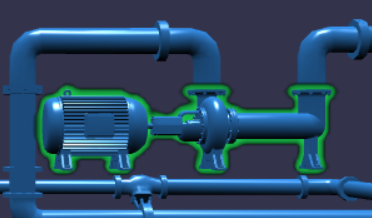
The highlight will resemble the following depending on your selections:
Add a Decision card.
Edit the prompt, response text, flags, conditions, and values
Add a Chapter card for the first Decision card choice.
Set appropriate entry and completion conditions
Add an Information card for the first Decision card choice.
Add a Chapter card for the second Decision card choice.
Set appropriate entry and completion conditions
Add an Information card for the second Decision card choice.
Add a Chapter card for the third Decision card choice.
Set appropriate entry and completion conditions
Add an Information Card for the third Decision card choice.
Continue with the rest of the lesson.
.gif)
NOTE
See the following cards for more information: