Use Play Audio cards to to play an audio source in the background of your lesson.
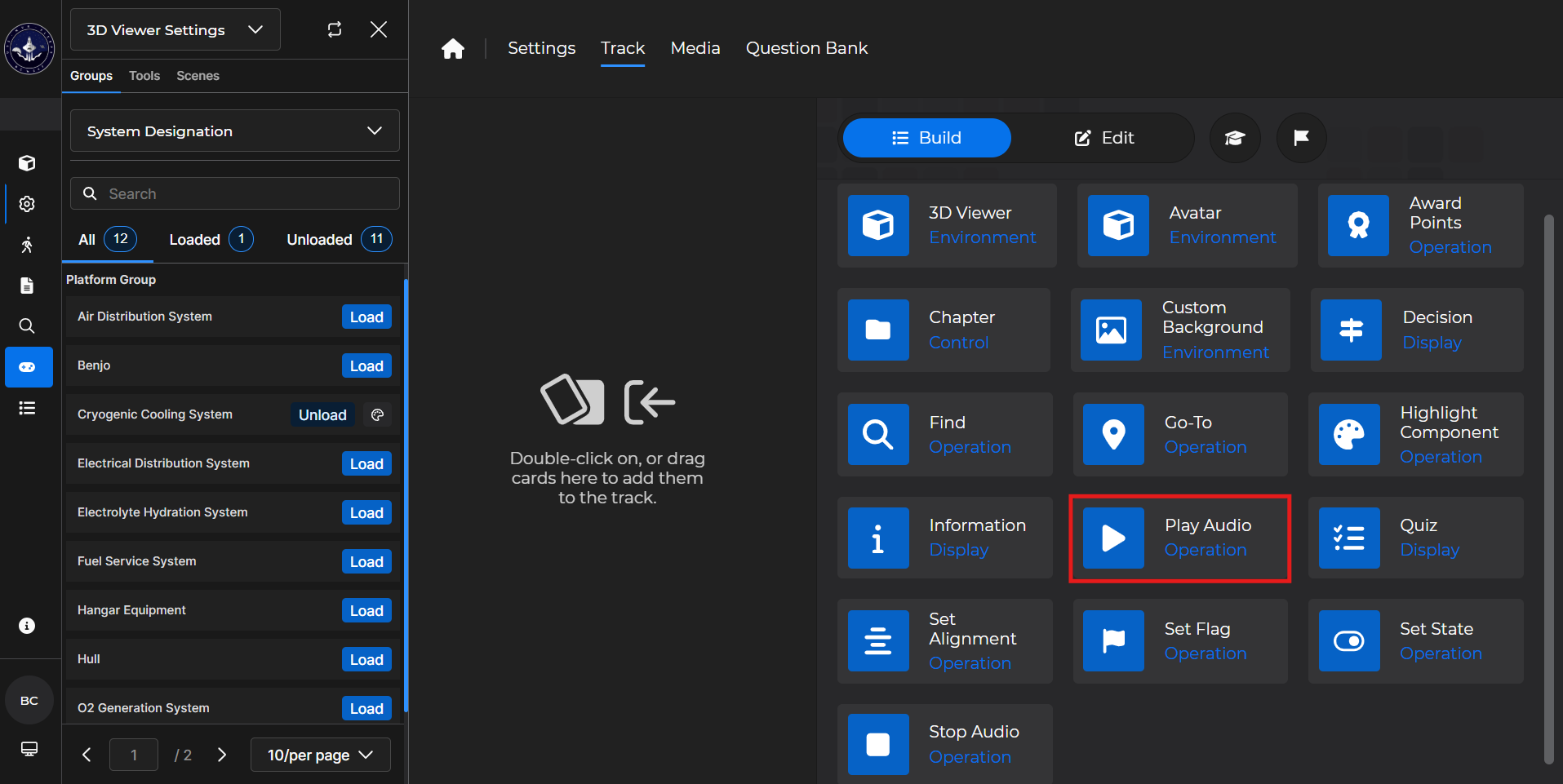
Building the Card
To add the card to the lesson track:
Left click and drag the card to the track
OR double click the card to add automatically
.gif)
To begin editing:
Left click the card on the track and then left click

OR double left click the card on the track to open editing automatically
.gif)
In the editing window, you can:
Choose an audio source
From either the existing media in the Media Tab, or directly from your machine
Optionally loop the audio
Choose which audio channel the desired audio uses
.gif)
Play Audio Card - Use Case
One popular use of a Play Audio card is to add relevant audio to a lesson to increase immersion.
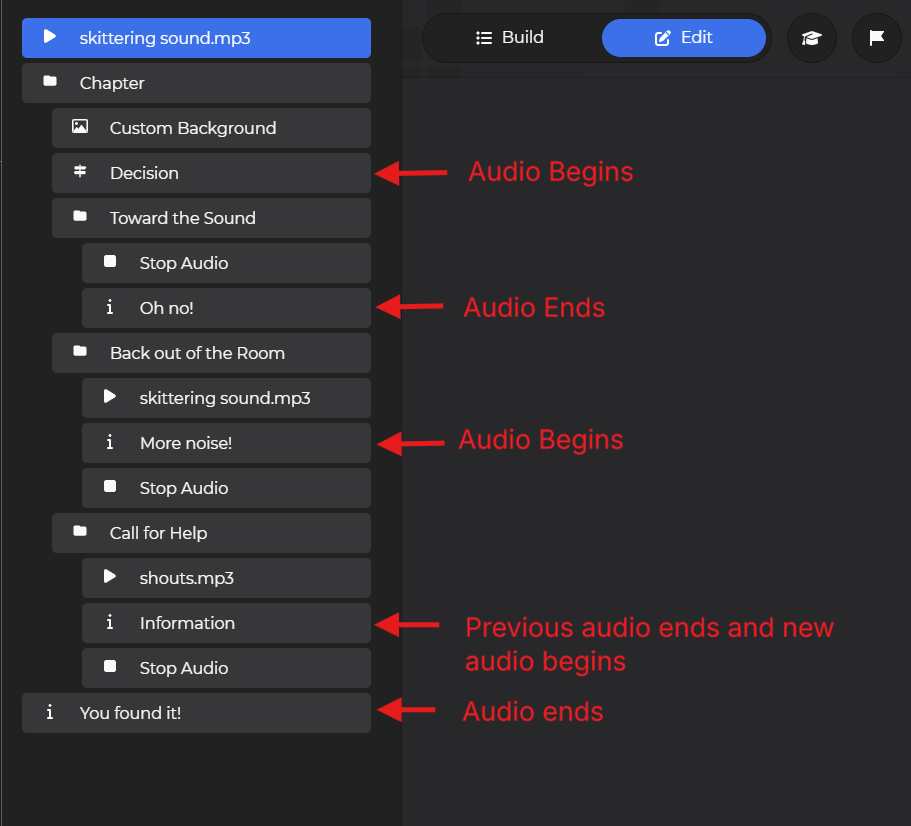
Example: Follow the steps below to set up a section of a lesson where a learner hears some noise and must decide what to do:
Start with the desired audio on the Play Audio card.
Add a Chapter card.
Add appropriate exit conditions
Add a Custom Background card to further increase immersion.
Add a Decision card.
Edit the prompt, response text, flags, conditions, and values
Add a Chapter card for the first Decision card choice.
Set appropriate entry and completion conditions
Repeat this step for each decision the learner can take
Add a Stop Audio card if you do not wish for the learner to continue to hear audio once they find the goal.
NOTE
Please see the following articles for more information: